EducationSoftwareStrategy.com
StrategyCommunity

Knowledge Base

Product

Community

Knowledge Base

TopicsBrowse ArticlesDeveloper Zone

Product

Download SoftwareProduct DocumentationSecurity Hub

Education

Tutorial VideosSolution GalleryEducation courses

Community

GuidelinesGrandmastersEvents
x_social-icon_white.svglinkedin_social-icon_white.svg
Strategy logoCommunity

© Strategy Inc. All Rights Reserved.

LegalTerms of UsePrivacy Policy
  1. Home
  2. Topics

KB20203: An attribute element list prompt does not show the full list of elements available in MicroStrategy Developer 9.x


Stefan Zepeda

Salesforce Solutions Architect • Strategy


This knowledge base article explains as to why the element list prompt does not show the full list of elements available in MicroStrategy Developer 9.x

SYMPTOM:
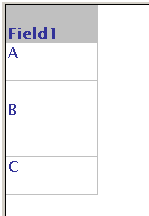
When a report containing only one attribute is executed, the full list of elements is successfully displayed as shown in the screenshot below.
 

ka0PW0000002rg9YAA_0EM440000002Ede.jpeg

 
When the attribute is included in an element list prompt, the list of elements appears to be incomplete with some elements repeated as shown in the screenshot below.
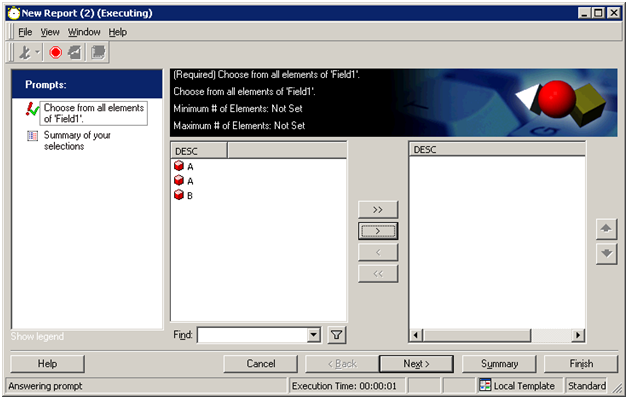
 

ka0PW0000002rg9YAA_0EM440000002Edc.jpeg

 
If the missing elements are searched, they can be found and added to the element selection
 

ka0PW0000002rg9YAA_0EM440000002Eda.jpeg

 
Browsing trough the element list directly from desktop shows the same behaivor as the prompt.
 

ka0PW0000002rg9YAA_0EM440000002Edf.jpeg

CAUSE:
Rows with the same ID have inconsistent description forms in the table used as the look up table for the attribute. This is a possible situation if the attribute ID and Description forms are mapped to a fact table as their primary look up table.
When populating a list of elements Strategy first executes a distinct count on the ID keys of the attribute. This returns the amount of elements available for selection. The ID is expected to be unique, by executing a distinct count the number of available elements will be retrieved.
In the example shown above the element list is populated in the background by the following SQL statements:


create table ZZTTP001LNXOT000 (WJXBFS1 LONG)

insert into ZZTTP001LNXOT000
select distinct a21. AS WJXBFS1
from a21

select count(*) AS WJXBFS1
from pa21

select a11. AS XXX, a11. AS YYY
from a11 order by 1 asc
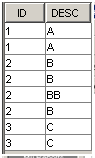
 

The first statements insert distinct elements, specifically the ID form of the attribute into a temporary table, then it executes a count of the elements. The number obtained in the amount of elements contained in the table, in the example the number of elements is 3. The last statement retrieves the ID and description forms. The element list displayed by the prompt and Strategy Desktop will show only 3 elements as it expects this number of elements in total. Strategy expects that ther is only one description form per ID.
 
Taking a look at the information stored in the database table we can see that rows with the same ID column hold different Descriptions.
 

ka0PW0000002rg9YAA_0EM440000002Edd.jpeg

 
ACTION:
 
A description form cannot be different across rows with the same ID. The table must be changed in such a way that the description is always the same for all the rows with the same ID. Strategy does not recommend using a fact table as the look up table of an attribute.
 
20203


Comment

0 comments

Details

Knowledge Article

Published:

April 7, 2017

Last Updated:

July 31, 2024