EducationSoftwareStrategy.com
StrategyCommunity

Knowledge Base

Product

Community

Knowledge Base

TopicsBrowse ArticlesDeveloper Zone

Product

Download SoftwareProduct DocumentationSecurity Hub

Education

Tutorial VideosSolution GalleryEducation courses

Community

GuidelinesGrandmastersEvents
x_social-icon_white.svglinkedin_social-icon_white.svg
Strategy logoCommunity

© Strategy Inc. All Rights Reserved.

LegalTerms of UsePrivacy Policy
  1. Home
  2. Topics

KB20270: How to format a percentage metric such that it does not display the percentage sign (%) in MicroStrategy Developer 9.4.1 and 10.x.


Stefan Zepeda

Salesforce Solutions Architect • Strategy


The percentage sign (%) is displayed by default whenever Percent format is selected for any metric. This functionality can be changed to not show percentage signs for metric values. 

SYMPTOM:
The percentage sign (%) is displayed by default whenever Percent format is selected for any metric. This functionality can be changed to not show percentage signs for metric values. 
ACTION:
To not display the percentage sign (%) for the metric values, follow the steps below:
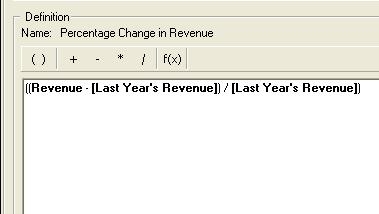
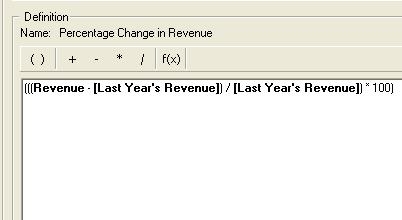
  • In Strategy Tutorial, create a metric named Percentage Change in Revenue that calculates the percentage change in revenue as compared to last year's revenue as shown below:
ka02R000000kZKjQAM_0EM440000002Ecq.jpeg
  •  
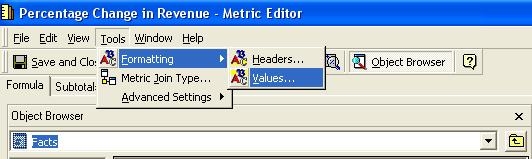
    Click on Tools in the menu, select Formatting and then click on Values.
     
ka02R000000kZKjQAM_0EM440000002Ed5.jpeg
  •  
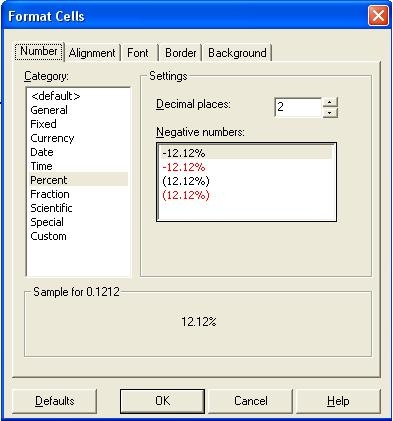
    In the Format Cells window, click on Numbers tab and select Percent under the Category section.
     
ka02R000000kZKjQAM_0EM440000002Ecp.jpeg
  •  
    Click OK and then Save and Close.
     
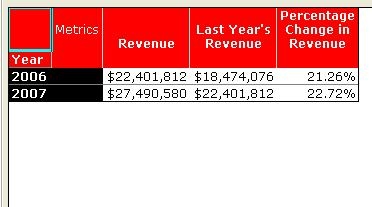
  • Create a report named Year Revenue Report with Year attribute on the row and Revenue, Last Year's Revenue & Percentage Change in Revenue metrics on the column and run it as shown below:
ka02R000000kZKjQAM_0EM440000002Ecs.jpeg
  •  
    Notice that the percentage sign (%) is displayed with the values under the Percentage Change in Revenue metric.
     
  • Open the Percentage Change in Revenue metric in the metric editor and multiply the metric definition by 100 as shown below:
ka02R000000kZKjQAM_0EM440000002Ed7.jpeg
  •  
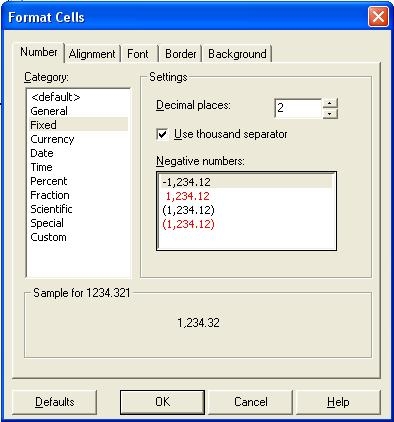
    Then, click on Tools in the menu, select Formatting and then click on Values. In the Format Cells window, click on Numbers tab and select Fixed under the Category section as shown below:
     
ka02R000000kZKjQAM_0EM440000002Ecw.jpeg
  •  
    Click OK and then Save and Close.
     
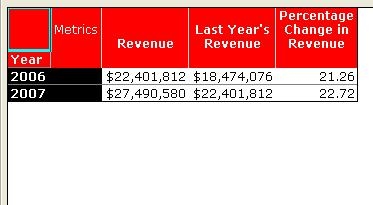
  • Run Year Revenue Report report. The percentage sign (%) is not displayed anymore with the values under the Percentage Change in Revenue metric.
ka02R000000kZKjQAM_0EM440000002Eco.jpeg

Comment

0 comments

Details

Knowledge Article

Published:

June 16, 2017

Last Updated:

June 16, 2017