EducationSoftwareStrategy.com
StrategyCommunity

Knowledge Base

Product

Community

Knowledge Base

TopicsBrowse ArticlesDeveloper Zone

Product

Download SoftwareProduct DocumentationSecurity Hub

Education

Tutorial VideosSolution GalleryEducation courses

Community

GuidelinesGrandmastersEvents
x_social-icon_white.svglinkedin_social-icon_white.svg
Strategy logoCommunity

© Strategy Inc. All Rights Reserved.

LegalTerms of UsePrivacy Policy
  1. Home
  2. Topics

KB20305: What is the default drill behavior when a drill map with a drill path to a template is associated with a report in MicroStrategy Developer


Stefan Zepeda

Salesforce Solutions Architect • Strategy


What is the default drill behavior when a drill map with a drill path to a template is associated with a report in MicroStrategy Developer

When a drill map with a template as a drill path is associated with a report in Strategy Developer, the drill to template option will show up for all the metric data on the report only. It would not be automatically applied to attributes by default, unless otherwise specified.
 
STEPS TO REPRODUCE:

  • Create a template with Customer, Customer Age, Customer City and Income Bracket in the rows. Save this template as Customer Details Template.
ka02R000000kbzoQAA_0EM440000002EcN.jpeg
  • Create a report with Customer in the rows and Profit & Revenue metrics in the column. Save this report as Customer Profit and Revenue Report.
ka02R000000kbzoQAA_0EM440000002Ece.jpeg
  • Create a drill map in the appropriate folder by right clicking and selecting New ' Drill Map, as shown below:
ka02R000000kbzoQAA_0EM440000002EcL.jpeg
  •  
    In the Drill Map Editor that opens, click on the Template button. This will open a Select Destination Object window. Choose the Customer Details Template which was created in Step 1 as shown below:
     
ka02R000000kbzoQAA_0EM440000002EcW.jpeg
  • Now, click on the Associate with button. This will open a Drill Map Association window. Choose the Customer Profit and Revenue Report which was created in Step 2 and do not select any check boxes i.e. keep the defaults as shown below:
ka02R000000kbzoQAA_0EM440000002Ecg.jpeg
  •  
    Click OK and then click Save and Close.
     
  • Run the Customer Profit and Revenue Report and right click on any metric value. The user would be able to access the template drill map created above:
ka02R000000kbzoQAA_0EM440000002EcM.jpeg
  •  
    But if the user right clicks on any attribute value, the same drill map is not accessible:
     
ka02R000000kbzoQAA_0EM440000002Ecf.jpeg
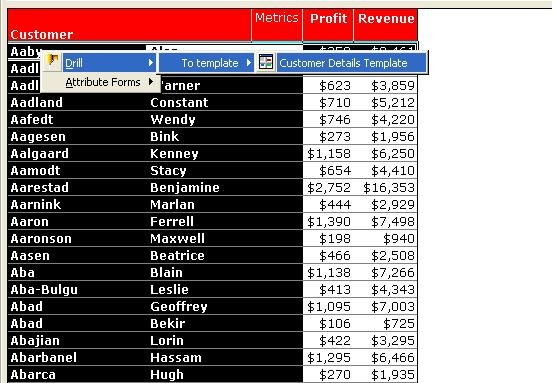
  • Edit the drill map created above and click on the Associate with button. This will open the Drill Map Association window again. Select all the check boxes under Customer Profit and Revenue Report as shown below:
ka02R000000kbzoQAA_0EM440000002EcX.jpeg
  • Run the Customer Profit and Revenue Report again and right click on any attribute value. The user would be able to access the same drill map here also as in metric values:
ka02R000000kbzoQAA_0EM440000002EcO.jpeg

Comment

0 comments

Details

Knowledge Article

Published:

June 2, 2017

Last Updated:

June 2, 2017