The following scenario demonstrates how to add a new font-size to the text formatting editor in Strategy Web, that is not available out-of-the-box. Using the Strategy Web SDK, a custom font size can be added to the environment.
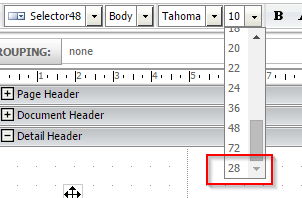
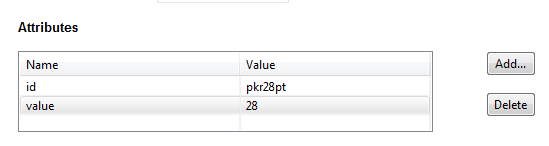
Follow these steps to add a custom font size:
The example provided in this document is provided “as-is” and user has read the following customization warning:
ADDITIONAL INFORMATION:
The Strategy SDK allows you to customize several Strategy products and extend and integrate the Strategy business intelligence functionality into other applications. However, before changing the way Strategy products look or behave, it is helpful to understand how the application is built. For more information regarding the Strategy products or the process of customizing Strategy products, please refer to Strategy Developer Zone (https://developer.microstrategy.com).
To access the Strategy Developer Zone, you must have access to the Strategy Knowledge Base, you must have purchased the Strategy SDK, and you must be current on your Strategy maintenance agreement. If you are a US-based business and believe that you satisfy all three of these conditions but you do not have access to the Strategy Developer Zone, please contact Strategy Technical Support at support@microstrategy.com or at (703) 848-8700. If you are an international business, please contact Strategy Technical Support at the appropriate email address or phone number found at https://www.microstrategy.com/us/services/support/contact.
CUSTOMIZATION WARNING:
This customization is provided as a convenience to Strategy users and is only directly applicable to the version stated. While this code may apply to other releases directly, Strategy Technical Support makes no guarantees that the code provided will apply to any future or previous builds. In the event of a code change in future builds, Strategy Technical Support makes no guarantee that an updated version of this particular customization will be provided. In the event of a code change in future builds, Strategy may not be able to provide additional code on this matter even though this customization is provided at this time for this specific build. For enhancements to this customization or to incorporate similar functionality into other versions, contact your Account Executive to inquire about Strategy Consulting assistance.
