SUMMARY: When a user navigates through folders and/or runs a report/document, the project name is not shown on the Path section of the Strategy Web interface. However, it can be added using Strategy Web SDK 9.4.x as shown below:

Follow these steps to add the project name to the Path section of the web interface:
<tr>
  <td class="mstrPathTDLeft"><%-- Display the path section --%>
  <div class="mstrPathContainer"><web:ifFeature name="!mobile-server">
   <web:then>
    <web:displayGuiComponent name="pathBean" />
   </web:then>
   <web:else>
    <div class="mstrPathText"><span class="mstrPathLast"><web:descriptor
     key="mstrWeb.1142" desc="About" /></span></div>
   </web:else>
  </web:ifFeature><jsp:include page='/plugins/_Interface/jsp/Logo.jsp' flush="true" /></div>
  </td>
  <web:ifConnectionValue><web:then>
  <web:ifBeanValue property="getName" value="search"> <web:else>
  <td><web:ifFeature name="dhtml">
   <web:then>
    <%-- Search Box section --%>
    <jsp:include page='/jsp/SearchSuggest_Content.jsp' flush="true" />
   </web:then>
   <web:else>
    <web:quickSearch />
   </web:else>
  </web:ifFeature></td>
  </web:else></web:ifBeanValue>
  </web:then></web:ifConnectionValue>
  <td>
  <%-- Render a hyperlink to the Online Help. --%> <span
   class="mstrHelpShortcut"><web:resource type="helpUser" /></span></td>
 </tr>
<tr>
  <td class="mstrPathTDLeft"><%-- Display the path section --%>
  <div class="mstrPathContainer"><web:ifFeature name="!mobile-server">
   <web:then>
    <web:displayGuiComponent name="pathBean" />
   </web:then>
   <web:else>
    <div class="mstrPathText"><span class="mstrPathLast"><web:descriptor
     key="mstrWeb.1142" desc="About" /></span></div>
   </web:else>
  </web:ifFeature>
   <jsp:include page='/plugins/_Interface/jsp/Logo.jsp' flush="true" /></div>
  </td>
  <web:ifConnectionValue><web:then>
  <web:ifBeanValue property="getName" value="search"> <web:else>
  <td align="right"> <span style="font-weight: bold;"><web:connectionValue property="projectName"/> </span> </td>


  </web:else></web:ifBeanValue>
  </web:then></web:ifConnectionValue>

 </tr>
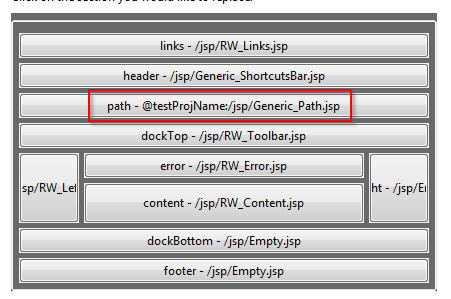
ADDITIONAL INFORMATION:
The Strategy SDK allows you to customize the standard Strategy Web interface, and extend and integrate the Strategy business intelligence functionality into other applications. However, before changing the way Strategy Web products look or behave, it is helpful to understand how the application is built. For more information regarding the Strategy Web architecture or the process of customizing Strategy Web, please refer to Strategy Developer Zone (https://resource.microstrategy.com/msdz/).
Customization Warning:
This customization is provided as a convenience to Strategy users and is only directly applicable to the version stated. While this code may apply to other releases directly, Strategy Technical Support makes no guarantees that the code provided will apply to any future or previous builds. In the event of a code change in future builds, Strategy Technical Support makes no guarantee that an updated version of this particular customization will be provided. For enhancements to this customization or to incorporate similar functionality into other versions, contact your Account Executive to inquire about Strategy Consulting assistance.
