SYMPTOM:
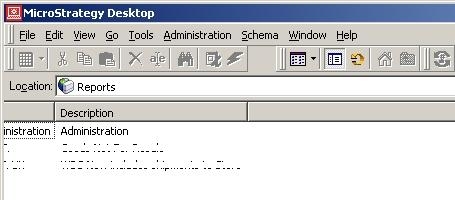
Users logging in to Strategy Developer notice an incomplete display of the project list, where the text appears shifted to the left and no horizontal scroll bar is available, as shown below (notice how half of the word 'Administration' is missing):
STEPS TO REPRODUCE:
Checking and unchecking the View Menu options 'Folder List' and 'Shortcut Bar' reveals that the misalignment is caused by the 'Folder List' left pane, as shown below:
Shortcut Bar and Folder List selected:

An incorrect layout is displayed:
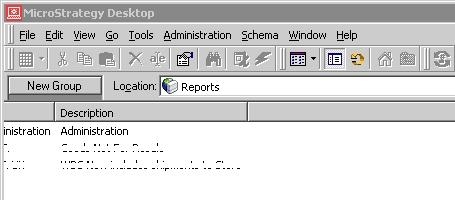
Then Folder List is unchecked:

A correct display of Shortcut Bar and project list is displayed:

Reinstalling Strategy Developer on the local machine has no effect on this issue.
CAUSE:
The cause of this issue is the main window,shortcut bar and folder list are overlapped.
ACTION: (Choose either actionA or actionB below.)
A
1.Drag Other Shortcuts to a larger size

2. Go to View--->Uncheck Shortcut Bar, the Folder list should be seen now.
3. Drag the folder list to a larger size, check Shortcut Bar and drag to a normal size.
B:
1.Close Developer
2.Go to Registry Key , locate HKEY_CURRENT_USER\Software\MicroStrategy\DSS Agent\DSS Agent, find key "SplitterPos", change the value to any value around 7000.
3.Reopen Developer
