EducationSoftwareStrategy.com
StrategyCommunity

Knowledge Base

Product

Community

Knowledge Base

TopicsBrowse ArticlesDeveloper Zone

Product

Download SoftwareProduct DocumentationSecurity Hub

Education

Tutorial VideosSolution GalleryEducation courses

Community

GuidelinesGrandmastersEvents
x_social-icon_white.svglinkedin_social-icon_white.svg
Strategy logoCommunity

© Strategy Inc. All Rights Reserved.

LegalTerms of UsePrivacy Policy
  1. Home
  2. Topics

KB20425: How to enable caching for prompted reports in MicroStrategy


Community Admin

• Strategy


Prompted report caches can only be created or used for a project if the 'Enable caching for prompted reports and documents' check box is selected. Generally this option is checked by default.

Prompted report caches can only be created or used for a project if the 'Enable caching for prompted reports and documents' check box is selected. Generally this option is checked by default.
 
Users can follow the below steps to enable caching for prompted reports:
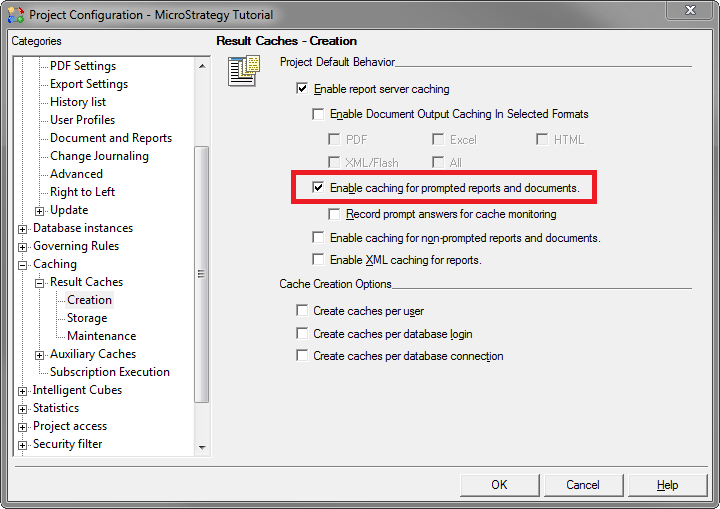
 

  1. Right click on the project and open the Project Configuration editor.
  2. Navigate to Caching > Result Caches > Creation.
  3. Make sure that the "Enable report server caching" is checked.
  4. Check the box that says "Enable caching for prompted reports and documents". If only 'Enable report server caching' is checked, prompted reports will not be cached.
  5. Click OK.
ka0PW0000000wC5YAI_0EM440000002EbX.png

 
Note: After executing a prompted report, a cache file will be generated. However if the report is saved, the report version will change, resulting in the cache file becoming invalidated. In order to maintain a valid cache for prompted reports, users should exit out of the report without saving it. This applies to saving the report as STATIC or PROMPTED.
This issue has been logged as Scopus ID: 397834 and KB ID: 17632


Comment

0 comments

Details

Knowledge Article

Published:

April 19, 2017

Last Updated:

February 26, 2024