EducationSoftwareStrategy.com
StrategyCommunity

Knowledge Base

Product

Community

Knowledge Base

TopicsBrowse ArticlesDeveloper Zone

Product

Download SoftwareProduct DocumentationSecurity Hub

Education

Tutorial VideosSolution GalleryEducation courses

Community

GuidelinesGrandmastersEvents
x_social-icon_white.svglinkedin_social-icon_white.svg
Strategy logoCommunity

© Strategy Inc. All Rights Reserved.

LegalTerms of UsePrivacy Policy
  1. Home
  2. Topics

KB20459: How to update a MicroStrategy 8.x metadata residing on a Microsoft Access database to MicroStrategy version 9.x


Community Admin

• Strategy


This article describes how to update a MicroStrategy 8.x metadata residing on a Microsoft Access database to MicroStrategy version 9.x.

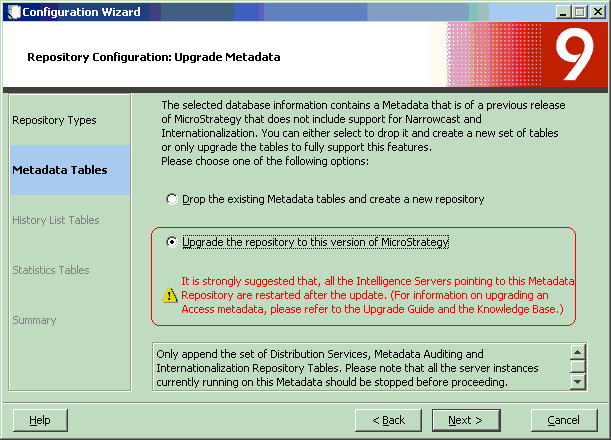
Strategy 8.x metadata comprises 10 tables. Additional tables are added to the metadata in Strategy 9.x and additional columns are added to existing metadata tables to facilitate support for Internationalization, Metadata Auditing and Distribution Services. The Strategy configuration wizard is used to upgrade the metadata from 8.x to 9.x. The following screenshot displays this interface:
 

ka04W00000148YeQAI_0EM440000002Ec3.gif

 
If the metadata resides on a Microsoft Access database, the following additional steps need to be performed before the upgrade:
 

  • Open the ODBC Data Source Administrator to modify the Microsoft Access ODBC Data Source Name (DSN). In Windows 64 bit, the 32 bit ODBC Data Source Administrator should be used. It is located under C:\Windows\syswow64\odbcad32.exe.
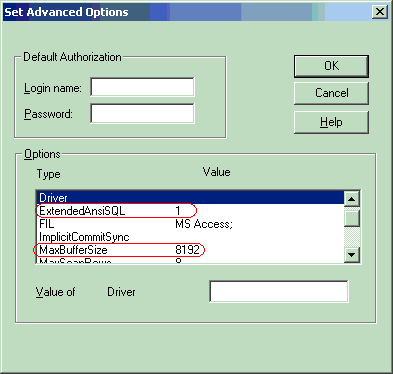
  • Set the following parameters:
    • 'ExtendedAnsiSQL' value to 1
    • 'MaxBufferSize' value to 8192
  • These parameters are located in the 'Set Advanced Options' interface of the Microsoft Access DSN (click on the 'Advanced' button in the DSN to get to this interface), as shown on the screenshot below:
     
ka04W00000148YeQAI_0EM440000002Ec5.gif
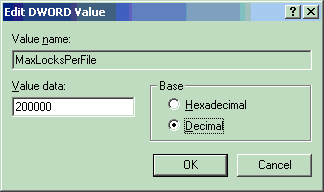
  • In the registry, set the value of the 'MaxLocksPerFile' under HKEY_LOCAL_MACHINE\SOFTWARE\Microsoft\Jet\4.0\Engines\Jet 4.0 to 200000 (decimal), as shown on the screenshot below:
ka04W00000148YeQAI_0EM440000002Ec9.gif
  •  
    For Windows 64-bit, the path to the value is:
    HKEY_LOCAL_MACHINE\SOFTWARE\Wow6432Node\Microsoft\Jet\4.0\Engines\Jet 4.0 

NOTE: The Strategy Tutorial and the Strategy BI Developer Kit metadatas that come shipped as Microsoft Access files with Strategy 9.x already contain the DSN modifications mentioned above.
 
Third Party Software Installation:
WARNING:
The third-party product(s) discussed in this technical note is manufactured by vendors independent of Strategy. Strategy makes no warranty, express, implied or otherwise, regarding this product, including its performance or reliability.


Comment

0 comments

Details

Knowledge Article

Published:

June 1, 2017

Last Updated:

July 26, 2022