EducationSoftwareStrategy.com
StrategyCommunity

Knowledge Base

Product

Community

Knowledge Base

TopicsBrowse ArticlesDeveloper Zone

Product

Download SoftwareProduct DocumentationSecurity Hub

Education

Tutorial VideosSolution GalleryEducation courses

Community

GuidelinesGrandmastersEvents
x_social-icon_white.svglinkedin_social-icon_white.svg
Strategy logoCommunity

© Strategy Inc. All Rights Reserved.

LegalTerms of UsePrivacy Policy
  1. Home
  2. Topics

KB204930: How to add a CA signer certificate to the WebSphere Application Server 8.5 Trust Store


Community Admin

• Strategy


Summary
This Technical Note explains how to add a root CA certificate to the default WebSphere 8.5 Trust Store. Adding certificates is necessary when configuring SSL communications between the Strategy Web Server and other servers like the Intelligence Server or the ARCGIS ESRI servers. 
How to add a CA signer certificate to the WebSphere Application Server v8.5

  • Access the WebSphere Application Server v8.5 Administrative Console typically in the following URL:
     
    
    http://localhost:9060/ibm/console

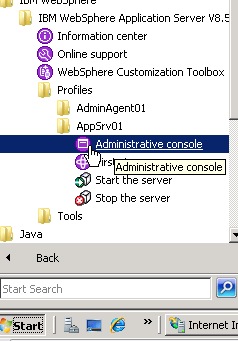
    In Windows Environments the Administrative Console is usually accessible through the WebSphere Installation in the Windows Start menu as shown below:

ka04W00000148KvQAI_0EM440000002My8.jpeg
  • In the administrative console access the following from the left menu:
    Security > SSL certificate and key management
     
  • In the new panel, select Key Stores and Certificates from the Related Items menu.
     
  • In the new panel, select All in the KeyStore usages dropbox.
     
  • Select NodeDefaultTrustStore from the resources list. Note: In multiple node environments, select the desired Node Trust Store.
     
  • In the new panel, select Signer Certificates on the Additional Properties menu located in the right hand side.
     
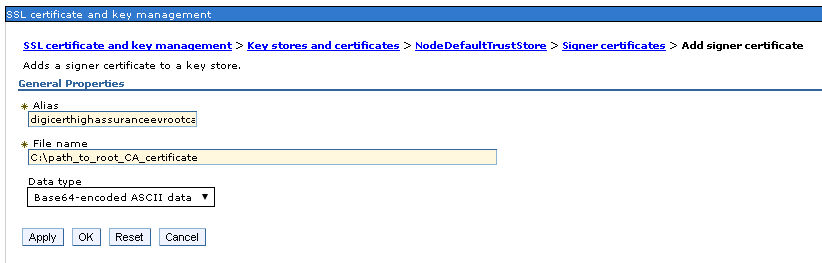
  • In the new panel, select Add to add an entry to the Trust Store.
     
  • Fill the necessary information, the following example shows the information needed to add the certificate to communicate with the ARCGIS ESRI Servers:

ka04W00000148KvQAI_0EM440000002MyF.jpeg
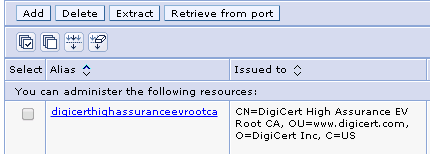
  • Click Ok and Save to the Master Configuration. The certificate should now be listed in the signer certificates list:

ka04W00000148KvQAI_0EM440000002MyD.jpeg
  • Restart the Server.

Comment

0 comments

Details

Knowledge Article

Published:

September 28, 2017

Last Updated:

September 28, 2017