EducationSoftwareStrategy.com
StrategyCommunity

Knowledge Base

Product

Community

Knowledge Base

TopicsBrowse ArticlesDeveloper Zone

Product

Download SoftwareProduct DocumentationSecurity Hub

Education

Tutorial VideosSolution GalleryEducation courses

Community

GuidelinesGrandmastersEvents
x_social-icon_white.svglinkedin_social-icon_white.svg
Strategy logoCommunity

© Strategy Inc. All Rights Reserved.

LegalTerms of UsePrivacy Policy
  1. Home
  2. Topics

KB20520: Percent to Total metric calculates the grand total according to the values reflected on the report instead of the grand total according to the warehouse when a ranking set qualification is applied


Stefan Zepeda

Salesforce Solutions Architect • Strategy


This article describes how Percent to Total metric calculates the grand total according to the values reflected on the report instead of the grand total according to the warehouse when a ranking set qualification is applied

SYMPTOM:
When creating a Percent to Total metric with a set qualification of a Rank of top 10 applied, the metric will calculate values according to what is reflected on the report, instead of the grand total of the warehouse values.
 
The image on the top is calculating the Top 10 values for Revenue. The image on the bottom is calculating the total revenue with no set qualification applied.
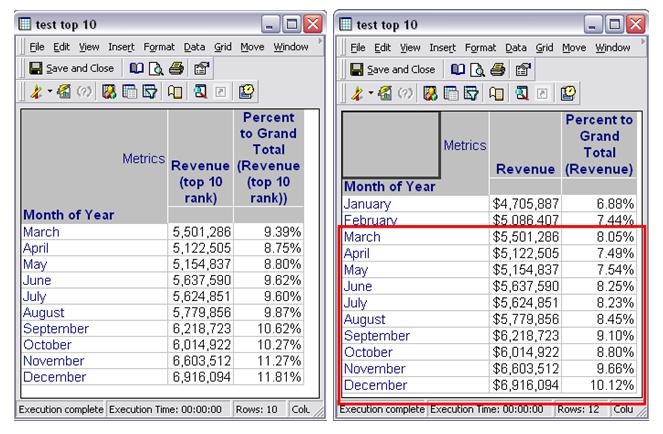
 

ka02R000000kXcCQAU_0EM440000002EZy.jpeg

CAUSE:
The Percent to Total metric is a derived metric which will only calculate to the values which have already been brought back from the warehouse. This is working by design.
 
ACTION:
Users may find that they want the Percent to Total metric to calculate all values in the warehouse instead of just want is present on the report. To do so, please use the following steps.
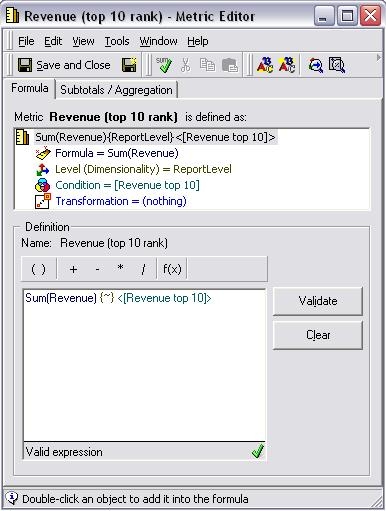
 

  • Create a standalone metric that calculates the Top 10 Revenue values. The expression will be as follows:
ka02R000000kXcCQAU_0EM440000002EZs.jpeg
  • Sum(Revenue) {~} <>
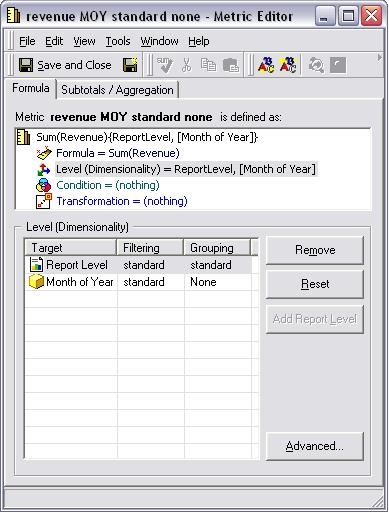
  • Create a new standalone metric which calculates the total revenue values, with the Report level enabled, as well as the Month of Year as a level, with standard filtering and no grouping. This metric will either need to be placed in the Report Objects window (with OLAP Services) or on the report:
ka02R000000kXcCQAU_0EM440000002EZp.jpeg
  • Sum(Revenue) {~, }
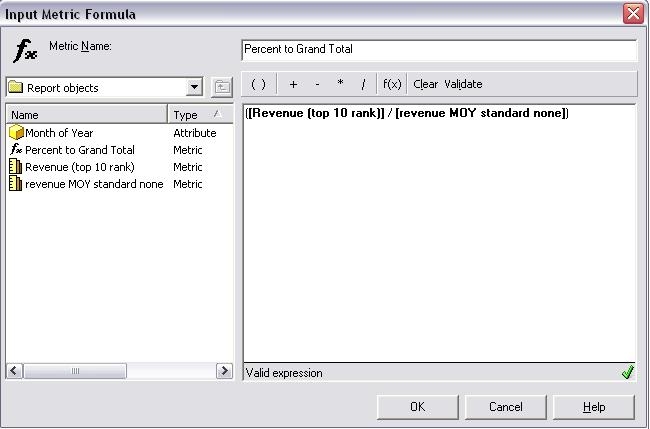
  • Create a Percent to Total metric, using the Revenue (Top 10) metric and the Total Revenue with the Month of Year level applied:
ka02R000000kXcCQAU_0EM440000002EZq.jpeg
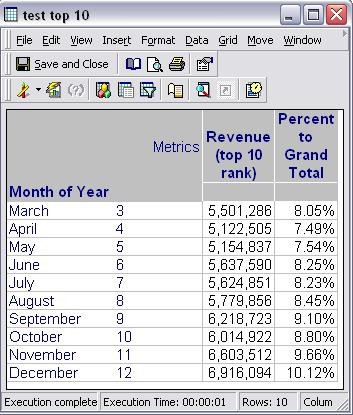
  • The report will then calculate the Percent to Grand Total for all values in the warehouse, instead of what is on the report, as show in the image below:
ka02R000000kXcCQAU_0EM440000002EZw.jpeg

Comment

0 comments

Details

Knowledge Article

Published:

June 14, 2017

Last Updated:

June 14, 2017