EducationSoftwareStrategy.com
StrategyCommunity

Knowledge Base

Product

Community

Knowledge Base

TopicsBrowse ArticlesDeveloper Zone

Product

Download SoftwareProduct DocumentationSecurity Hub

Education

Tutorial VideosSolution GalleryEducation courses

Community

GuidelinesGrandmastersEvents
x_social-icon_white.svglinkedin_social-icon_white.svg
Strategy logoCommunity

© Strategy Inc. All Rights Reserved.

LegalTerms of UsePrivacy Policy
  1. Home
  2. Topics

KB20536: How to set up collection of performance counters to Statistics Tables in MicroStrategy 9.x and 10.x?


Community Admin

• Strategy


How to set up collection of performance counters to Statistics Tables in MicroStrategy 9.x and 10.x?

Starting with Strategy Intelligence Server 9.x, a new statistics table IS_PERF_MON_STATS has been introduced to collect Strategy Performance Counters. 
 
The performance counters that can be logged to Statistics on Intelligence Servers running on Windows are a subset of the counters that can be logged from Intelligence Servers running on UNIX/LINUX operating systems.
 
On Strategy Intelligence Server running on Windows, only the following Category counters can be logged to Statistics: 

  1. Strategy Server Jobs
  2. Strategy Server Users

On Strategy Intelligence Server running on UNIX/Linux, the following Category counters can be logged to Statistics: 

  1. Strategy Server Jobs
  2. Strategy Server Users
  3. Memory
  4. System
  5. Process
  6. Processor
  7. Network Interface
  8. Physical Disk

To set up logging of performance counters to Statistics tables, follow the steps given below: 
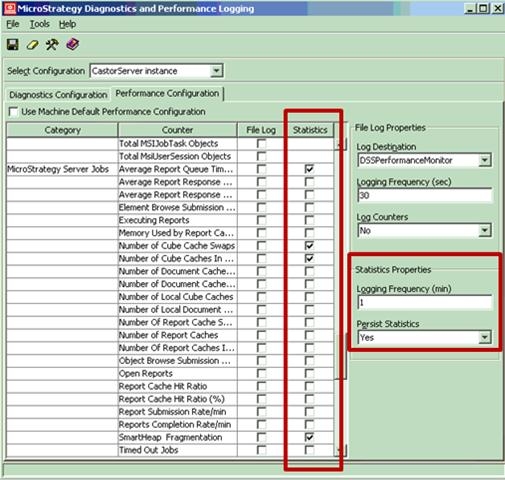
  • Open Strategy Diagnostics Configuration editor available under Strategy Tools.
  • Click on the 'Performance Configuration' tab.
  • Select 'CastorServer Instance' in the select configuration drop down.
  • Make sure that the checkbox 'Use Machine Default Configuration' is unchecked.
  • Under the Statistics column, check the boxes for the counters that need to be logged to Statistics.
  • Under 'Statistics Properties' on the right side, select the required logging frequency and set 'Persist Statistics' to 'Yes' as shown below.
ka04W000000OfGoQAK_0EM440000002B9X.jpeg
  • Save and close the diagnostics editor.
     

For steps on logging the performance counters to the statistics table via command line mode in Windows or Unix/Linux, refer to the following Strategy Knowledge Base Document below:

  • KB31909: How to log Strategy Intelligence Server 9.x and 10.x  performance counters to statistics via command line mode

Comment

0 comments

Details

Knowledge Article

Published:

May 4, 2017

Last Updated:

May 4, 2017