EducationSoftwareStrategy.com
StrategyCommunity

Knowledge Base

Product

Community

Knowledge Base

TopicsBrowse ArticlesDeveloper Zone

Product

Download SoftwareProduct DocumentationSecurity Hub

Education

Tutorial VideosSolution GalleryEducation courses

Community

GuidelinesGrandmastersEvents
x_social-icon_white.svglinkedin_social-icon_white.svg
Strategy logoCommunity

© Strategy Inc. All Rights Reserved.

LegalTerms of UsePrivacy Policy
  1. Home
  2. Topics

KB20560: “ORA-12514: TNS: Listener could not resolve SERVICE_NAME given in connect descriptor” error is given when opening a project source or browsing a project’s contents in MicroStrategy Developer 9.4.x - 10.x


Stefan Zepeda

Salesforce Solutions Architect • Strategy


This technical note describes an issue that occurs when opening a project source or browsing a project’s contents in MicroStrategy Developer 9.4.x - 10.x

SYMPTOM:
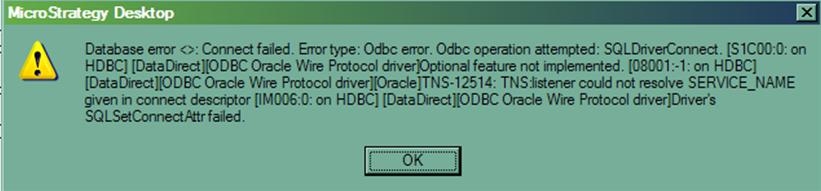
The user notices that when opening a project source and/or navigating through a project, such as browsing folder contents, the following error is given in Strategy Developer 9.4.x - 10.x:
 

ka02R000000kcOyQAI_0EM440000002EaC.jpeg


'Database error <>: Connect failed: Odbc error. Odbc operation attempted: SQLDriverConnect. Optional feature not implemented. TNS-12514: TNS: listener could not resolve SERVICE_NAME given in connect descriptor Driver's SQLSetConnectAttr failed.'

 

CAUSE:
One of the causes for this issue is that a change was made to the database being used by the ODBC driver in question, e.g. such as the host name or the port number; however the Strategy the ODBC driver configuration was not updated accordingly to reflect these changes.
 
In other words, a change was made on the database side, but the change was not made/updated on the Strategy ODBC driver configuration side, therefore, the ODBC driver configuration is not synchronized with what the database is actually using and ultimately when a connection is trying to be made to the database via ODBC, the call fails.
 
ACTION:
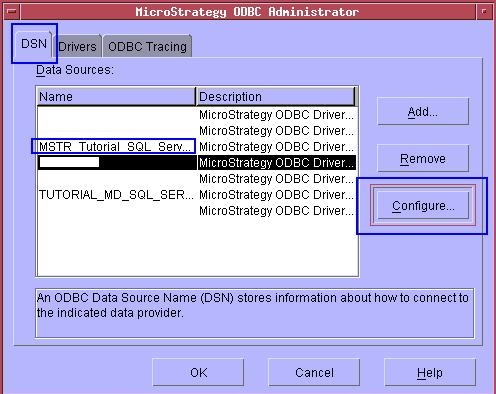
The user needs to verify and make the appropriate changes within Strategy to the ODBC driver configuration so that it reflects the latest/current settings that are being used by the database.
 

  • In Strategy Enterprise Edition this can be done by simply accessing the ODBC driver administrator from Windows (Start -> Control Panel -> Administrative Tools -> Data Sources (ODBC) -> System DSN), as shown below:
ka02R000000kcOyQAI_0EM440000002EaB.jpeg
  • In Strategy Universal Edition this can be done by checking the configuration parameters for the ODBC drivers directly within the odbc.ini file or by opening the Strategy ODBC Administrator, as shown below:
ka02R000000kcOyQAI_0EM440000002Ea4.jpeg

Once this is done no error will be thrown when opening the project source or browsing the contents of a project.
Note: It may be required to restart Strategy Intelligence Server for the changes to the ODBC driver configuration to take effect.


Comment

0 comments

Details

Knowledge Article

Published:

April 27, 2017

Last Updated:

April 27, 2017