EducationSoftwareStrategy.com
StrategyCommunity

Knowledge Base

Product

Community

Knowledge Base

TopicsBrowse ArticlesDeveloper Zone

Product

Download SoftwareProduct DocumentationSecurity Hub

Education

Tutorial VideosSolution GalleryEducation courses

Community

GuidelinesGrandmastersEvents
x_social-icon_white.svglinkedin_social-icon_white.svg
Strategy logoCommunity

© Strategy Inc. All Rights Reserved.

LegalTerms of UsePrivacy Policy
  1. Home
  2. Topics

KB20582: "Argument data type numeric is invalid for argument 2 of substring function." error message appears when attempting to use the SUBSTRING function against a Warehouse with MicroStrategy


Community Admin

• Strategy


This article notes an issue with SQL generation for metrics using substring in MicroStrategy

SYMPTOM:
 
Users receive an error message when attempting to use the SUBSTRING function against a SQL Server Warehouse.
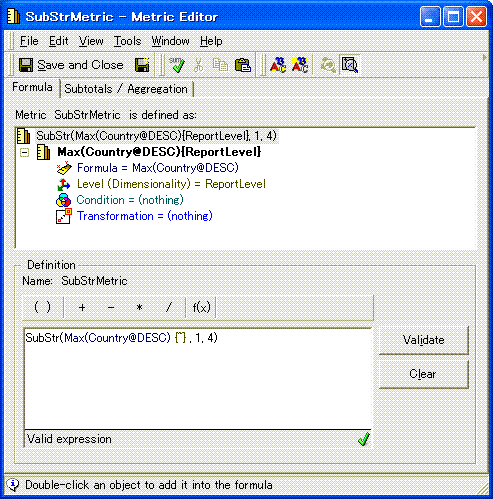
Consider the following metric definition that uses the SubStr function:
ka04W000000OfBJQA0_0EM440000002EbI.gif

Formula: SubStr(Max(Country@DESC) {~} , 1, 4)
Level: Report
Condition: Nothing
Transformation: Nothing
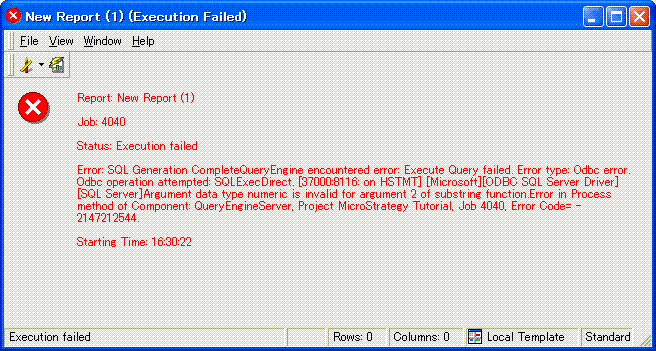
However, when using this metric on a report, users receive the following error message:
ka04W000000OfBJQA0_0EM440000002EbH.gif

Error: SQL Generation Complete
QueryEngine encountered error: Execute Query failed. Error type: Odbc error. Odbc operation attempted: SQLExecDirect. Argument data type numeric is invalid for argument 2 of substring function.
Error in Process method of Component: QueryEngineServer, Project Strategy Tutorial, Job 4040, Error Code= -2147212544.
ka04W000000OfBJQA0_0EM440000002EbL.gif

CAUSE:
 
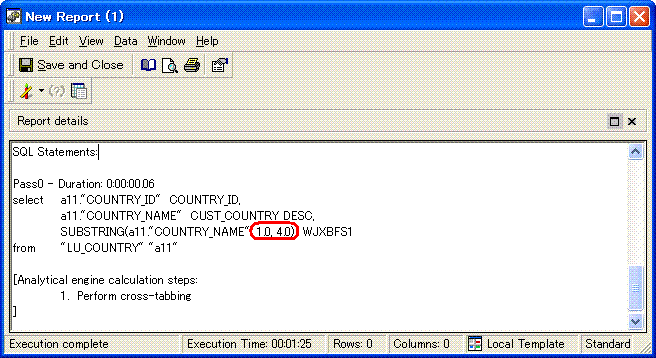
Notice in the SQL below (from the report above) that the precision of the SUBSTRING Metric has been changed from '1' to '1.0' and '4' to '4.0':
select a11."COUNTRY_ID" COUNTRY_ID,
a11."COUNTRY_NAME" CUST_COUNTRY_DESC,
SUBSTRING(a11."COUNTRY_NAME", 1.0, 4.0) WJXBFS1
from "LU_COUNTRY" "a11"
 
ACTION:
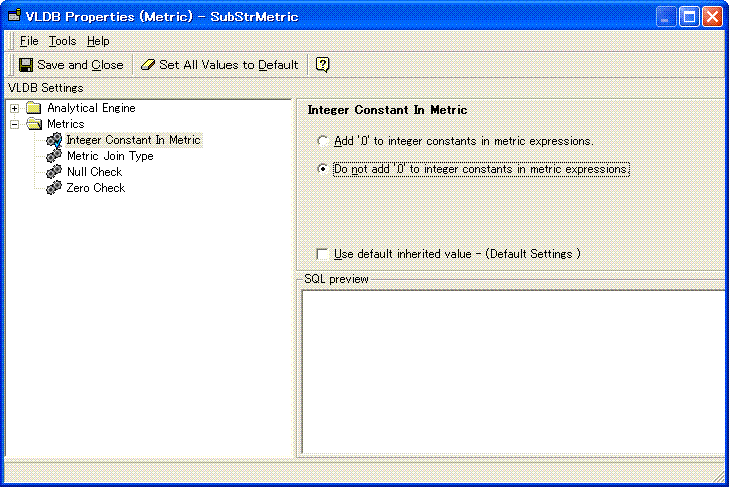
  • Open the Metric with SubStr function in the Metric Editor and go to Tools > Advanced Settings > VLDB Properties.
  • Expand the "Metrics" folder and click on the "Integer Constant in Metric" option.
  • Uncheck the "Use default inherited value" and click the bullet option titled "Do not add '.0' to integer constants in metric expressions" so that the SQL Engine does not use the extra .0 in the expression:
ka04W000000OfBJQA0_0EM440000002EbK.gif
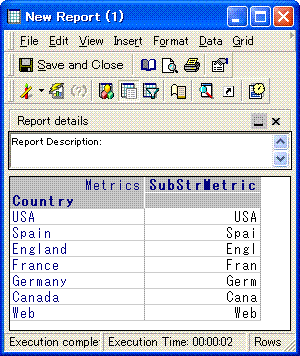
  • Re-execute the report and the correct results will be displayed:
ka04W000000OfBJQA0_0EM440000002EbG.gif


Comment

0 comments

Details

Knowledge Article

Published:

May 16, 2017

Last Updated:

May 16, 2017