EducationSoftwareStrategy.com
StrategyCommunity

Knowledge Base

Product

Community

Knowledge Base

TopicsBrowse ArticlesDeveloper Zone

Product

Download SoftwareProduct DocumentationSecurity Hub

Education

Tutorial VideosSolution GalleryEducation courses

Community

GuidelinesGrandmastersEvents
x_social-icon_white.svglinkedin_social-icon_white.svg
Strategy logoCommunity

© Strategy Inc. All Rights Reserved.

LegalTerms of UsePrivacy Policy
  1. Home
  2. Topics

KB20628: 'The underlying connection was closed: The remote name could not be resolved' or an HTTP 404 error message appears when accessing MicroStrategy Office 9.x or the MSTRWS.asmx file, respectively, after a new installation.


Community Admin

• Strategy


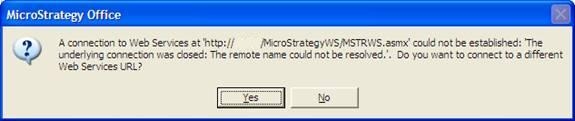
Users get the following error after installing MicroStrategy Office 9.x in IIS and trying to access it through a MicroSoft Office program, or the MicroStrategy Office Configuration GUI, from a client machine.

SYMPTOM
Users get the following error after installing Strategy Office 9.x in IIS and trying to access it through a MicroSoft Office program, or the Strategy Office Configuration GUI, from a client machine.
 

ka04W000000Ogt8QAC_0EM4400000028Q3.jpeg


A connection to Web Services at http://<server name>/StrategyWS/MSTRWS.asmx could not be established: 'The underlying connection was closed: The remote name could not be resolved.'. Do you want to connect to a different Web Services URL?
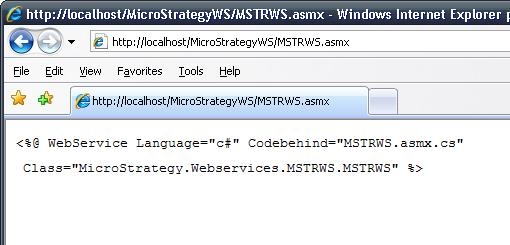
If the user goes to the machine where Strategy Web Services was installed, opens IIS to get to the StrategyWS virtual directory, and tries to browse on the MSTRWS.asmx file an error message will appear, like shown in the image below.
 

ka04W000000Ogt8QAC_0EM4400000028QK.jpeg


<%@ WebService Language="c#" Codebehind="MSTRWS.asmx.cs" Class="Strategy.Webservices.MSTRWS.MSTRWS" %>
Sometimes, the above error will not be displayed. Instead, just an HTTP 404 error message will appear.
 
CAUSE
The StrategyWS virtual directory does not have the .asmx extension configured in the properties.
 
ACTION
Follow these instructions to resolve the issue in IIS5 and IIS6.
For IIS 7, refer to:
https://technet.microsoft.com/en-us/library/cc754147(WS.10).aspx
 

  • Access IIS on the Web Services machine.
  • Right click on the StrategyWS virtual directory > Properties.
  • Click on the 'Configuration' button in the Virtual Directory tab.
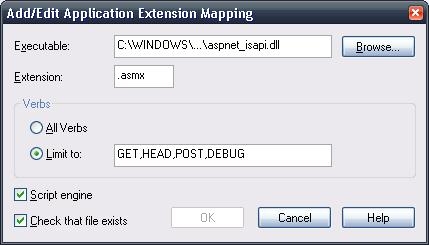
  • Click on the 'Add' button, the Browse
  • Find the aspnet_isapi.dll file located in C:\WINDOWS\Microsoft.NET\Framework\v2.0.50727\aspnet_isapi.dll and set it.
  • Set '.asmx' as the extension.
  • Limit to the following verbs: GET,HEAD,POST,DEBUG like shown in the image below.
ka04W000000Ogt8QAC_0EM4400000028Q1.jpeg
  • Click OK to accept the changes.
  • Restart IIS for the settings to take effect.
     

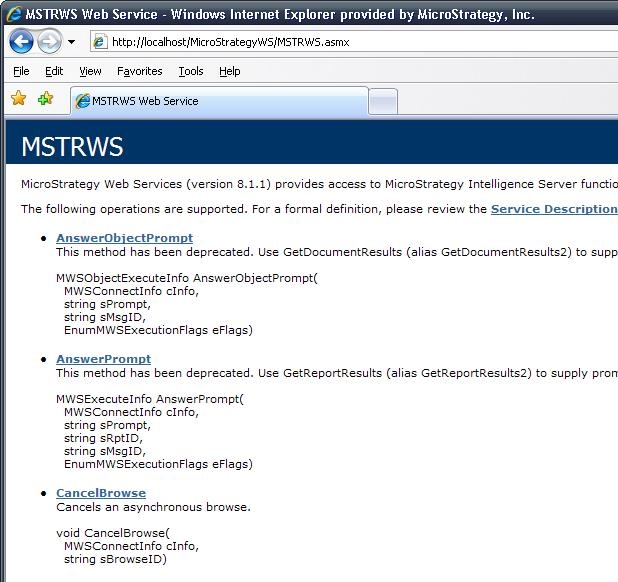
Now, when accessing the Web Services URL (http://localhost/StrategyWS/MSTRWS.asmx) the page should display as shown in the image below.
 

ka04W000000Ogt8QAC_0EM4400000028QI.jpeg


Comment

0 comments

Details

Knowledge Article

Published:

June 8, 2017

Last Updated:

June 8, 2017