EducationSoftwareStrategy.com
StrategyCommunity

Knowledge Base

Product

Community

Knowledge Base

TopicsBrowse ArticlesDeveloper Zone

Product

Download SoftwareProduct DocumentationSecurity Hub

Education

Tutorial VideosSolution GalleryEducation courses

Community

GuidelinesGrandmastersEvents
x_social-icon_white.svglinkedin_social-icon_white.svg
Strategy logoCommunity

© Strategy Inc. All Rights Reserved.

LegalTerms of UsePrivacy Policy
  1. Home
  2. Topics

KB20710: How to convert data stored in Julian Date format to regular date in an attribute form in MicroStrategy Developer


Stefan Zepeda

Salesforce Solutions Architect • Strategy


Article outline how to convert date stored in Julian date format to regular date in an attribute form in MicroStrategy Developer

In certain situations, dates are stored in Julian Date format in the data warehouse. Follow the next steps in Strategy Developer convert from Julian Date to regular date format in an attribute definition.
 
Follow the next steps to create an attribute form to convert the Julian Dates to standard date format
 

  • Edit the Julian Date attribute and create a new attribute form
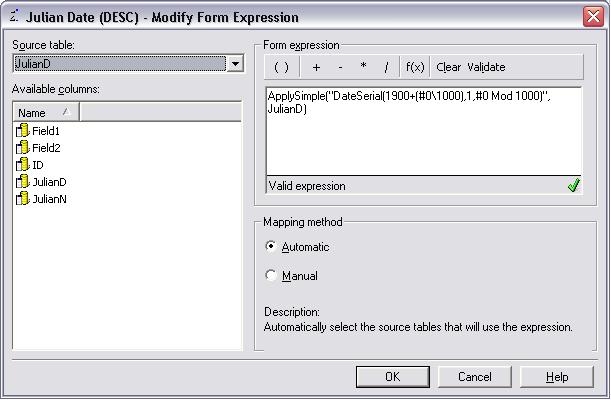
  • Define the new attribute form using an apply simple statement as shown below
ka02R000000kWnuQAE_0EM440000002EaH.jpeg
  •  
    ApplySimple("DateSerial(1900+(#0\1000),1,#0 Mod 1000)", )
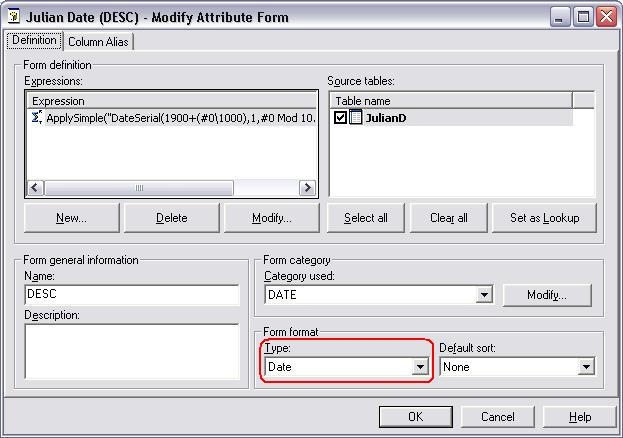
  • Under Form format, select 'Date' as shown in the image below
ka02R000000kWnuQAE_0EM440000002EZz.jpeg
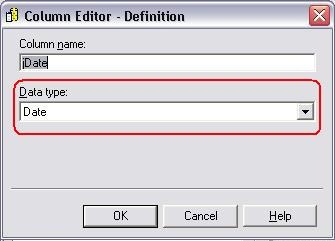
  • From the Column Alias tab, modify the column alias of the attribute form to reflect the expected date format.
ka02R000000kWnuQAE_0EM440000002Ea1.jpeg
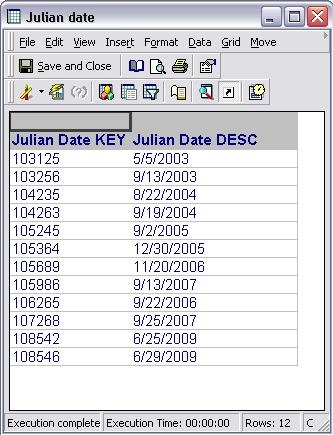
  • Create a report displaying both attribute forms to compare the outputs.
ka02R000000kWnuQAE_0EM440000002Ea0.jpeg

NOTE:
The ApplySimple statements given above are ACCESS specific. The same logic should apply for other databases, but the syntax will need to be changed.


Comment

0 comments

Details

Knowledge Article

Published:

June 22, 2017

Last Updated:

June 22, 2017