EducationSoftwareStrategy.com
StrategyCommunity

Knowledge Base

Product

Community

Knowledge Base

TopicsBrowse ArticlesDeveloper Zone

Product

Download SoftwareProduct DocumentationSecurity Hub

Education

Tutorial VideosSolution GalleryEducation courses

Community

GuidelinesGrandmastersEvents
x_social-icon_white.svglinkedin_social-icon_white.svg
Strategy logoCommunity

© Strategy Inc. All Rights Reserved.

LegalTerms of UsePrivacy Policy
  1. Home
  2. Topics

KB207544: Document Structure is removed after modifying a panel stack to have a null name in MicroStrategy Developer 9.x.


Stefan Zepeda

Salesforce Solutions Architect • Strategy


Document Structure is removed after modifying a panel stack to have a null name in MicroStrategy Developer 9.x.

SYMPTOM:
When creating a document in Strategy 9.x with null-titled panels, the Document Structure, which is normally visible after selecting “Property List” in the bottom left, is missing in Developer.  However, the Document Structure is visible in Web.  The screenshot below shows what the Document Structure section looks like once the document is reopened. 
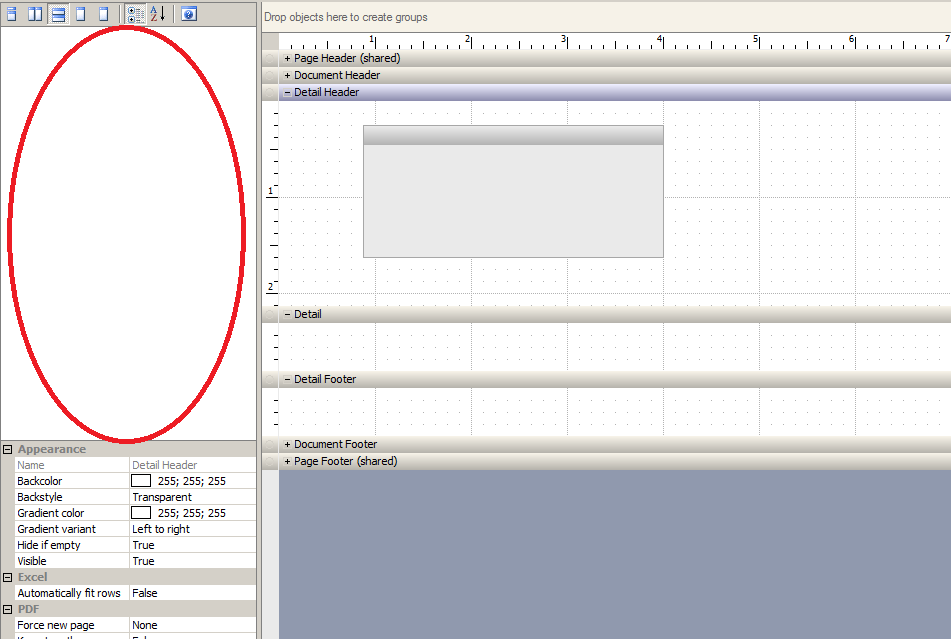
ka02R000000kYPyQAM_0EM440000002CEe.jpeg

 
STEPS TO REPRODUCE:

  • Create a new document in Developer and add a panel to the document.
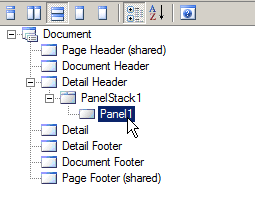
  • Click on "Property List" in the bottom left and navigate to the panel (Panel1) in the Document Structure
ka02R000000kYPyQAM_0EM440000002CEb.jpeg
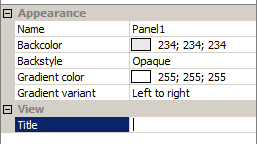
  • Under "View", delete the title (make sure there are no spaces left over).
ka02R000000kYPyQAM_0EM440000002CEa.jpeg
  • Save and close the document and notice once it is opened again in Design mode the document structure is not visible. 
     

CAUSE:
This is a known issue in Strategy Developer 9.x
 
ACTION:
Currently this issue is still being reviewed for feasibility by our Technology team and it is not scoped for any upcoming scheduled Strategy release.
 
WORKAROUND:
Follow the steps below to workaround the issue if it is already encountered.  
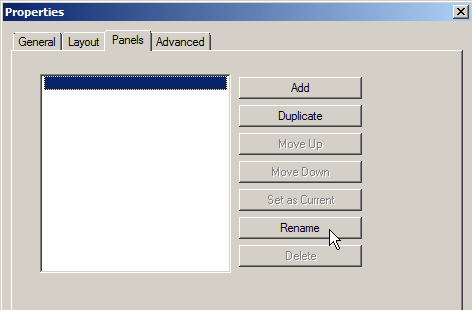
  • Check all panels for null-valued titles by right-clicking each panel and navigating to “Properties”
  • Click on the “Panels” tab and change any null-valued panel titles to a title with at least one character (something besides a space)
ka02R000000kYPyQAM_0EM440000002CEo.jpeg
  • Save and close and reopen the document.  The structure should reappear as expected.

 
Once the structure appears as expected, to get the appearance of a null-title do the following:

  1. Navigate to the desired panels by clicking on “Property List” in the bottom left and clicking through the Document Structure (step 3 from above).
  2. In the “View” section, rename the desired titles to a single “space” character

 
The Strategy Internal Reference Number for the issue discussed in this technical note is 534132.


Comment

0 comments

Details

Knowledge Article

Published:

June 8, 2017

Last Updated:

June 8, 2017