EducationSoftwareStrategy.com
StrategyCommunity

Knowledge Base

Product

Community

Knowledge Base

TopicsBrowse ArticlesDeveloper Zone

Product

Download SoftwareProduct DocumentationSecurity Hub

Education

Tutorial VideosSolution GalleryEducation courses

Community

GuidelinesGrandmastersEvents
x_social-icon_white.svglinkedin_social-icon_white.svg
Strategy logoCommunity

© Strategy Inc. All Rights Reserved.

LegalTerms of UsePrivacy Policy
  1. Home
  2. Topics

KB20768: How to create a hyperlink inside a Report Services Document that links to a parent prompted Report Services Document in MicroStrategy Web


Community Admin

• Strategy


A common requirement is to have a link in the second Report Services Document to return to the first report.

It is very common to have two Report Services Documents linked to each other using a URL API call. The URL API call is normally used to pass the prompt answers from the first report to the second Report Services Document. A common requirement is to have a link in the second Report Services Document to return to the first report. This technical note describes how to create this second link that will store the prompt answers for the first Report Services Document.
 
Follow these steps to create a hyperlink that uses URL API to simulate a the back button functionality to a parent Report Services Document containing a prompt:
 

  • Create a text value prompt.
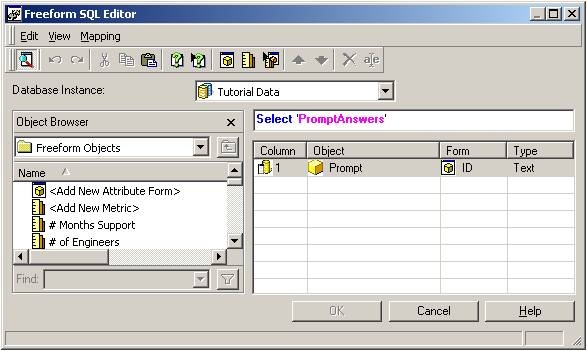
  • Use this value prompt inside a Free Form SQL report. The SQL statement will simply select the value of the prompt. Add an attribute form and make sure that the type is text.
ka04W000000OcyYQAS_0EM4400000028OY.jpeg
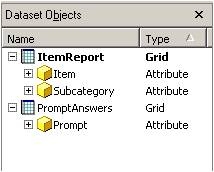
  • Add this Free Form SQL report as a dataset to the second Report Services Document.
  • Now the second Report Services Document will contain an extra data set that only contains one attribute. This new attribute will contain the prompt answers of the first Report Services Document.
ka04W000000OcyYQAS_0EM4400000028Oa.jpeg
  • Create a link that will point to the first Report Services Document in the second Report Services Document. This link will point to the first Report Services Document and will contain the parameter "promptsAnswerXML". The value for this parameter is going to come from the attribute in the Free Form SQL report. This is an example:
    http://webserver/MicroStrategy/asp/Main.aspx?Server=ISERVER&Project=Strategy+Tutorial&Port=0&evt=2048001&src=Main.aspx.2048001&visualizationMode=0&documentID=6C9D20564129F32E0403459D14476CD6&promptsAnswerXML={Prompt}
  • Modify the link in the first Report Services Document to include the information on how the user answered the prompts. We will need to add the "&valuePromptAnswers={&PROMPTXML}" to the end of the link. In this case the prompt in the second Report Services document is also a value prompt, so we pass the two answers separated by the character "^" as per documentation in the Strategy Developer Library.
    http://webserver/MicroStrategy/asp/Main.aspx?Server=ISERVER &Project=Strategy+Tutorial&Port=0&evt=2048001&src=Main.aspx.2048001&visualizationMode=0&documentID=A11382C3462A3AB8EEBBC7BD33DB047B&valuePromptAnswers={Subcategory}
  • To:
    http://webserver/MicroStrategy/asp/Main.aspx?Server=ISERVER&Project=Strategy+Tutorial&Port=0&evt=2048001&src=Main.aspx.2048001&visualizationMode=0&documentID=A11382C3462A3AB8EEBBC7BD33DB047B&valuePromptAnswers={Subcategory}&PROMPTXML}

These steps create a hyperlink that will store the prompt answers of the first Report Services Document so when the user click on this link the first Report Services Document will be answered the same way the user did it, the first time.


Comment

0 comments

Details

Knowledge Article

Published:

June 23, 2017

Last Updated:

June 23, 2017