EducationSoftwareStrategy.com
StrategyCommunity

Knowledge Base

Product

Community

Knowledge Base

TopicsBrowse ArticlesDeveloper Zone

Product

Download SoftwareProduct DocumentationSecurity Hub

Education

Tutorial VideosSolution GalleryEducation courses

Community

GuidelinesGrandmastersEvents
x_social-icon_white.svglinkedin_social-icon_white.svg
Strategy logoCommunity

© Strategy Inc. All Rights Reserved.

LegalTerms of UsePrivacy Policy
  1. Home
  2. Topics

KB20772: Is the MicroStrategy ODBC Driver for DB2 Wire Protocol on Windows and Unix compatible with the SERVER_ENCRYPT setting?


Community Admin

• Strategy


Is the MicroStrategy ODBC Driver for DB2 Wire Protocol on Windows and Unix compatible with the SERVER_ENCRYPT setting?

INTRODUCTION
In DB2, there is a configuration parameter called 'authentication' that specifies and determines how and where authentication of a user takes place.
The default value for this parameter is SERVER. In this case the user ID and password are sent from the client to the server so that authentication can take place on the server.
The value SERVER_ENCRYPT for this parameter provides the same behavior as SERVER, except that any passwords sent over the network are encrypted.
The steps shown below are for Strategy ODBC Driver for DB2 Wire Protocol 5.30.00.102 (on Windows):
Note:  Even though the following steps use the example of DB2 UDB, the same can be performed for DB2 for zOS and DB2 for iSeries.
  • Create a DSN to the DB2 UDB database using Strategy Connectivity Configuration Wizard
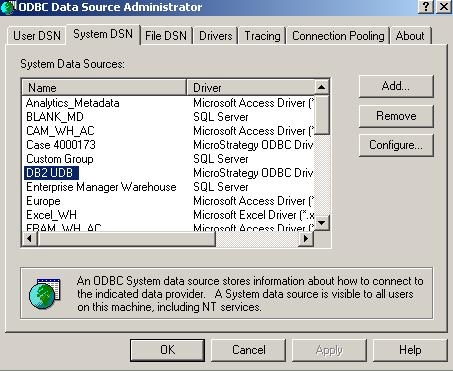
  • Go to Windows ODBC Data Source Administrator ->System DSN and select the newly created DSN from Step 1 as seen below:
ka04W000000OajBQAS_0EM440000002JI3.jpeg
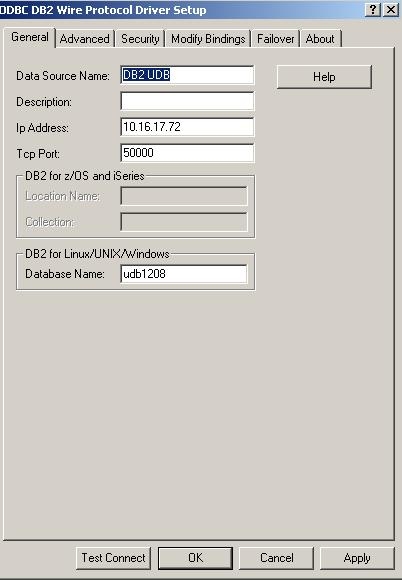
  • After selecting the DSN, click Configure and it will bring the following screen:
ka04W000000OajBQAS_0EM440000002JHx.jpeg
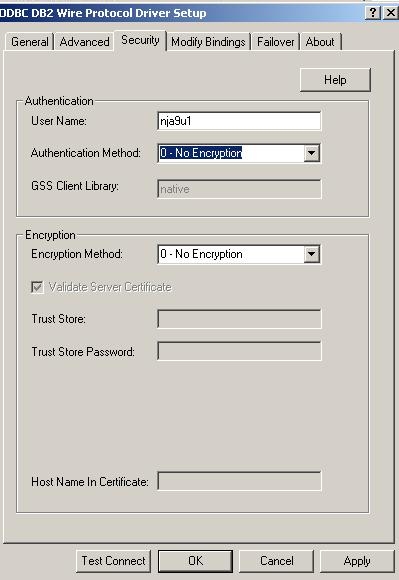
  • Select the Security tab to set the encryption level as seen below:
ka04W000000OajBQAS_0EM440000002JID.jpeg

The user must define authentication method that the driver uses to authenticate the user to the server when a connection is established as well as the encryption method that the driver uses to encrypt data sent between the driver and the database server.
For the authentication methods there are 5 options:

  1. 0 - No Encryption (the default), the driver sends the user ID and password in clear text to the server for authentication.
  2. 1- Encrypt Password, the driver sends the user ID in clear text and an encrypted password to the server for authentication.
  3. 2 - Encrypt UID and Password, the driver sends an encrypted user ID and password to the server for authentication.
  4. 3 - Client, the driver uses client authentication when establishing a connection. The database server relies on the client to authenticate the user and does not provide additional authentication.
  5. 4 - Kerberos, the driver uses Kerberos authentication. This method supports both Windows Active Directory Kerberos and MIT Kerberos environments.

For the encryption methods there are 3 options:

  1. 0 - No Encryption (the default), data is not encrypted.
  2. 1 - SSL, data is encrypted using SSL (supported only on DB2 for iSeries).
  3. 2 -Database Encryption, data is encrypted using the DB2 encryption protocol (supported only on DB2 for Linux/UNIX/Windows and DB2 for z/OS).

Note: DB2 encryption protocol can only be specified when Authentication Method is set to 0, 1, or 2.
DB2 encyrption on Unix for Strategy ODBC Driver for DB2 Wire Protocol 5.30.00.79 can be enabled by adding the following two parameters in the ODBC.ini file:
AuthenticationMethod
EncryptionMethod
 
For details on what values can be used, refer to the Installation and Configuration Guide found under Product Manuals.
Third Party Software Installation WARNING
The third-party product(s) discussed in this technical note is manufactured by vendors independent of Strategy. Strategy makes no warranty, express, implied or otherwise, regarding this product, including its performance or reliability.
KB20772


Comment

0 comments

Details

Knowledge Article

Published:

June 5, 2017

Last Updated:

December 29, 2018