EducationSoftwareStrategy.com
StrategyCommunity

Knowledge Base

Product

Community

Knowledge Base

TopicsBrowse ArticlesDeveloper Zone

Product

Download SoftwareProduct DocumentationSecurity Hub

Education

Tutorial VideosSolution GalleryEducation courses

Community

GuidelinesGrandmastersEvents
x_social-icon_white.svglinkedin_social-icon_white.svg
Strategy logoCommunity

© Strategy Inc. All Rights Reserved.

LegalTerms of UsePrivacy Policy
  1. Home
  2. Topics

KB20782: How to create a Page-by report in MicroStrategy Developer


Stefan Zepeda

Salesforce Solutions Architect • Strategy


Page-by functionality in MicroStrategy Developer lets a user convert a potentially lengthy report into a set of individual pages.

Page-by functionality in Strategy Developer lets a user convert a potentially lengthy report into a set of individual pages to be viewed easily. The pages are created based on objects that are placed in the Page-by, allowing users to see manageable subsets of otherwise large quantities of data.
Every time the Page-by is changed on an executed report, the report is not re-executed against the warehouse.
 
Example using the Strategy Tutorial project:
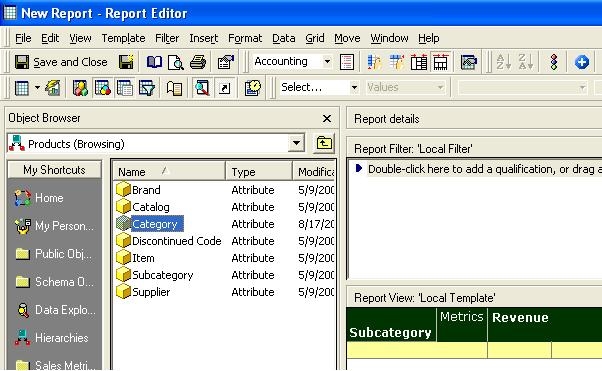
  • Create a new, empty report.
  • Add the attribute Subcategory and metric Revenue to the report template.
ka02R000000kbimQAA_0EM440000002EYX.jpeg
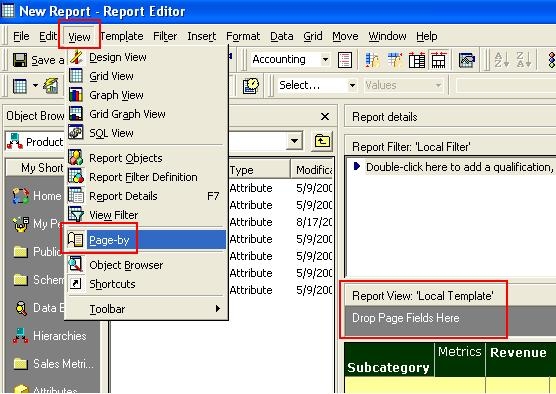
  • To view page-by section of the report, choose View > Page-by.
ka02R000000kbimQAA_0EM440000002EYN.jpeg
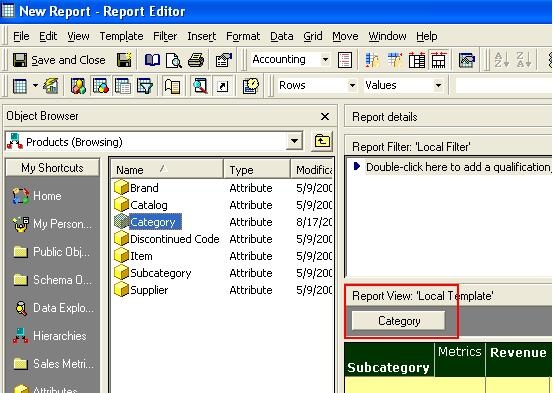
  • Drag and drop the attribute Category from the Object Browser into the Report View: 'Local Template' section to break the report into pages.
ka02R000000kbimQAA_0EM440000002EYO.jpeg
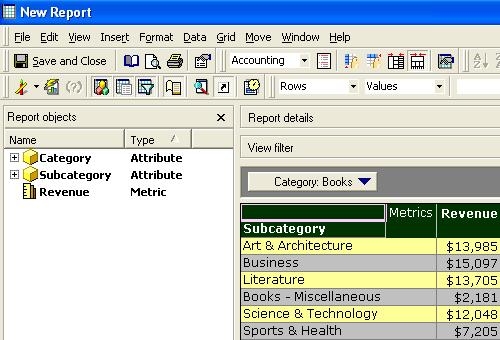
  • Save and run the report. The report will resemble the one below:
ka02R000000kbimQAA_0EM440000002EYV.jpeg
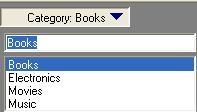
  • Using Page-by drop-down, users can select the Category of data to display.
ka02R000000kbimQAA_0EM440000002EYS.jpeg

Comment

0 comments

Details

Knowledge Article

Published:

June 9, 2017

Last Updated:

June 9, 2017