EducationSoftwareStrategy.com
StrategyCommunity

Knowledge Base

Product

Community

Knowledge Base

TopicsBrowse ArticlesDeveloper Zone

Product

Download SoftwareProduct DocumentationSecurity Hub

Education

Tutorial VideosSolution GalleryEducation courses

Community

GuidelinesGrandmastersEvents
x_social-icon_white.svglinkedin_social-icon_white.svg
Strategy logoCommunity

© Strategy Inc. All Rights Reserved.

LegalTerms of UsePrivacy Policy
  1. Home
  2. Topics

KB20783: How to create a metric that aggregates to a higher level than the report level in MicroStrategy Desktop/Developer 9.4.1/10.x


Stefan Zepeda

Salesforce Solutions Architect • Strategy


This article describes how to create a metric that aggregates to a higher level than the report level in MicroStrategy Desktop/Developer 9.4.1/10.x

The following procedure describes how to create a metric that aggregates to a higher level than the report level in Strategy Desktop/Developer  9.4.1/10.x
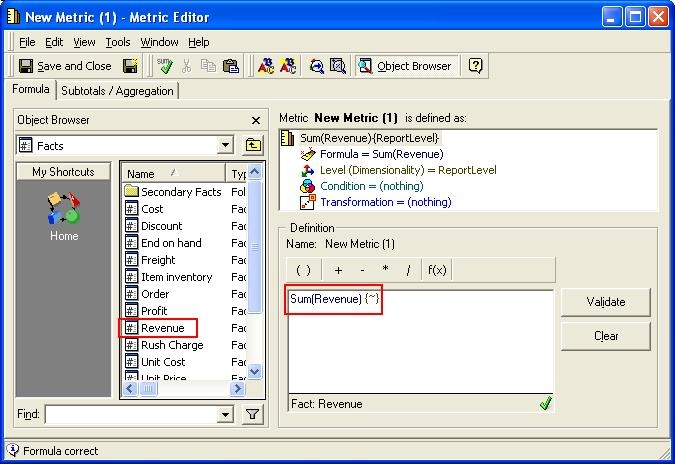
 

  • Open the Metric Editor in Strategy Desktop/Developer and select the fact on which to base the metric. In this example, the Revenue fact and the Sum function are selected.
ka02R000000kbv2QAA_0EM440000002EYH.jpeg
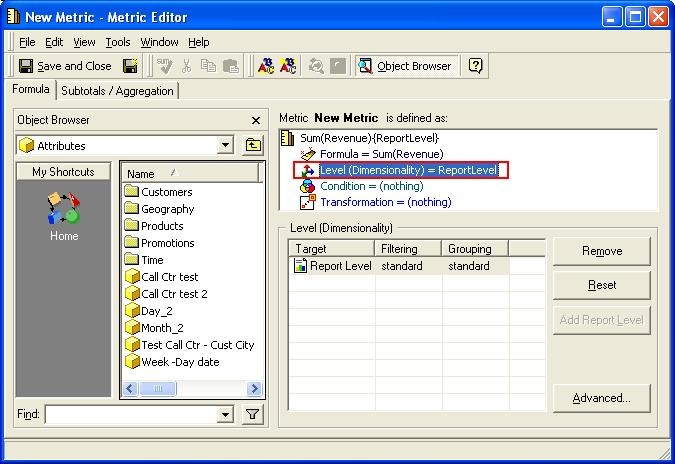
  • Click on the 'Level (Dimensionality)' section to change the level of aggregation.
ka02R000000kbv2QAA_0EM440000002EYL.jpeg
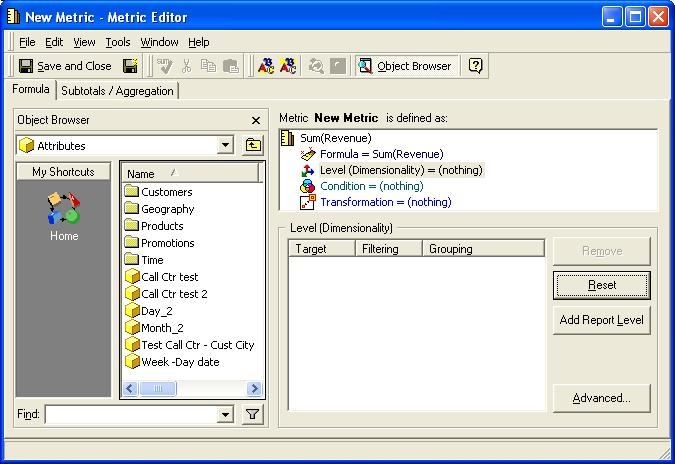
  • Remove the 'Report Level' from the metric dimensionality.
ka02R000000kbv2QAA_0EM440000002EYU.jpeg
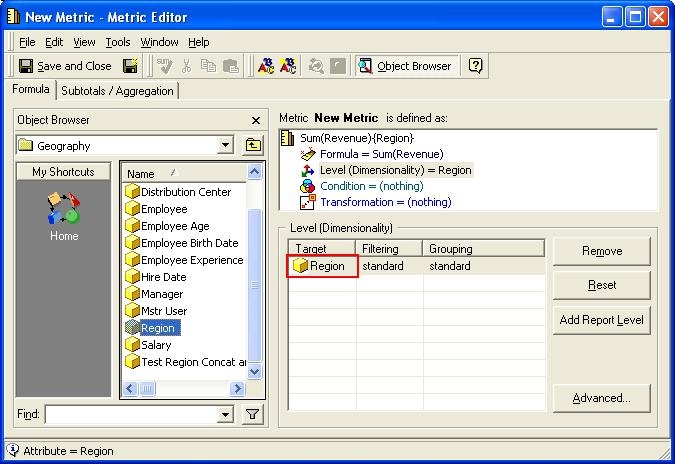
  • Add the Attribute level to which the metric will aggregate. In this example the attribute "Region" is selected and the metric will be aggregated to the Region level.
ka02R000000kbv2QAA_0EM440000002EYI.jpeg

NOTE:
Depending upon the structure of the report, the execution may result in repeated metric values. For example, if a report contains Country and Region as attributes, and the metric is aggregated to the Country level, then its value will be returned for each of the Region in that Country.


Comment

0 comments

Details

Knowledge Article

Published:

June 6, 2017

Last Updated:

June 6, 2017