EducationSoftwareStrategy.com
StrategyCommunity

Knowledge Base

Product

Community

Knowledge Base

TopicsBrowse ArticlesDeveloper Zone

Product

Download SoftwareProduct DocumentationSecurity Hub

Education

Tutorial VideosSolution GalleryEducation courses

Community

GuidelinesGrandmastersEvents
x_social-icon_white.svglinkedin_social-icon_white.svg
Strategy logoCommunity

© Strategy Inc. All Rights Reserved.

LegalTerms of UsePrivacy Policy
  1. Home
  2. Topics

KB20790: New Dataset Join handling settings for Report Services Documents in MicroStrategy 9


Community Admin

• Strategy


INTRODUCTION
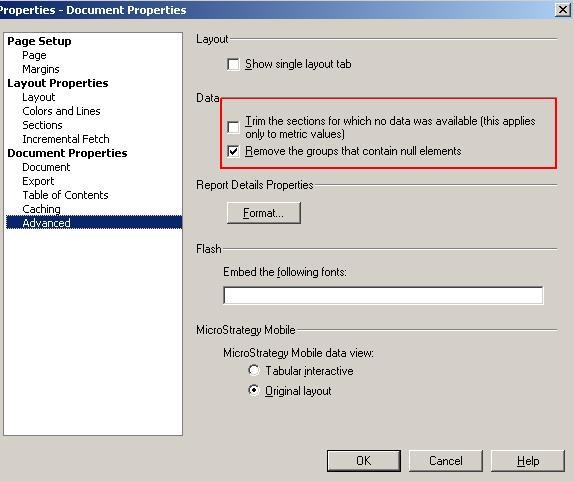
A cross join between datasets can result in rows that contain null values or that do not have any metric data. To control whether the user wants to see such rows, two new settings have been introduced in Strategy 9 as seen below:
 
Note: This window can be accessed by going to the document editor ->Format ->Document Properties
 

ka04W000000OcA3QAK_0EM440000002EY6.jpeg


Trim the sections for which no data was available
This setting removes the sections that do not have any metric data.
Let us see how this setting works with the use of the following example:
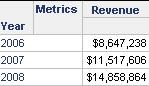
 

  • A document contains two dataset reports as seen below:
    • Dataset 1 contains Year and Revenue, with data for three years (2006-2008).
ka04W000000OcA3QAK_0EM440000002EY7.jpeg
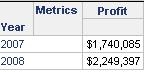
    • Dataset 2 contains Year and Profit, filtered to return data for only two years (2007 and 2008).
ka04W000000OcA3QAK_0EM440000002EYD.jpeg
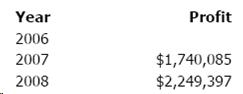
  • The resulting document from the above datasets displays three rows, although no profit data exists for 2006. This is a product of the compound join between the two datasets.
ka04W000000OcA3QAK_0EM440000002EY2.jpeg
  •  
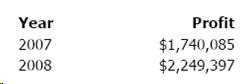
    Users can select the Trim the section for which no data was available (this applies only to metric values) check box. This removes the row for 2006, since no metric data for Profit is available for 2006. The results are shown below:
     
ka04W000000OcA3QAK_0EM440000002EY8.jpeg

Remove the groups that contain null elements
This setting removes the grouping elements that contain null values
Let us see how this setting works with the use of the following example:
 

  • A document contains two dataset reports as seen below:
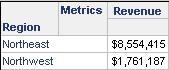
    • Dataset 1 contains Region and Revenue, filtered to display Northeast and Northwest only.
ka04W000000OcA3QAK_0EM440000002EXy.jpeg
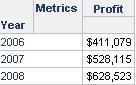
    • Dataset 2 contains Year and Profit. Data for three years (2006-2008) is available.
ka04W000000OcA3QAK_0EM440000002EYE.jpeg
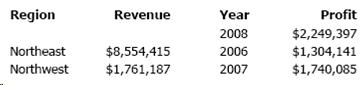
  • The resulting document from the above datasets displays three rows as seen below:
ka04W000000OcA3QAK_0EM440000002EXx.jpeg
  • Group the above document by Region and in the page-by select "All"
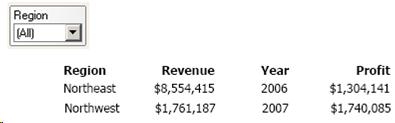
  • Only the following two rows are displayed, as shown below:
ka04W000000OcA3QAK_0EM440000002EXv.jpeg
  •  
    The row for 2008 (from Dataset 2) is not displayed, because it contains null values for Region and by default, groups that contain null elements are removed based on the setting "Remove the groups that contain null elements" as seen above.
     
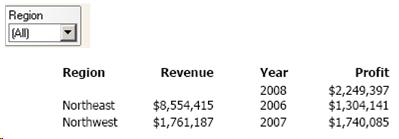
  • To see the information for 2008, clear the Remove the groups that contain null elements check box. When All is selected for the page-by, the document displays with three rows, as shown below:
ka04W000000OcA3QAK_0EM440000002EY4.jpeg

Comment

0 comments

Details

Knowledge Article

Published:

May 26, 2017

Last Updated:

May 26, 2017