EducationSoftwareStrategy.com
StrategyCommunity

Knowledge Base

Product

Community

Knowledge Base

TopicsBrowse ArticlesDeveloper Zone

Product

Download SoftwareProduct DocumentationSecurity Hub

Education

Tutorial VideosSolution GalleryEducation courses

Community

GuidelinesGrandmastersEvents
x_social-icon_white.svglinkedin_social-icon_white.svg
Strategy logoCommunity

© Strategy Inc. All Rights Reserved.

LegalTerms of UsePrivacy Policy
  1. Home
  2. Topics

KB213643: How to add a pair of threshold lines in a bubble graph in MicroStrategy Analytics Developer


Stefan Zepeda

Salesforce Solutions Architect • Strategy


In some business scenarios, a need to add a pair of threshold lines in a bubble graph to distinguish expected and abnormal values may arise.  Those located in between the lines are with expected values, and those locates outside the lines are abnormal. This tech note introduces a solution for this requirement.
In some business scenarios, a need to add a pair of threshold lines in a bubble graph to distinguish expected and abnormal values may arise.  Those located in between the lines are with expected values, and those locates outside the lines are abnormal. This tech note introduces a solution for this requirement.
 

  • Create a report with Subcategory, Revenue, Profit and Cost;
  • Switch to Graph View and choose Bubble DualAxis as the graph type;
  • RMC on the graph, and choose Graph Options;
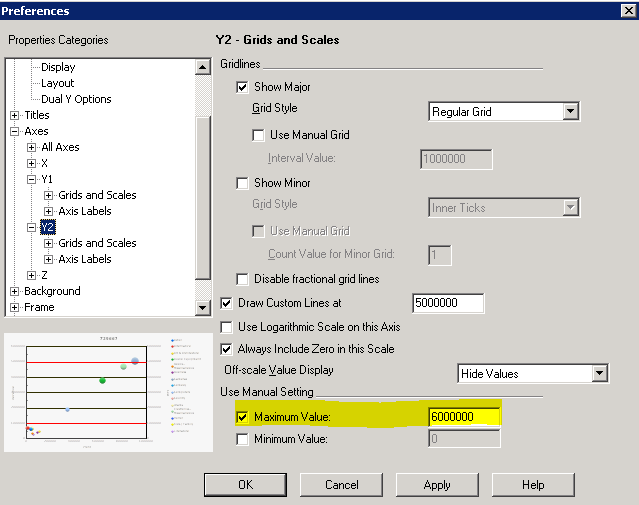
  • Go to Axes ->Y2 and choose “use manual setting for maximum value” option and enter a value that is the same as the one shown underY1 tab;
ka02R000000kWOqQAM_0EM440000002C5q.jpeg
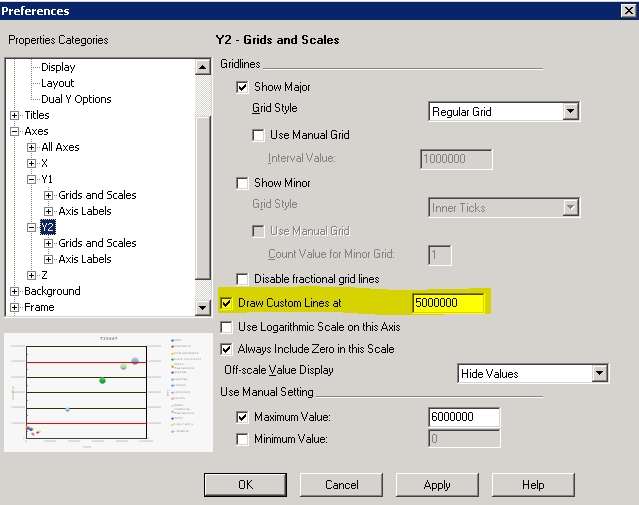
  • Choose “Draw Custom Lines at” and enter the upper limit value to set up one of the threshold lines;
ka02R000000kWOqQAM_0EM440000002C6E.jpeg
  • Go to Axes -> Y2 -> Grids and Scales -> Customlines and choose red color for the line;
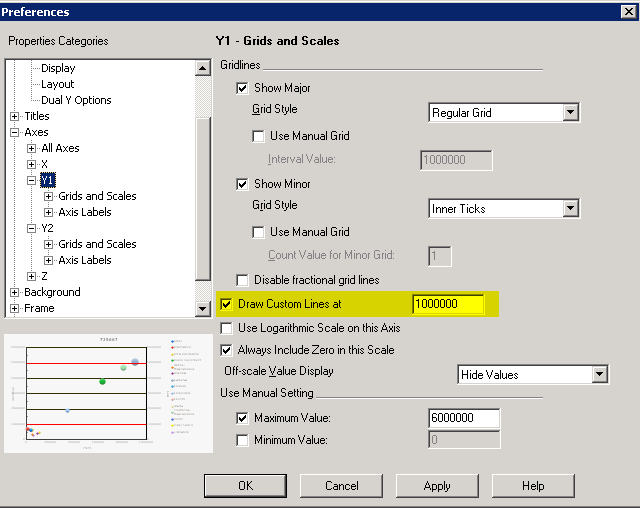
  • Go to Axes -> Y1, choose “Draw Custom Lines at” and enter the lower limit value to set up the other threshold line;
ka02R000000kWOqQAM_0EM440000002C6J.jpeg
  • Go to Axes -> Y1 -> Grids and Scales -> Customlines and choose red color for the line;
  • Go to Axes -> Y2 -> Axis Labels and uncheck “Show Labels for this Axis” to hide the Y2 axis label;
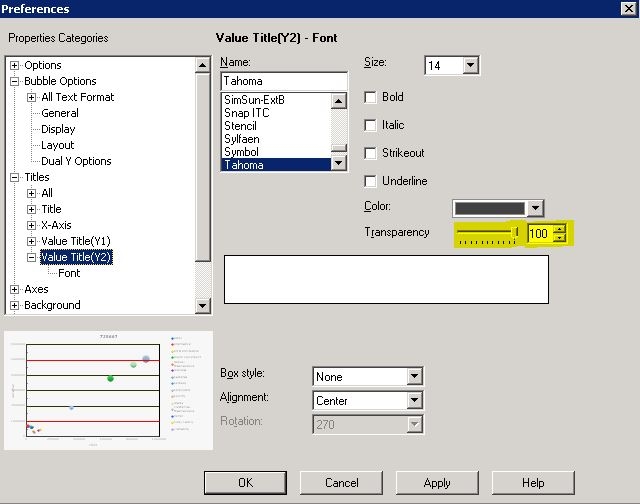
  • Go to Titles -> Value Title (Y2) and modify the transparency to be 100% to hide Y2 axis title;
ka02R000000kWOqQAM_0EM440000002C6H.jpeg
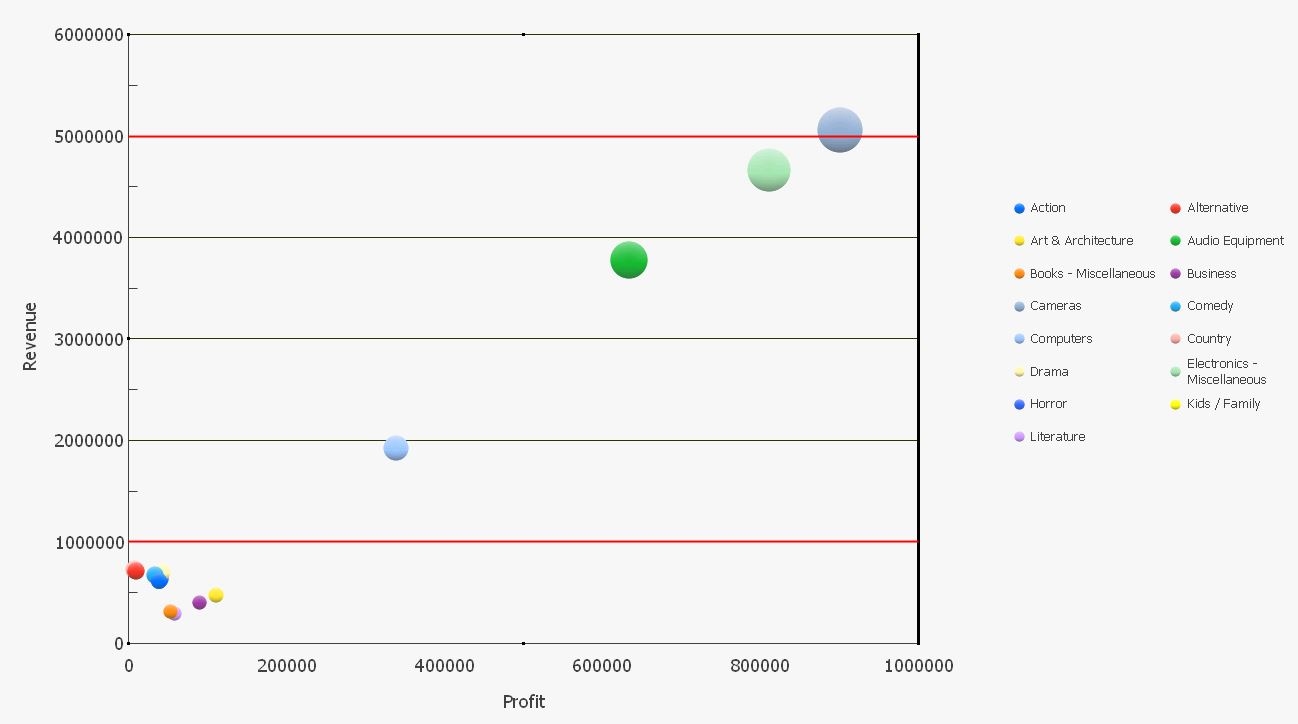
  • Click on Apply and it shows graph as below. All the bubbles in between the two lines are with expected results and the others are not.
ka02R000000kWOqQAM_0EM440000002C6F.jpeg

Comment

0 comments

Details

Knowledge Article

Published:

April 10, 2017

Last Updated:

July 17, 2017