EducationSoftwareStrategy.com
StrategyCommunity

Knowledge Base

Product

Community

Knowledge Base

TopicsBrowse ArticlesDeveloper Zone

Product

Download SoftwareProduct DocumentationSecurity Hub

Education

Tutorial VideosSolution GalleryEducation courses

Community

GuidelinesGrandmastersEvents
x_social-icon_white.svglinkedin_social-icon_white.svg
Strategy logoCommunity

© Strategy Inc. All Rights Reserved.

LegalTerms of UsePrivacy Policy
  1. Home
  2. Topics

KB213728: Custom number formatting on a dynamic text box does not apply in combination with conditional formatting in Flash mode in MicroStrategy Web 9.4.1.


Community Admin

• Strategy


Custom number formatting on a dynamic text box does not apply in combination with conditional formatting in Flash mode in MicroStrategy Web 9.4.1.

SYMTPOM:
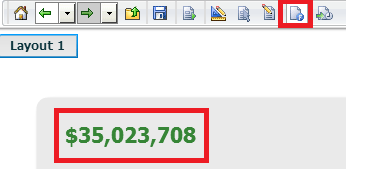
In Strategy Web 9.4.1, users can apply custom number formatting to dynamic text boxes that contain a metric, and can also apply conditional formatting to the same text box. However, the custom formatting will not work in Flash view mode, if the conditional formatting is applied.
In DHMTL mode:

ka04W000001MKnlQAG_0EM4400000025tA.jpeg

In Flash mode:

ka04W000001MKnlQAG_0EM4400000025tB.jpeg

Notice the custom number formatting did not apply.
STEPS TO REPRODUCE:
  • In Strategy Web 9.4.1, create a document with a dataset.
  • Add a metric to the document as dynamic text.
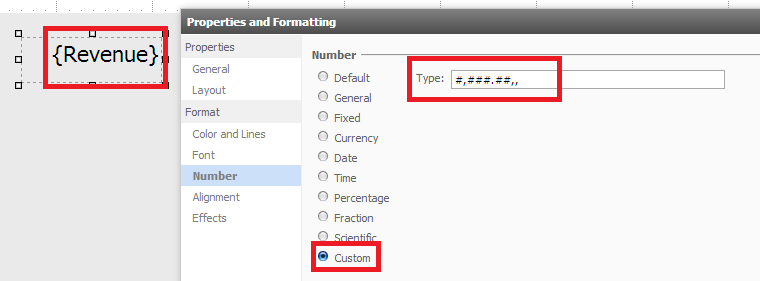
  • Right-click the text box to go to Properties & Formatting > Number > Custom, and use "#,###.##,," as the custom formatting, as shown below:
ka04W000001MKnlQAG_0EM4400000025tM.jpeg
  • Run the document in Flash mode. Notice the custom number formatting has been applied, as shown below:

ka04W000001MKnlQAG_0EM4400000025tL.jpeg
  •  In Design mode, right-click the text box, to go to conditional formatting > Advanced, and add color formatting for "Greater than or equal to 0" so that the metric that appears is colored, as shown below:
ka04W000001MKnlQAG_0EM4400000025tD.jpeg
  • Run the document in Flash mode. Notice the conditional formatting is applied, but not the custom number formatting, as shown below:
ka04W000001MKnlQAG_0EM4400000025tB.jpeg
  • Run the document in Editable mode. Notice the Conditional Formatting and the custom number formatting are both applied correctly, as shown below:
ka04W000001MKnlQAG_0EM4400000025tA.jpeg

CAUSE:
This is a known issue in Strategy Web 9.4.1.
ACTION:
This issue has been fixed in Strategy Web 10.x. Upgrade to take advantage of the fix.


Comment

0 comments

Details

Knowledge Article

Published:

April 7, 2017

Last Updated:

April 7, 2017