SUMMARY:
This issue has been classified as a defect by Strategy. The impact is limited to Strategy Web 9.4.1 Hotfix 6 product only using ESRI map with markers and a filter in Visual Insight. There is a workaround available in this document. Currently this issue is being reviewed by our Technology team for a potential future release.
SYMPTOM:
In Visual Insight, a user wants to see markers on the ESRI map in different regions; however, using filter (Region filter, as example) to display data in different areas, the user notices that markers on Visual Insight ESRI map appear in incorrect locations in 9.4.1 Hotfix 6:
When only 'Spain' is selected, markers display correctly:
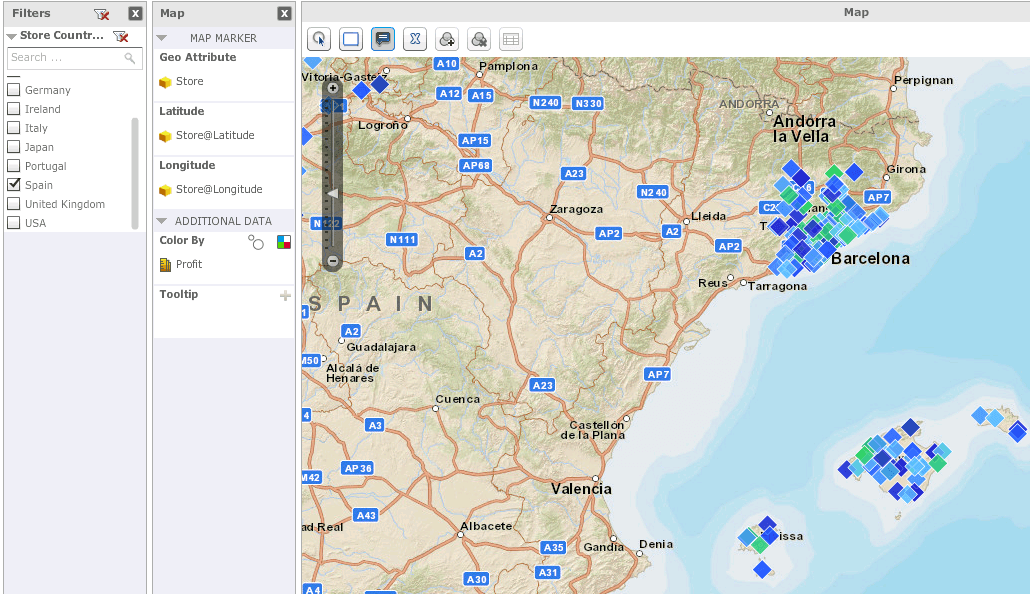
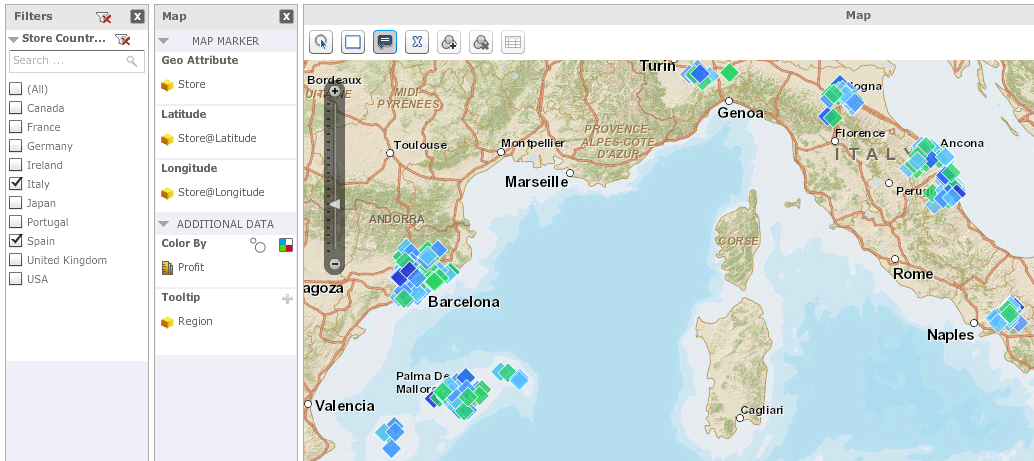
When 'Italy' is added, all markers including 'Spain' are in incorrect locations:

STEPS TO REPRODUCE:
1. In Strategy Tutorial, create a report with Store and Store Country attributes and Profit metric.
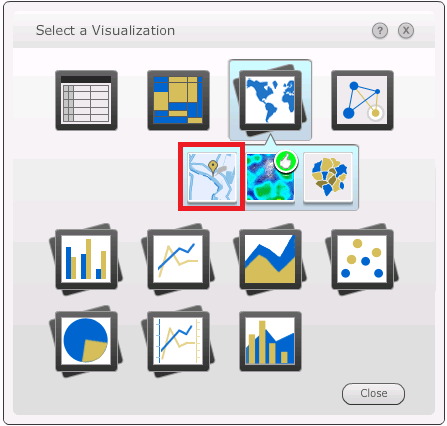
2. Using the created report as a data set, create a Visual Insight dashboard. Select ESRI map visualization:
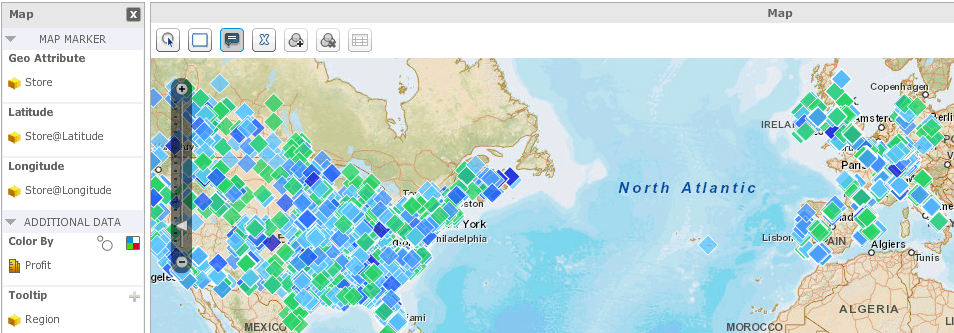
3. As shown below, markers displayed correctly without any filters:
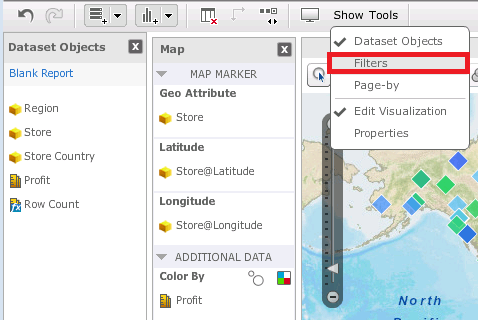
4. Open a Filter panel:
5. Add a Store Country attribute to the filter section:

6. Uncheck all countries:

7. Select only 'Spain'. As shown below, no issue at this point:

8. Add 'Italy' to the filter. All markers are in incorrect locations:
'Spain' markers to compare with the image above:

'Spain' and 'Italy' markers:

With 'Spain' and 'Italy' selected, the map should look like on the image below:

VIDEO:
A video demonstrating the steps above as well as the workaround suggested can be found here
CAUSE:
It appears to specifically affect Visual Insight ESRI map visualization after changing a filter in Strategy Web 9.4.1 Hotfix 6. This has been classified as a defect.
ACTION:
Currently this issue is still being reviewed for feasibility by our Technology team and it is not scoped for any upcoming scheduled Strategy release. Please follow the workarounds steps below as a temporary solution
WORKAROUND:
When a user zooms in or out, the markers appear in the correct locations again
The Strategy Internal Reference Number for the issue discussed in this technical note is 978288.
KB214827
