EducationSoftwareStrategy.com
StrategyCommunity

Knowledge Base

Product

Community

Knowledge Base

TopicsBrowse ArticlesDeveloper Zone

Product

Download SoftwareProduct DocumentationSecurity Hub

Education

Tutorial VideosSolution GalleryEducation courses

Community

GuidelinesGrandmastersEvents
x_social-icon_white.svglinkedin_social-icon_white.svg
Strategy logoCommunity

© Strategy Inc. All Rights Reserved.

LegalTerms of UsePrivacy Policy
  1. Home
  2. Topics

KB217111: How to display a grid in outline mode in a Report Services Document in MicroStrategy Web


Community Admin

• Strategy


SYMPTOM:
In Strategy Web 9.4.1 and above, grids in outline mode can only be displayed in reports, not documents.
 
ACTION:
To work around this limitation, users can display a Strategy report in an HTML container within a document, and have this report set to be in Outline mode, as per the following steps.
 
Simple Outline Report:

  • Create a grid report in Strategy Web 9.4.1.
  • Execute the grid, and change the results to display in Outline mode, as shown below:
ka04W00000148QhQAI_0EM4400000025sL.jpeg
  • Save the report and exit to the folders.
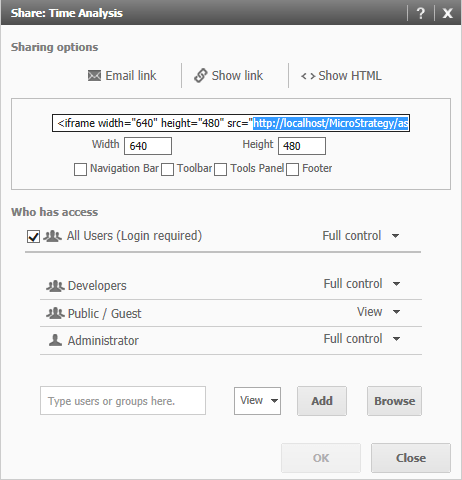
  • In the folder list, right click on the report > Share > Show HTML.
  • Copy the URL link for the report that appears inside the source tag, like shown below.
ka04W00000148QhQAI_0EM4400000025sU.jpeg
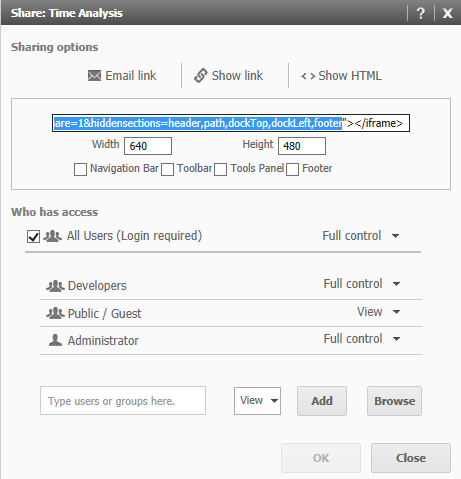
  • Note: copy the full URL including the &hiddensections parameters, as shown below.
ka04W00000148QhQAI_0EM4400000025sR.jpeg
  • In a Strategy Web document, add a panel stack with an HTML Container.
  • Paste the URL link from step 5 into the HTML Container.
  • Execute the document. Notice the HTML Container displays the report in Outline mode.

 
Outline Report that can be controlled by selectors:

  • Modify the outline report created above and add an element prompt for each attribute that will be used as a selector to target this report. For example, if Region will be used as a selector in the document, add an element prompt for Region to the outline report.
  • Access the document in design mode.
  • Double click on the html container to modify the URL.
  • After the "hiddensections" parameter, add dynamic parameters to answer the prompt, as per tech note KB16698 . For example, if using a prompt on the Region attribute, the URL would end with:
    
    &elementspromptanswers={&Region@GUID};{&Region@ElementID}

    Note: Separate multiple attributes with a comma, like shown below.
    
    &elementspromptanswers={&Region@GUID};{&Region@ElementID},{&[Call Center]}@GUID;{&[Call Center]@ElementID}
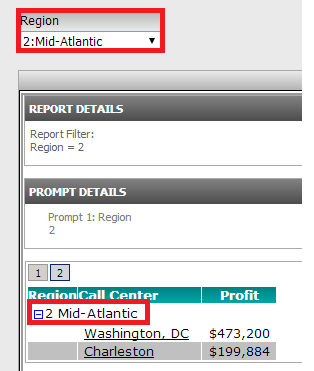
  • Create a selector using the same attribute as the element prompt, and target the panel stack which contains the HTML container.
  • Execute the document. Notice that changing the selector element will update the report accordingly, as shown below:
ka04W00000148QhQAI_0EM4400000025sT.jpeg

Note: These workarounds have the following caveats.

  1. The report within the HTML Container will not be able to interact with objects outside of the HTML Container, so it can not be used as a selector.
  2. All formatting for this report, including setting up Edit links, will have to be done and maintained directly in the report and cannot be done through the document's GUI.
  3. Exporting the document to PDF or excel may fail to include the outline report in the export.

A request has been logged to implement Outline mode for grids inside Report Services documents. Contact Strategy Technical Support for an update regarding this issue.


Comment

0 comments

Details

Knowledge Article

Published:

March 30, 2017

Last Updated:

March 30, 2017