Introduction
As data changes in the warehouse, new executions of Strategy reports naturally return different results to reflect the most current data. As warehouse data loads occur and Strategy Intelligence Server report caches are invalidated, old report results become unavailable. However, project requirements sometimes include the ability to access old report results.
A common method of keeping old report results is to include data versioning in the project's data model. Time-sensitive facts can be 'tagged' with version information within the database, and the version information can then be architected into the Strategy project. The data version can, then, be included in reports. Because the versioned data is always held in the data warehouse, old report results from any time period can always be accessed. These snapshots of data can also be compared with each other for trend analysis.
Another method of keeping old report results is to use the exporting feature in Strategy Web and Strategy Developer. When reports are executed, users who wish to refer to this data at a later time can export the result set (to Microsoft Excel, Microsoft Word, Microsoft Access, a text file, an HTML file, or a PDF file). This exported result set can, then, be examined at a later time.
A third method of archiving data is to use the datamart feature in Strategy Intelligence Server. Reports can be defined to insert the result set into a new or pre-existing database table. The result set will, then, be available as long as the datamart table exists in the database. The accumulated historical data in the datamart can be used by other applications for comparative analysis or, the datamart table can be architected into a new or existing Strategy project for analysis.
Yet another method for archiving data is to use Strategy Narrowcast Server to deliver report results in an e-mail to an end user. Users interested in keeping old report results for later reference simply have to keep the e-mail.
Strategy Intelligence Server 9.x has the ability to archive scheduled report results in a user's history list. Archived reports can then be accessed at any time so that old report data can be examined. When the archived data is retrieved, restrictions on analytical operations will be enforced. These archived reports are created by the Strategy Intelligence Server scheduler; when reports are scheduled, the schedule request can be tagged to create an archived history list message. This tagging of schedule requests is performed differently in Strategy Web and Strategy Developer.
Web subscriptions and the 'Overwrite old results' preference:
In Strategy Web, the preference 'Overwrite old results' is available. This preference setting can be found in the Preferences > Project defaults > History List section. In this section, there is a checkbox called 'The new report will overwrite older versions of itself.' For the purpose of this document, this checkbox setting will be called the 'Overwrite old results' preference.
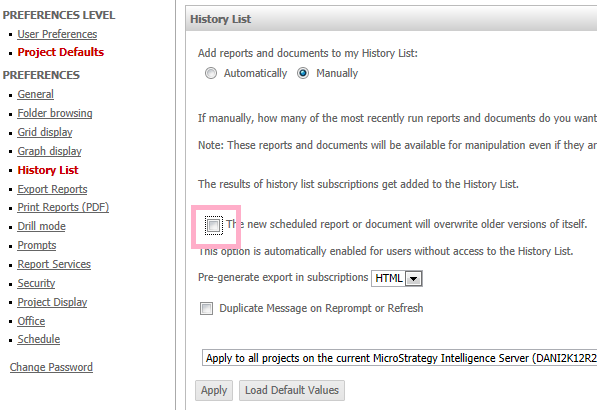
When users subscribe to a report, the report is executed by Strategy Intelligence Server on a scheduled basis, and results are cached. Users will see a new message in the users' history list, and this message will reference the newly cached results.
If the 'Overwrite old results' preference is selected, then on the next schedule cycle, the old results and the associated message are overwritten with new information. The end user will still only see one message in the history list for this report. This message will reference the new report results.
In current versions of Strategy 9.x, if the 'Overwrite old results' preference is unselected, then new messages will still be created in the history list on every schedule cycle. However, instead of overwriting old invalid cached data, a new cache is created with the new report results. All history list messages are displayed as “Archived”, as shown below:

NOTE: If the old report cache is still valid i.e., it is a valid matching cache, then a new cache will not be created.
Steps to set up data archiving from Strategy Web:
Important Note: If Strategy Web subscriptions have been created with 'The new report will overwrite older versions of itself' setting enabled, then disabling this setting will not make Strategy Web subscriptions behave as data archives. In order to make these previously created Strategy Web subscriptions behave as data archives, users must re-subscribe to the reports with this setting disabled.
Follow steps below to un-archive data:
1. Log into Strategy Web as an administrator.
2. Go to the Preferences > Project defaults > History List configuration page.
3. Check the check box for the 'The new report will overwrite older versions of itself' setting.
4. Click on 'Apply'.
Distinguishing archived History List messages from standard History List messages:
In current Strategy Web 9.x versions , users will be able to differentiate between standard History List entries and History List entries for data archives by the icon next to the history list entry. Standard history list entries created by scheduler would have had one of the following icons: (grid/graph)

History list entries for data archives have same icons but have "Archived" entry in front of the name:


Features supported for data archives in Strategy Developer:
Strategy Developer version 9.x does not allow any operations on the data archive.
Features supported for data archives in Strategy Web:
After retrieving an archived History List message, only a certain set of operations are allowed on the data archive regardless of the privileges that the user may have. The following operations are not permitted on the report for data archives:
Formatting and crosstabbing manipulations are allowed on data archives. The following operations are permitted from Strategy Web 9.x
Warehouse-side versioning
The data archiving feature discussed above is not meant to be a replacement for including data version information in a project's warehouse and data model. Archived history list messages are easy to create, but they are limited in the analysis that can be performed on them; warehouse-side data versioning can provide more flexible reporting and analysis capabilities for time-sensitive information. In addition, since databases are more specifically designed for data storage, and time-sensitive information would be stored once instead of redundantly in the form of multiple reports in multiple user's history lists, warehouse-side versioning will tend to be a more efficient and scalable solution to storing time-sensitive information than history list data archiving. Finally, any time-sensitive data in databases are persistent in addition to being always and globally available. Data archives are only available to end-users if they had subscribed to the report and kept the archived history list message in their history list. History list messages are controlled by the end-user, so an end user can permanently lose archived data by simply deleting a history list message.
Strategy Intelligence Server-side data archiving is best suited for situations in which data storage and analysis requirements are low. An example of this would be for weekly scheduled reports, where the project may require that users be able to come back after a long interruption and take a look at any old reports that had been executed previously; but then delete the History List message after viewing. Another appropriate use of data archiving would be when users sometimes want to take a look at a limited set of old report data and compare them with recent data. Note that data archiving would only allow for side-by-side comparison of reports only and does not allow any in-depth analysis of data movement over time.
Frequently Asked Questions
Q1: Is it possible for some subscribed reports to create archived History List messages, while other subscribed reports create standard History List messages?
Yes. The 'decision' to make a subscribed report create a data archive occurs when the user subscribes to the report. At the time the user subscribes the report, if the 'Overwrite old results' setting is enabled, then that particular report subscription will create standard History List messages for that user. Similarly, if the 'Overwrite old results' setting is disabled at the time the user subscribes to a report, then that report subscription will create archived History List messages for that user. Information as to whether or not to create an archived history list message is saved into the metadata as part of the definition of the schedule request. Schedule monitor in Strategy Developer will not show information as to whether or not a particular schedule request will create a data archive; this information can be obtained using the COM API in the Strategy SDK.
NOTE: The 'Overwrite old results' setting is a project-level setting and will apply to all users. However, whether or not a particular report subscription will create an archived History List message depends on the state of this setting at the time the subscription was created.
Q2. More History List messages are kept by users due to the archiving feature. How can the size of the History List and its corresponding report caches be managed?
Administrators should limit the size of each user's History List by setting the 'Maximum number of messages per user' governor to an appropriate value. (This governing setting can be found in the Strategy Intelligence Server Configuration editor) It is recommended that this value not be set arbitrarily high; if end users never delete their archived History List messages, their corresponding result sets will remain cached indefinitely and will occupy hard disk space. The value of this governor should be set to the minimum value at which end users can still perform their work with archived History List messages.
By setting the 'Message lifetime' governor, all old History List messages will be deleted from users' History Lists. Like the 'Maximum number of messages per user' setting, the 'Message lifetime' governor should be set to the minimum value at which end users can still derive value from their archived History List messages.
