EducationSoftwareStrategy.com
StrategyCommunity

Knowledge Base

Product

Community

Knowledge Base

TopicsBrowse ArticlesDeveloper Zone

Product

Download SoftwareProduct DocumentationSecurity Hub

Education

Tutorial VideosSolution GalleryEducation courses

Community

GuidelinesGrandmastersEvents
x_social-icon_white.svglinkedin_social-icon_white.svg
Strategy logoCommunity

© Strategy Inc. All Rights Reserved.

LegalTerms of UsePrivacy Policy
  1. Home
  2. Topics

KB217720: When using Project Merge and setting the rule to replace for all objects types, Folder objects are not replaced in the destination project


Community Admin

• Strategy


This technical note not discusses an issue when using Project Merge in MicroStrategy 9.x and 10.x. When setting the rule to "replace" for all object categories in the Project Merge Wizard, it is seen that folder objects are not replaced in the destination project if the folder object exists in both the source project and destination project.

SUMMARY
This technical note not discusses an issue when using Project Merge in Strategy 9.x and 10.x. When setting the rule to "replace" for all object categories in the Project Merge Wizard, it is seen that folder objects are not replaced in the destination project if the folder object exists in both the source project and destination project.
 
STEPS TO REPRODUCE
1. Open Project Merge Wizard.
2. Choose a Source Project Source and provide the username and password.
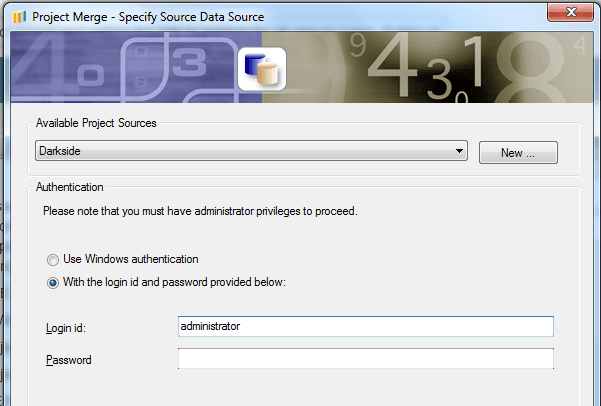
ka04W00000148RaQAI_0EM440000002C5k.jpeg

 
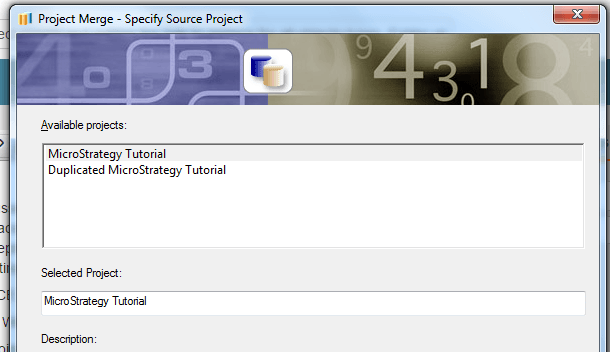
3. Choose a Source Project.

ka04W00000148RaQAI_0EM440000002C60.jpeg

 
4. Choose a Destination Project Source and provide the username and password.
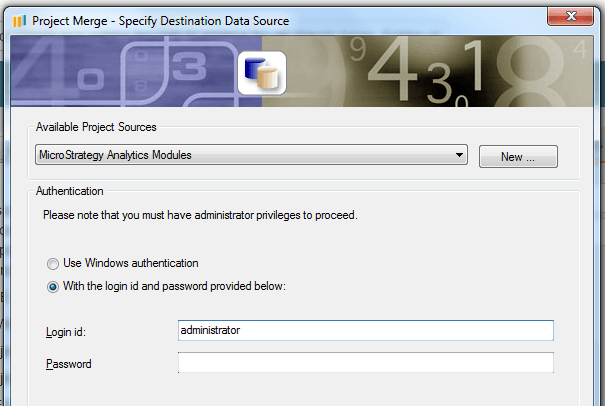
ka04W00000148RaQAI_0EM440000002C5w.jpeg

 
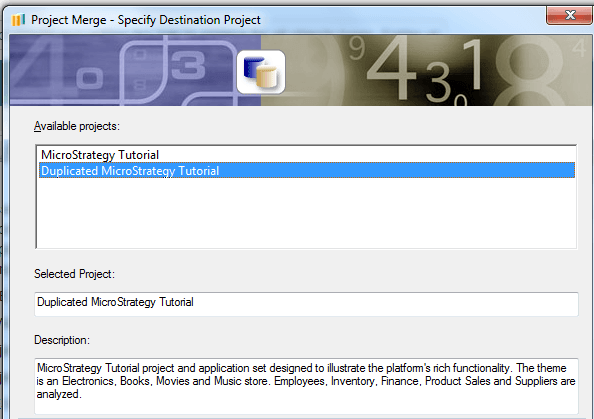
5. Choose a Destination Project.

ka04W00000148RaQAI_0EM440000002C62.jpeg

 
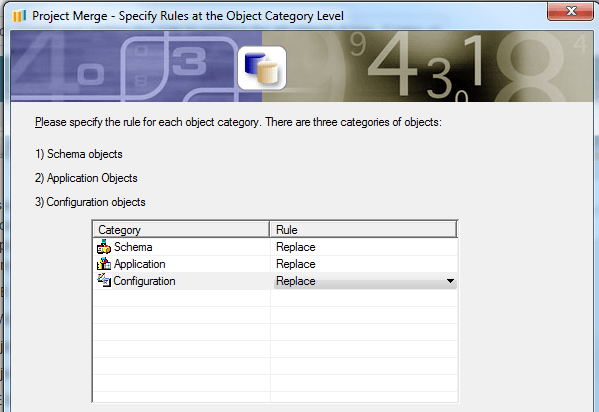
6. Set the action to "Replace" for all object categories.
ka04W00000148RaQAI_0EM440000002C5m.jpeg

 
7. Choose Finish to perform the Project Merge.
8. In the Destination Project, it is seen that folder objects have not been replaced from the Source Project.
 
CAUSE
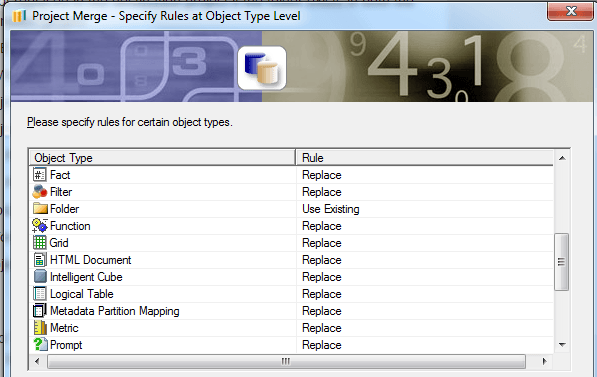
After setting the action to "Replace" for all Object Categories, if the user hits next in the Project Merge Wizard, it can be seen that the action for folder objects is still set to "Use Existing".
ka04W00000148RaQAI_0EM440000002C5t.jpeg

 
ACTION
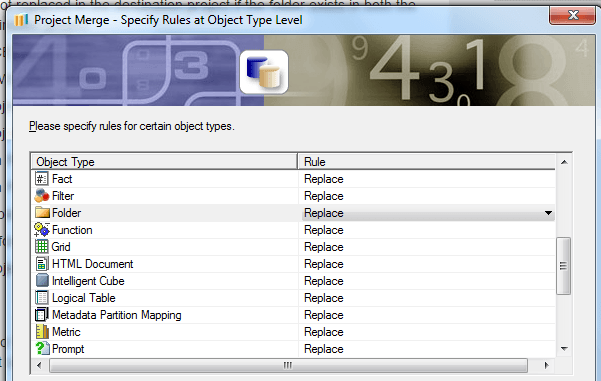
In order to replace folder objects in the Destination project, set the action to "Replace" for folder objects in the object types window and perform the Project Merge.
ka04W00000148RaQAI_0EM440000002C5y.jpeg

 
ADDITIONAL TROUBLESHOOTING
If the above action items do not resolve the issue, please consider contacting Strategy Technical Support with the following information:

  • How are the rules defined in the Project Merge Wizard for Object Types, Object Categories, Folders, and Objects?
  • Which objects are not replaced after the Project Merge?

 
TO LEARN MORE
KB41590 : Are the Project Merge folder rules applied recursively or not in Strategy 9.2.1?


Comment

0 comments

Details

Knowledge Article

Published:

April 3, 2017

Last Updated:

April 3, 2017