EducationSoftwareStrategy.com
StrategyCommunity

Knowledge Base

Product

Community

Knowledge Base

TopicsBrowse ArticlesDeveloper Zone

Product

Download SoftwareProduct DocumentationSecurity Hub

Education

Tutorial VideosSolution GalleryEducation courses

Community

GuidelinesGrandmastersEvents
x_social-icon_white.svglinkedin_social-icon_white.svg
Strategy logoCommunity

© Strategy Inc. All Rights Reserved.

LegalTerms of UsePrivacy Policy
  1. Home
  2. Topics

KB217820: How to display metric value in tooltip in MicroStrategy Web 9.4.1


Community Admin

• Strategy


This technical note describes how to show a metric value in a tooltip when hovering over an attribute in MicroStrategy Web

When metric value is relatively long that user wants to put the value into tooltip to save space, just showing static text like “See Notes” in cells, how to define the metric?
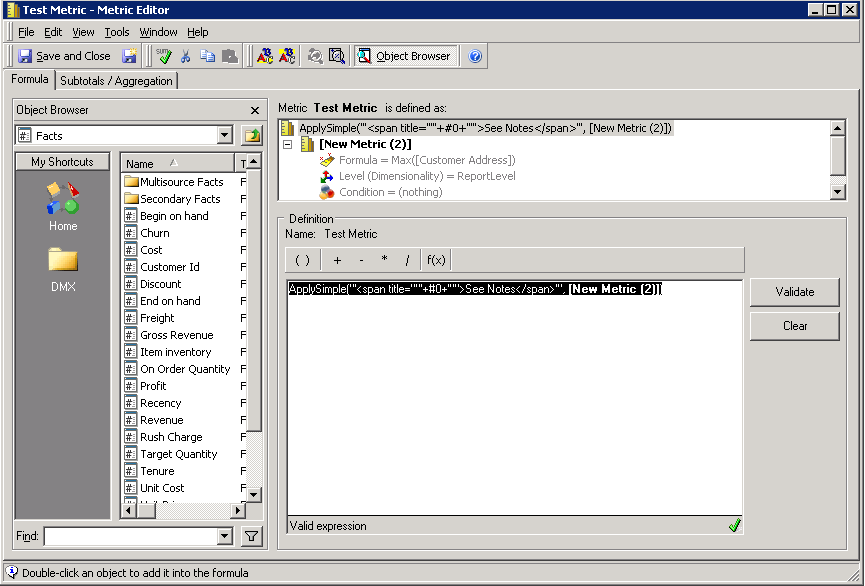
Attribute can be put into tooltip defined with HTML tags and ApplySimple function per KB42134. Metric can be defined in similar way:
ApplySimple("'<span title=""'+#0+'"">See Notes</span>'", [Metric])
ACTION:
In Strategy Tutorial Project,
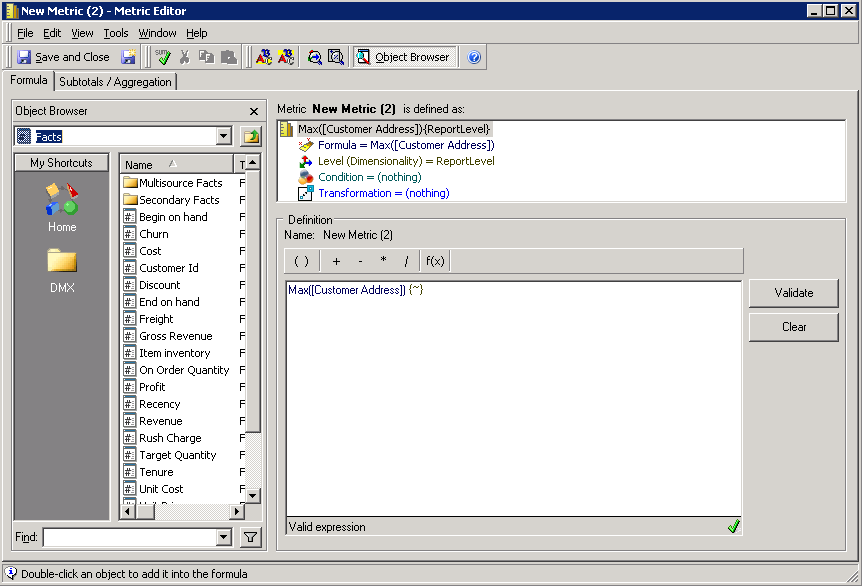
1. Create a metric with long value. For example, define Customer Address as metric.
ka04W000000OhR9QAK_0EM4400000025sD.jpeg

2. Create a metric to display tooltip with HTML tags and ApplySimple function.
ka04W000000OhR9QAK_0EM4400000025sC.jpeg

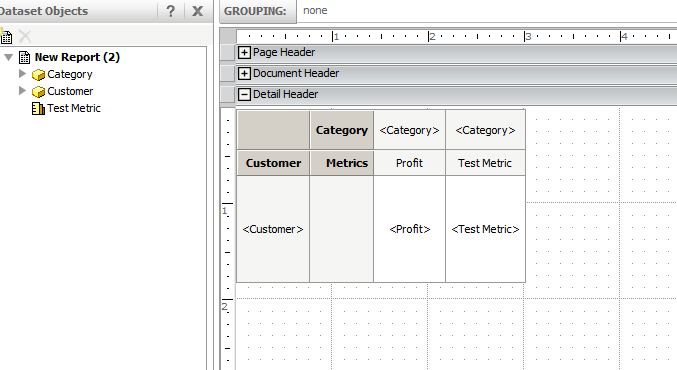
3. Create a dataset report. Add to document.
ka04W000000OhR9QAK_0EM4400000025sE.jpeg

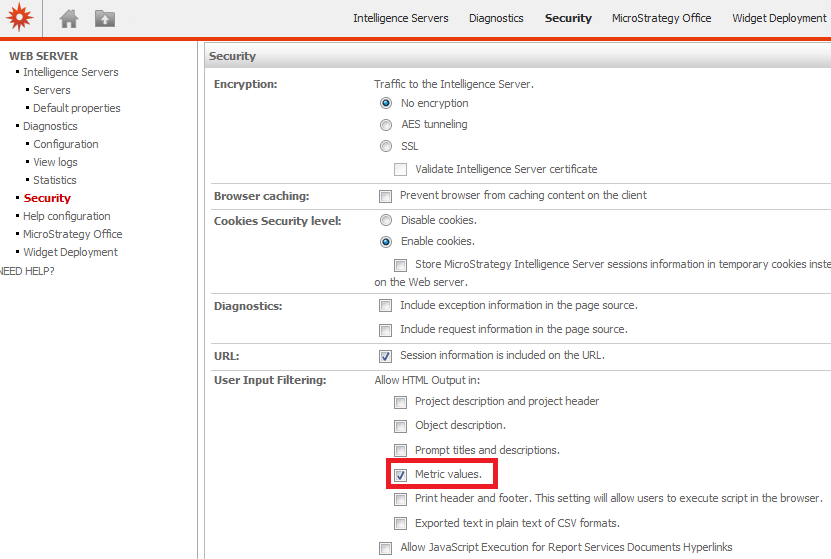
4. Check "Metric values" under Administrator Page > Security > User Input Filtering as per KB40157
ka04W000000OhR9QAK_0EM4400000025sG.jpeg

 
5. Now when hovering the mouse on “See Notes”, values will show in tooltip.
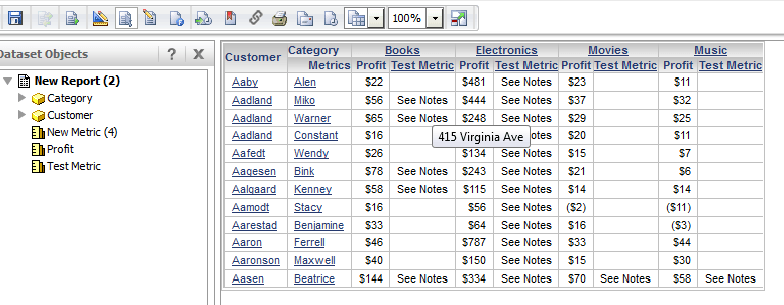
ka04W000000OhR9QAK_0EM4400000025sA.jpeg

Comment

0 comments

Details

Knowledge Article

Published:

May 22, 2017

Last Updated:

May 22, 2017