EducationSoftwareStrategy.com
StrategyCommunity

Knowledge Base

Product

Community

Knowledge Base

TopicsBrowse ArticlesDeveloper Zone

Product

Download SoftwareProduct DocumentationSecurity Hub

Education

Tutorial VideosSolution GalleryEducation courses

Community

GuidelinesGrandmastersEvents
x_social-icon_white.svglinkedin_social-icon_white.svg
Strategy logoCommunity

© Strategy Inc. All Rights Reserved.

LegalTerms of UsePrivacy Policy
  1. Home
  2. Topics

KB219394: Decimal values display as integers after using Data Import on an Excel spreadsheet in MicroStrategy Web 9.4.1


Community Admin

• Strategy


SYMPTOM:
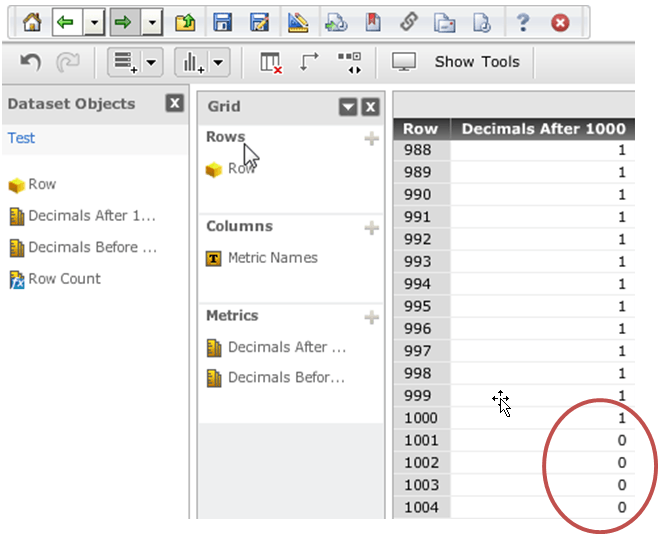
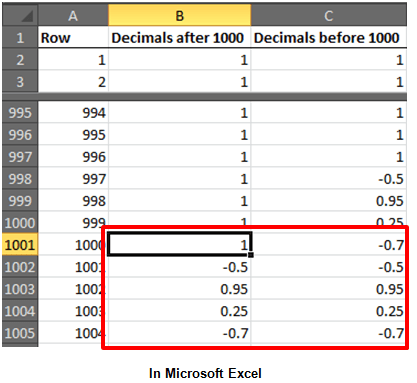
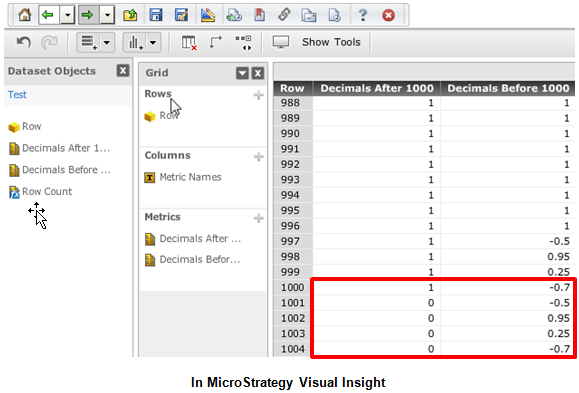
When using data import to import a column containing more than 1000 rows of only integers, any decimal numbers found after row 1000 will be converted into integers in Strategy Web 9.4.1. For instance the value “-0.5” in row 1001 will be rounded to “0” in a dashboard. An example is shown below.
ka04W000000OhN4QAK_0EM4400000025qm.jpeg


ka04W000000OhN4QAK_0EM4400000025qi.jpeg

STEPS TO REPRODUCE:

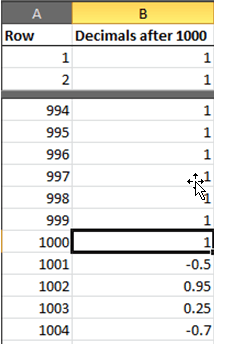
  • Create an Excel spreadsheet with a “Row” number column and a “Decimals after 1000” column containing all 1's all the way to row #1000.
  • After row number 1001, in the “Decimals after 1000” column put in some decimal number (e.g. 0.5, -0.5, 1.05, etc.) as shown below:
ka04W000000OhN4QAK_0EM4400000025qk.jpeg
  • Save the Excel spreadsheet.
  • Import the Excel spreadsheet into Strategy Web 9.4.1.
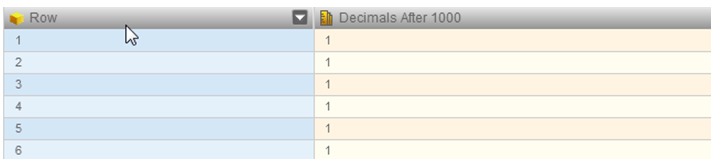
  • Set the “Row” column to an attribute.
  • Set the “Decimals after 1000” column to a metric like shown below.
ka04W000000OhN4QAK_0EM4400000025ql.jpeg
  • Create a Strategy Visual Insight dashboard using the imported data.
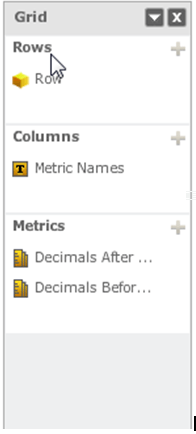
  • In the "Rows" drop zone, place the Row attribute.
  • In the "Metrics" drop zone, place the Decimals after 1000 metric, like shown below:
ka04W000000OhN4QAK_0EM4400000025qn.jpeg
  • Scroll down to row 1001 of the newly created grid in the Strategy Visual Insight dashboard.
  • Notice that the decimal number in the last row of the “Decimals after 1000” column has been rounded to the nearest whole number as in the example below:
ka04W000000OhN4QAK_0EM4400000025qj.jpeg

 
CAUSE:
This is working as designed in Strategy Web 9.4.1. During the import process, data Import will only scan the top 1000 rows to determine the data type for all the rows in the excel column. When in the first 1000 rows, all the numbers are integers, the data type is set to integer. Thus any decimal numbers found after row 1000 are converted to integers during the publishing of the cube. Although for Attributes there is an option to change the data type through the Strategy Visual Insight interface, this is not available for metrics. A request has been logged to address this issue.
 
ACTION:
Contact Strategy Technical Support for an update on this issue.
 
WORKAROUND:
  • Ensure that the columns containing decimal values, one of those decimal values is present within the first 1000 rows of the spreadsheet so the metric type is set to decimal, instead of integer.
  • When importing columns with decimal data only present after the first 1000 rows, follow these steps:
  1. Map the column as an attribute of the "Big Decimal" type.
  2. Create a custom metric based off of the new "Big Decimal" attribute.
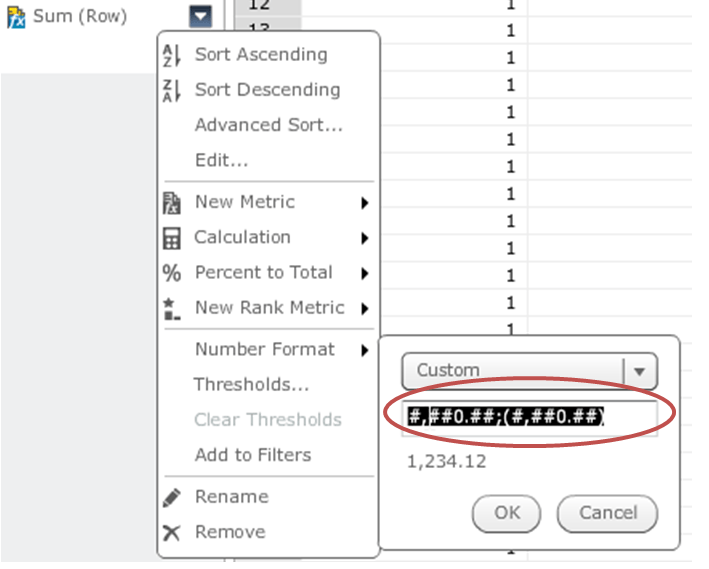
  3. Set the number format of the new metric to custom.
  4. In the custom number format, set the end to: ".##", accommodating for more decimal places as needed. An example is shown below
ka04W000000OhN4QAK_0EM4400000025qs.jpeg

The Strategy Internal Reference Number for the issue discussed in this technical note is 984123.


Comment

0 comments

Details

Knowledge Article

Published:

May 24, 2017

Last Updated:

May 24, 2017