EducationSoftwareStrategy.com
StrategyCommunity

Knowledge Base

Product

Community

Knowledge Base

TopicsBrowse ArticlesDeveloper Zone

Product

Download SoftwareProduct DocumentationSecurity Hub

Education

Tutorial VideosSolution GalleryEducation courses

Community

GuidelinesGrandmastersEvents
x_social-icon_white.svglinkedin_social-icon_white.svg
Strategy logoCommunity

© Strategy Inc. All Rights Reserved.

LegalTerms of UsePrivacy Policy
  1. Home
  2. Topics

KB219593: Users with Trusted Authentication receive “Job Expired -The Results of this document are no longer available” error when exporting a report in MicroStrategy Web.


Community Admin

• Strategy


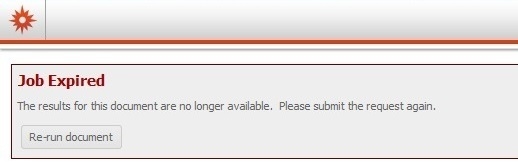
After successfully executing a MicroStrategy report, exporting the returned report will result in the following error: "Job Expired. The results for this document are no longer available. Please submit the request again."

SUMMARY:
This issue has been known to occur for users experiencing intermittent network failures. It only impacts users with Trusted Authentication in Strategy Web 9.x and later. While network failures can only be diagnosed and treated by the local Network Administrator, this document defines steps that will prevent an export error that can occur under these conditions.
 
SYMPTOM:
After successfully executing a Strategy report, exporting the returned report will result in the following error:


ka04W00000148hTQAQ_0EM4400000025qT.jpeg


Job Expired
The results for this document are no longer available. Please submit the request again.

The error will continue to be generated if the user hits the "Re-run Document" button. The export will only succeed when the user closes and re-executes the report.
 
CAUSE:
This may be caused by a number of factors. One of them may be that the user’s session between the Web Server and the Intelligence Server has been dropped after report execution, but before exporting. Standard Authentication users in this situation will be reprompted for their credentials upon export, and will be reconnected with their existing Intelligence Server Session. Single Sign On users may have their credentials passed to the Intelligence Server automatically once the connection is re-established, creating a brand new Intelligence Server session.
Because a new Intelligence Server session has been created, the user no longer has the same Working Set. The user’s current Working Set does not contains the Message that points to the Report Instance of the previously run report.For further information about Working Set and how it is used, refer to the following article:
KB10138: How are the concepts of Working Set, Working Set Result Pool, History List related to each other in MicroStrategy Intelligence Server?
ACTION:
Contact your Network Administrator to investigate any possible network intermittency issues.
 
WORKAROUND:
This workaround will not address any network instabilities, but will alleviate the “Job Expired” issue upon export. The following setting change will cause the user’s Intelligence Server session cookie to be stored on their local machine, rather than on the Web Server.

  • Access the Strategy Web Administrator page
  • Navigate to Security >> Cookies Security Level
  • Select “Enable cookies” if it is not already selected
  • Check the box “Store Strategy Intelligence Server sessions information in temporary cookies instead of on the Web server”

ka04W00000148hTQAQ_0EM4400000025qQ.jpeg
  • Restart the Web Server
  • If clustered Web Servers are employed, repeat these steps for each node

With this setting checked, users will store their Intelligence Server session as a cookie on their local machine. In the event that the connection between the Web Server and the Intelligence Server is dropped, the information stored in this cookie will allow the user to reconnect with their pre-existing Intelligence Server Session, instead of creating a new one. This will give the user their pre-existing Working Set, and the ability to export their report without issue.
 
VIDEO:
 
ADDITIONAL TROUBLESHOOTING STEPS:
If the workaround steps above do not resolve the issue, please consider calling Strategy technical support after performing the following steps:

  • Reproduce the issue in multiple web browsers
  • Enable and gather the Export Engine Trace from the Intelligence Server(s)
  • Gather the web logs from the Web Server(s)
     

Third Party Software Installation: WARNING:
The third-party product(s) discussed in this technical note is manufactured by vendors independent of Strategy. Strategy makes no warranty, express, implied or otherwise, regarding this product, including its performance or reliability.


Comment

0 comments

Details

Knowledge Article

Published:

April 18, 2017

Last Updated:

April 18, 2017