EducationSoftwareStrategy.com
StrategyCommunity

Knowledge Base

Product

Community

Knowledge Base

TopicsBrowse ArticlesDeveloper Zone

Product

Download SoftwareProduct DocumentationSecurity Hub

Education

Tutorial VideosSolution GalleryEducation courses

Community

GuidelinesGrandmastersEvents
x_social-icon_white.svglinkedin_social-icon_white.svg
Strategy logoCommunity

© Strategy Inc. All Rights Reserved.

LegalTerms of UsePrivacy Policy
  1. Home
  2. Topics

KB219604: How to rename the “(All)” selector element to a custom value in MicroStrategy Web and Developer 9.x and later.


Community Admin

• Strategy


This Technical Note describes the steps to rename the “(All)” selection available for MicroStrategy document selectors. This is possible by applying an alias to the element, and impacts documents developed in both Web and Desktop/Developer 9.x.

SUMMARY:                             
This Technical Note describes the steps to rename the “(All)” selection available for Strategy document selectors. This is possible by applying an alias to the element, and impacts documents developed in both Web and Desktop/Developer 9.x.
 
DESCRIPTION:
The “(All)” Selector element is an extremely useful tool that allows users to view data at a high-level, rather than being restricted to an attribute’s discrete elements. The displayed text for this element  can be changed by applying an alias to “(All)” selection in either Strategy Web or Desktop/Developer.
CAUSE:
Users may decide that the default alias for this element is either not descriptive or not aesthetically sufficient. Setting the alias for this element may provide greater ease of use for end users. 
 
ACTION:
  • Open a document that includes one or more Attribute Element Selectors for which the “(All)” is enabled.

ka04W000001IwgQQAS_0EM440000002CAy.jpeg
  • Open the document in Design view, and right click on the selector to be formatted.
  • Navigate to:
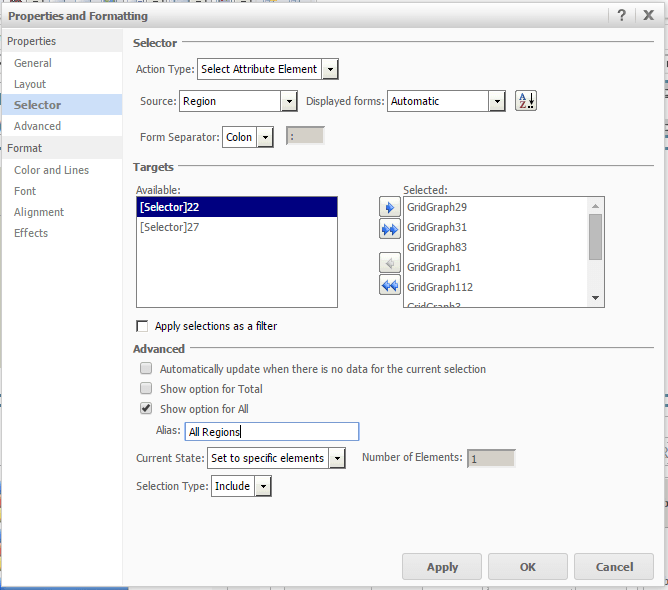
    • Properties and Formatting… >> Selector in Strategy Web

ka04W000001IwgQQAS_0EM440000002CAx.jpeg
    • Properties >> Selector in Strategy Desktop/Developer

ka04W000001IwgQQAS_0EM440000002CAw.jpeg
  • Beneath the “Show option for All” checkbox, there is a text field that allows you to apply a custom name for the “(All)” selection. Enter a meaningful name that will appeal both aesthetically and logically to end users.
     
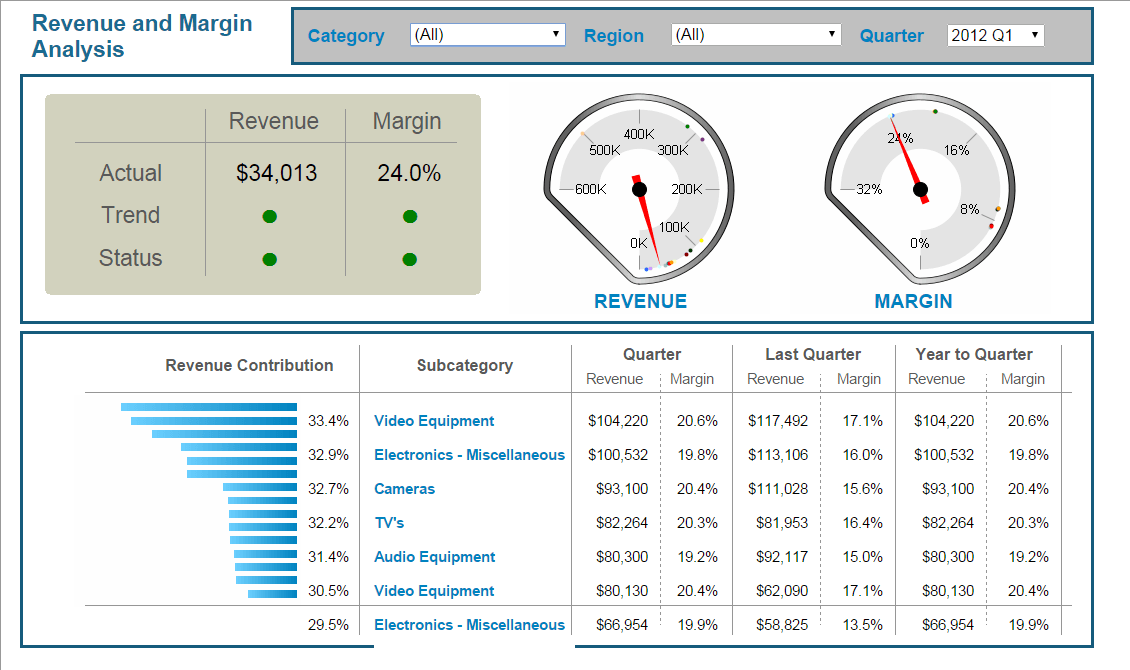
  • Execute document

ka04W000001IwgQQAS_0EM440000002CAv.jpeg

Additional Steps:
Further customization of selectors and their elements may be possible through the implementation of an SDK customization. For more information on customizing your web environment, consult the MicroStrategy Developer Hub.


Comment

0 comments

Details

Knowledge Article

Published:

June 8, 2017

Last Updated:

February 16, 2024