SUMMARY:
This issue has been classified as a defect by Strategy. The impact is limited to Strategy Developer 9.4.x-10.x product only with duplicate columns of different data types. A solution for this issue is available in the current releases but requires a backup of the Metadata.
SYMPTOM:
In Strategy Developer 9.4.x-10.x, when users try to create a report with a shortcut to an existing template object, the following error appears:

Unexpected error This key is already associated with an element of this collection.

2. Open up the 'Strategy Tutorial Project' and navigate to Schema Object->Attributes->Customer as shown below.

3. Edit the Customer attribute as shown below.

4. Attempt to modify the attribute form as shown below.
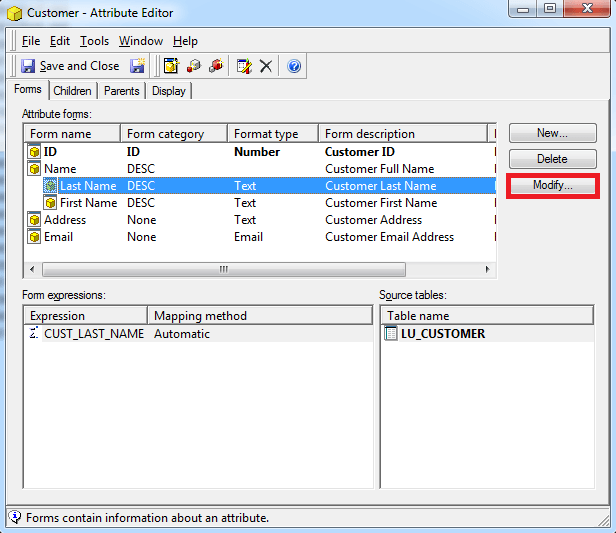
5. Error message appears as shown below.

Video:
You can find a detailed video on how this issue is reproduced here:
CAUSE:
This issue occurs if duplicate columns exist with data types being different. The custom ScanMD test that removes duplicate columns does not resolve the issue when the data types are different on the affected columns.
ACTION:
Contact Strategy Technical Support for assistance with the issue. To verify this issue a backup of the Metadata is required to generate an Object Manager package to fix the data type inconsistencies and then the custom ScanMD test will resolve the duplicate columns.
ADDITIONAL TROUBLESHOOTING:
When migrating objects from one environment to another verify that all underlying objects affected by the change are migrated over.
