EducationSoftwareStrategy.com
StrategyCommunity

Knowledge Base

Product

Community

Knowledge Base

TopicsBrowse ArticlesDeveloper Zone

Product

Download SoftwareProduct DocumentationSecurity Hub

Education

Tutorial VideosSolution GalleryEducation courses

Community

GuidelinesGrandmastersEvents
x_social-icon_white.svglinkedin_social-icon_white.svg
Strategy logoCommunity

© Strategy Inc. All Rights Reserved.

LegalTerms of UsePrivacy Policy
  1. Home
  2. Topics

KB221023: How to Change the Tooltip displayed on a Graph in MicroStrategy Web 9.4.1


Community Admin

• Strategy


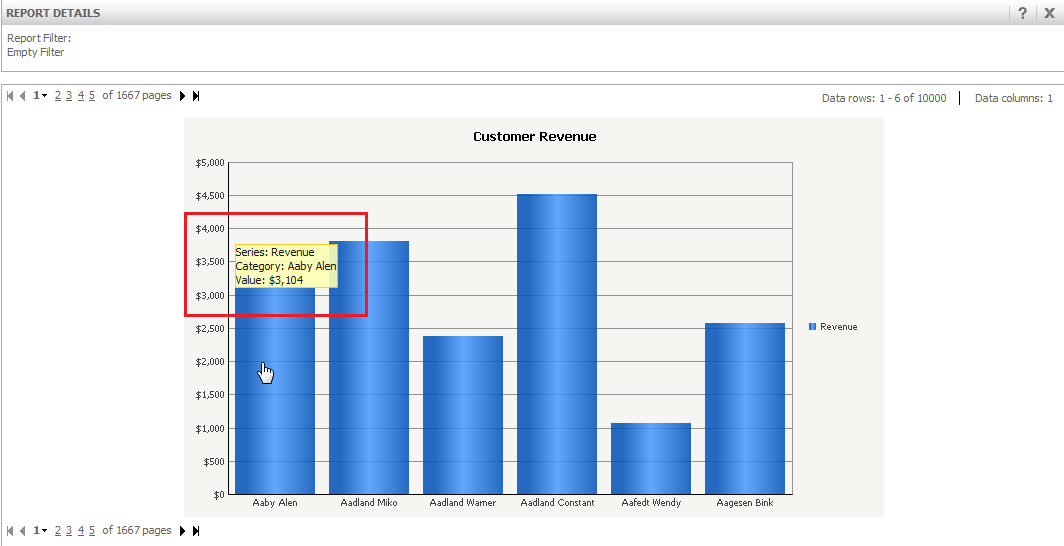
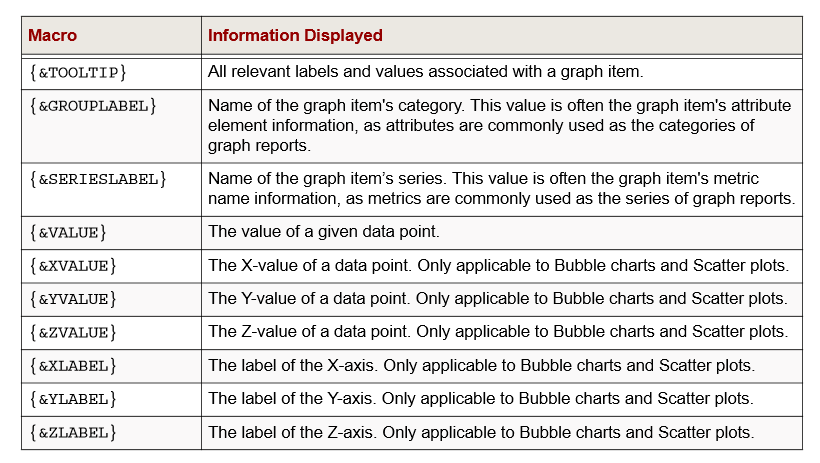
Tooltips are only visible in Web. However, both Strategy Developer and Web allow you to modify the tooltips displayed in a graph by using macros. These macros are dynamic text that is replaced with graph information when the tooltip is displayed in Graph View.
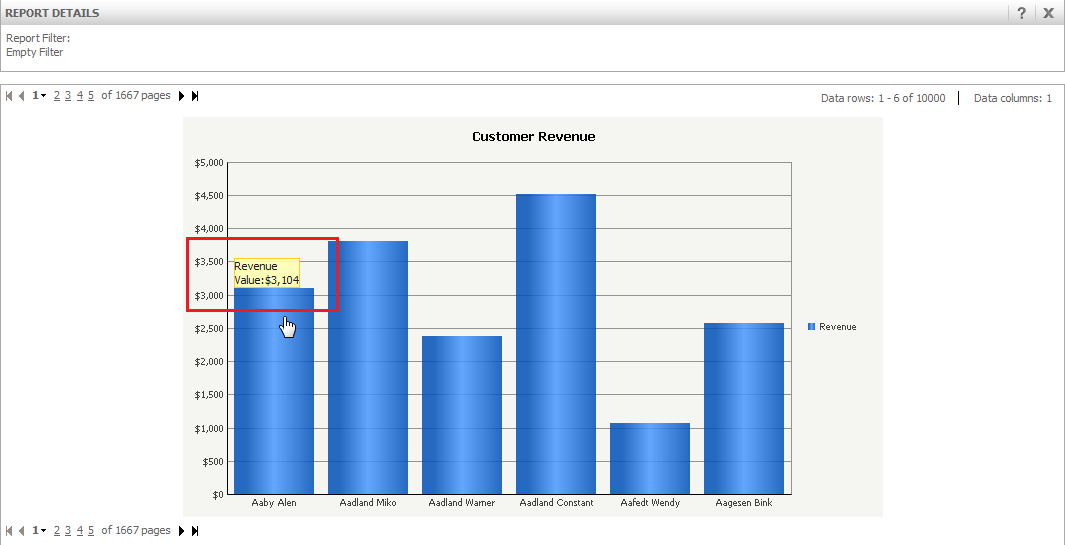
While the default macro used is {&TOOLTIP}, you can use different macros to customize what information appears in a given graph. You can use multiple macros in the same tooltip or combine static text and macros.
Some tooltip macros may not be available for use in specific types of graphs. For example, {&XVALUE} can only be used in Bubble charts or Scatter plots. If a macro is unavailable for the given graph type, no tooltip is displayed in the graph when viewed in Web.
 
The following table describes the macros you can use to customize graph tooltips in both Strategy Developer and Strategy Web:
ka04W000000OhQNQA0_0EM4400000025qo.jpeg

 
Default:

ka04W000000OhQNQA0_0EM4400000025rA.jpeg


    1. Open a report and display it in either Graph View or Grid and Graph View.
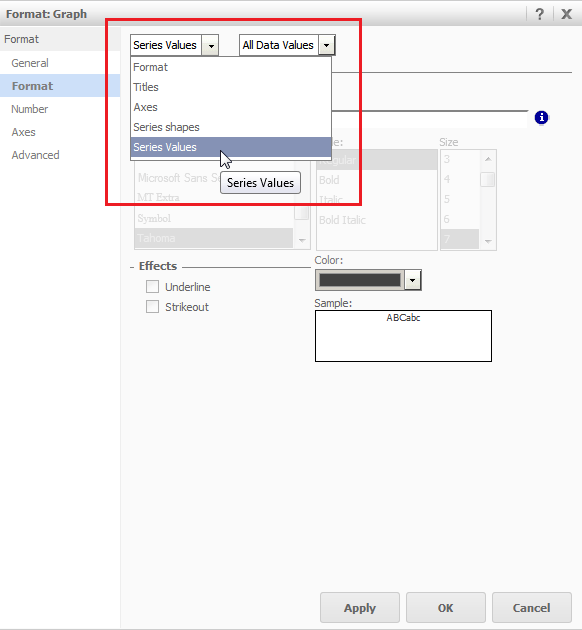
    2. From the Format menu, select Graph. The Format:Graph dialog box opens.
    3. Select Format.
    4. From the first drop-down list, select Series Values. The formatting options for series values appear.
ka04W000000OhQNQA0_0EM4400000025qp.jpeg
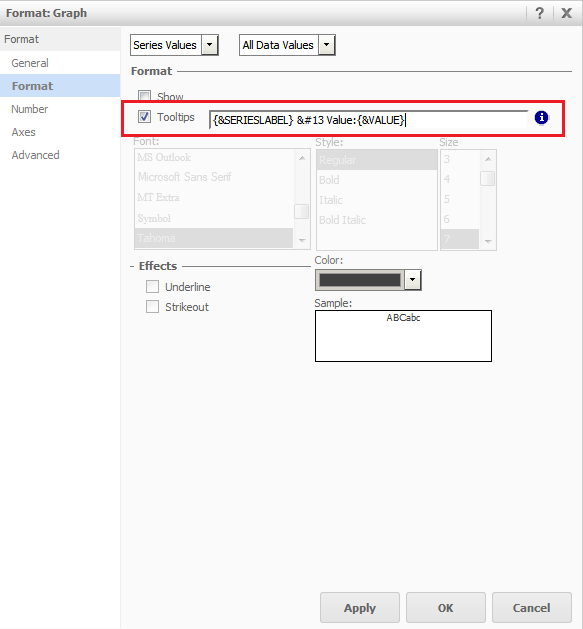
    1. Ensure that the Tooltips check box is selected. If this box is cleared, no tooltips will be visible in the graph.
    2. Type the text of the desired macro or your own static text.
ka04W000000OhQNQA0_0EM4400000025rB.jpeg
    1. Apply to apply changes.
    2. Click OK to return to the graph.

 
After:

ka04W000000OhQNQA0_0EM4400000025rC.jpeg


Comment

0 comments

Details

Knowledge Article

Published:

May 22, 2017

Last Updated:

May 22, 2017