EducationSoftwareStrategy.com
StrategyCommunity

Knowledge Base

Product

Community

Knowledge Base

TopicsBrowse ArticlesDeveloper Zone

Product

Download SoftwareProduct DocumentationSecurity Hub

Education

Tutorial VideosSolution GalleryEducation courses

Community

GuidelinesGrandmastersEvents
x_social-icon_white.svglinkedin_social-icon_white.svg
Strategy logoCommunity

© Strategy Inc. All Rights Reserved.

LegalTerms of UsePrivacy Policy
  1. Home
  2. Topics

KB221199: New feature in MicroStrategy 10: Bursting to Email


Community Admin

Placeholder •


Email bursting is a new feature in MicroStrategy 10 which allows users to send out personalized slices of a single report execution to a dynamic list of recipients. Prior to MicroStrategy 10, Distribution Services was able to burst page-by slices to file; this capability has been extended to email as well.

Email bursting is a new feature in Strategy 10 which allows users to send out personalized slices of a single report execution to a dynamic list of recipients. Prior to Strategy 10, Distribution Services was able to burst page-by slices to file; this capability has been extended to email as well.
In order to burst to email, follow the steps below (based on the Strategy Tutorial project):
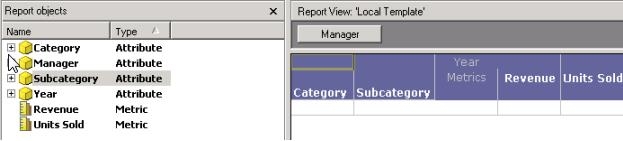
 

  • Build the following report using the Tutorial Metadata:
ka0PW0000002y9lYAA_0EM4400000029JK.jpeg
  • Note that the Manager attribute appears in the page-by. Email bursting, like file requires at least one attribute in the page-by. Also, at least one of the page-by attributes should have an email attribute form.
     
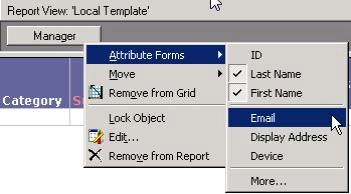
  • Right-click on the Manager attribute in the page-by and add the Email attribute form. Save the report as “Email Bursting”
ka0PW0000002y9lYAA_0EM4400000029J6.jpeg
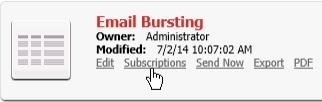
  • Open the report’s subscriptions in Strategy Web:
ka0PW0000002y9lYAA_0EM4400000029JO.jpeg
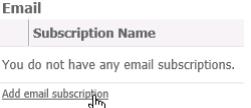
  • Scroll down to the Email subscription and click the option to “Add email subscription”:
ka0PW0000002y9lYAA_0EM4400000029JN.jpeg
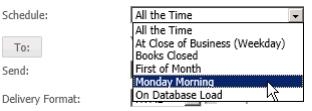
  • Choose the schedule by clicking the drop-down and selecting the required schedule.
ka0PW0000002y9lYAA_0EM4400000029JT.jpeg
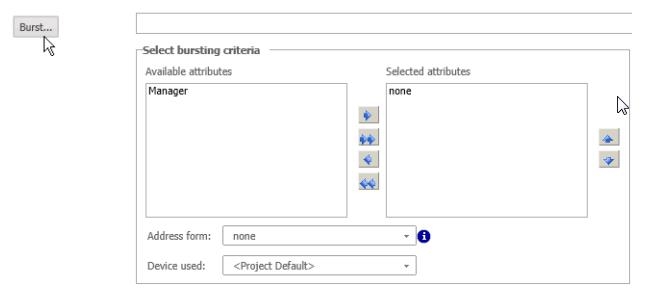
  • Click the “Burst..” icon to expand it:
ka0PW0000002y9lYAA_0EM4400000029JR.jpeg
  • All page-by attributes will appear in the left hand “Available attributes” column. Users can burst by multiple attributes and each slice will be a separate delivery.
     
  • Click the right-hand arrow to move the Manager attribute to the right-hand column. Then change the “Address form” to “Manager:Email”. The 'Address form' field must always be set to an email attribute form.

     
  • After choosing the bursting criteria and the Address form, the To: section should now be grayed out:
ka0PW0000002y9lYAA_0EM4400000029JG.jpeg
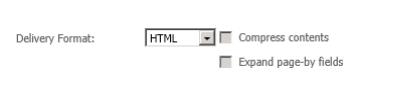
  • Additionally, the “Expand page-by fields” and “Compress contents” options in the “Delivery Format” section should also be grayed out:
ka0PW0000002y9lYAA_0EM4400000029JD.jpeg
  • This is expected behavior as the “To” field will be filled in dynamically by the Email attribute form chosen in the 'Address form' field. Additionally, since the page-by is used to resolve the email address the option to compress or expand them is disabled.
     
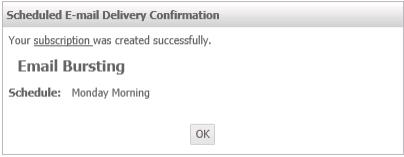
  • Finally, select the check-box to “Send a preview now” and click OK. A preview should be received to the email addresses used by the Strategy Tutorial project.

    Note: As the email addresses corresponding to the Manager attribute in the Strategy Tutorial project are dummy addresses, users can edit the email transmitter to deliver to file also and check  the emails from the file location.

ka0PW0000002y9lYAA_0EM4400000029JB.jpeg

Comment

0 comments

Details

Knowledge Article

Published:

April 25, 2017

Last Updated:

August 12, 2024