EducationSoftwareStrategy.com
StrategyCommunity

Knowledge Base

Product

Community

Knowledge Base

TopicsBrowse ArticlesDeveloper Zone

Product

Download SoftwareProduct DocumentationSecurity Hub

Education

Tutorial VideosSolution GalleryEducation courses

Community

GuidelinesGrandmastersEvents
x_social-icon_white.svglinkedin_social-icon_white.svg
Strategy logoCommunity

© Strategy Inc. All Rights Reserved.

LegalTerms of UsePrivacy Policy
  1. Home
  2. Topics

KB221356: Enabling "Larger Accessibility Sizes" on iPhone 5 hides the password field on the login page in MicroStrategy Mobile 9.4.1 iOS Update 5


Community Admin

• Strategy


This Knowledge Base article describes a known issue that enabling "Larger Accessibility Sizes" on iPhone 5 hides the password field on the login page in MicroStrategy Mobile 9.4.1 iOS Update 5. MicroStrategy will continue to investigate and post updates as soon as they are available.

SYMPTOM:
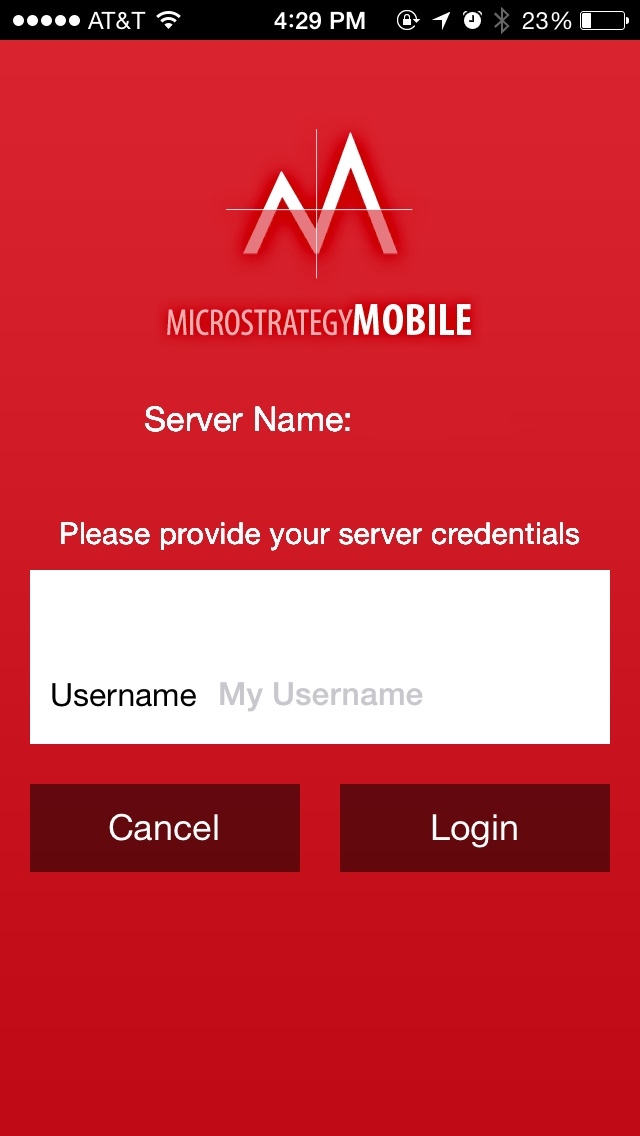
Enabling "Larger Accessibility Sizes" on the iPhone 5 prevents the password field from displaying on the Strategy login screen, in Strategy Mobile 9.4.1 iOS Update 5, as shown below.
ka04W000000OhOZQA0_0EM440000002A0O.jpeg
ka04W000000OhOZQA0_0EM440000002A0U.jpeg

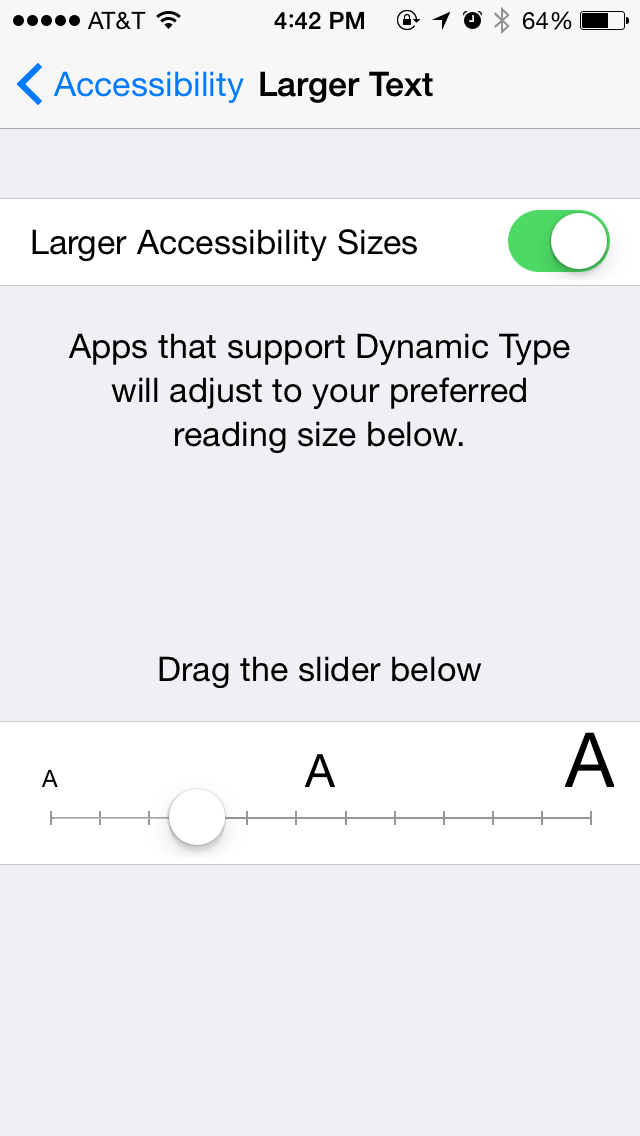
Notice, the password input box does not display in the login screen above. This setting is found under Settings > General > Accessibility > Larger Text.
CAUSE:
This is a known issue in Strategy Mobile 9.4.1 iOS Update 5.  When "Larger Accessibility Sizes" is enabled, and the slider is moved to the far right position, this issue will occur.
 
ACTION:
Strategy will continue to investigate and post updates as soon as they are available.
 
WORKAROUND:
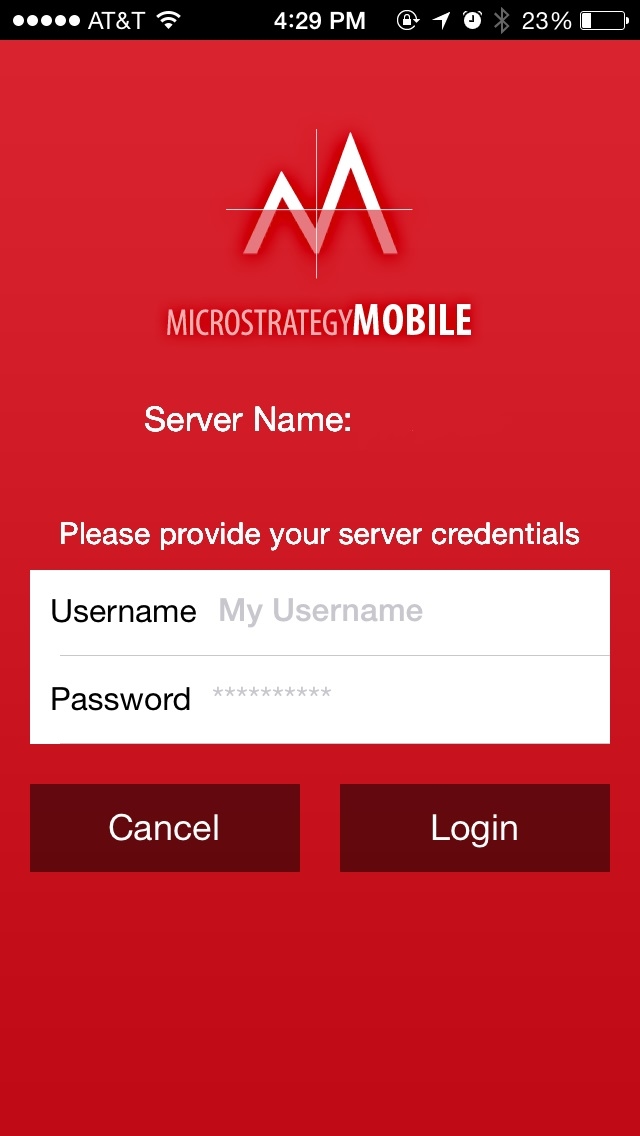
In order for the password field to display properly on the login page, decrease the text size in the iPhone settings so the field displays correctly, as shown below:
ka04W000000OhOZQA0_0EM440000002A0S.jpeg


Comment

0 comments

Details

Knowledge Article

Published:

May 23, 2017

Last Updated:

May 23, 2017