EducationSoftwareStrategy.com
StrategyCommunity

Knowledge Base

Product

Community

Knowledge Base

TopicsBrowse ArticlesDeveloper Zone

Product

Download SoftwareProduct DocumentationSecurity Hub

Education

Tutorial VideosSolution GalleryEducation courses

Community

GuidelinesGrandmastersEvents
x_social-icon_white.svglinkedin_social-icon_white.svg
Strategy logoCommunity

© Strategy Inc. All Rights Reserved.

LegalTerms of UsePrivacy Policy
  1. Home
  2. Topics

KB221404: How to customize default date format for certain locale on grid in MicroStrategy Web 9.4.1 and above.


Community Admin

• Strategy


In MicroStrategy Web, the date format in grids is controlled by Intelligence Server. To customize the date format for an existing locale, modifications need to be done in Intelligence Server machine.

In Strategy Web, the date format in grids is controlled by Intelligence Server. To customize the date format for an existing locale, modifications need to be done in Intelligence Server machine.
Follow the steps below as an example to change the default date format for US English from M/d/yyyy to dd/mm/yyyy:
 

  • On the Intelligence Server machine, select Start > Control Panel > Clock, Language, and Region > Region and Language > Formats, and change the short date for "English (United States)" to "dd/MM/yyyy", as shown below:

ka04W000000Ofh1QAC_0EM4400000025pg.jpeg
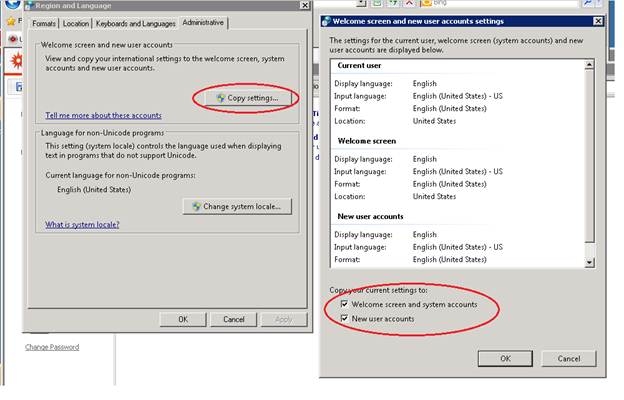
  • If Intelligence Server is running under a Windows system account, the following steps need to be taken:
    Start > Control Panel > Clock, Language, and Region > Region and Language > Administrative > Copy settings > Enable “Welcome screens and system accounts / New user accounts.

    For more information, refer to Microsoft documentation:

    http://windows.microsoft.com/en-US/windows-vista/Apply-regional-and-language-settings-to-reserved-accounts

ka04W000000Ofh1QAC_0EM4400000025pt.jpeg

3. Restart Intelligence Server.
4. In Strategy Web preference, change the "Date and Number format setting" to English (United States).
5. Clear Browser cache as well as the report cache in Developer (right-click the report and select Purge Report cache), then execute the report again. Note that the date format changed accordingly.
 
NOTE: This method only works for Windows Environments. Currently, for Linux I-Server, Strategy uses hard-coded format for supported locale.


Comment

0 comments

Details

Knowledge Article

Published:

April 13, 2017

Last Updated:

October 17, 2017