EducationSoftwareStrategy.com
StrategyCommunity

Knowledge Base

Product

Community

Knowledge Base

TopicsBrowse ArticlesDeveloper Zone

Product

Download SoftwareProduct DocumentationSecurity Hub

Education

Tutorial VideosSolution GalleryEducation courses

Community

GuidelinesGrandmastersEvents
x_social-icon_white.svglinkedin_social-icon_white.svg
Strategy logoCommunity

© Strategy Inc. All Rights Reserved.

LegalTerms of UsePrivacy Policy
  1. Home
  2. Topics

KB221652: When is the 'unlink' option available for attributes in Report Services documents and Visual Insight dashboards in MicroStrategy Web 9.4.1


Community Admin

• Strategy


When is the 'unlink' option available for attributes in Report Services documents and Visual Insight dashboards in MicroStrategy Web 9.4.1

In Strategy Web 9.4.1, the ability to link/unlink attributes in Report Services documents and Visual Insight dashboards was introduced for data import cubes. However, users may notice that in certain scenarios, the link/unlink option is either greyed out or does not appear.
 
Consider the following four scenarios:
Scenario 1 - Data import cube and a data warehouse report

  1. Create a report with the Customer attribute (Report 1).
  2. Create an Excel file with (Data Import Cube 1):

    ;;^ ;;
     Customer 1 2 3 Customer 1 2 3 Customer 1 2 3

    ;;^ ;;
     Customer 1 2 3 Customer 1 2 3 Customer 1 2 3

    ;;^ ;;
     Customer 1 2 3 Customer 1 2 3 Customer 1 2 3

    ;;^ ;;
     Customer 1 2 3 Customer 1 2 3 Customer 1 2 3


  3. Import the file and create a Document using Data Import Cube 1.
  4. Insert Report 1 as a second dataset, notice the Customer attributes are linked.
  5. Right-click the Customer attribute, notice the "unlink" option is available, as shown below:


ka04W000000OdqBQAS_0EM4400000025ZF.jpeg

Explanation: The linking/unlinking feature was introduced for data import cubes. The attributes created from a data import cube can be unlinked from project attributes without changing the underlying definition of the attribute.
 
Scenario 2 - Two data warehouse reports
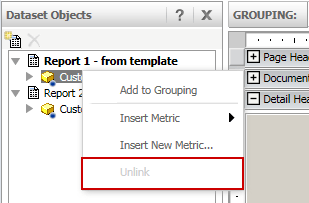
  1. Create a report with the Customer attribute (Report 1).
  2. Create a second report with the Customer attribute (Report 2).
  3. Create a document with both reports as datasets.
  4. Notice the Customer attributes are linked.
  5. Right-click the Customer attribute, notice the "unlink" option is greyed out, as shown below:


ka04W000000OdqBQAS_0EM4400000025ZG.jpeg

Explanation: In this scenario, both reports are using the same attribute from the data warehouse. Since the attribute displays the link, the unlink option appears but it is greyed out to indicate the function is not available.
 
Scenario 3 - Cube report and a data warehouse report

  1. Create a report with the Customer attribute (Report 1).
  2. Create an Excel file with:

    ;;^ ;;
     Customer 1 2 3 Customer 1 2 3 Customer 1 2 3

    ;;^ ;;
     Customer 1 2 3 Customer 1 2 3 Customer 1 2 3

    ;;^ ;;
     Customer 1 2 3 Customer 1 2 3 Customer 1 2 3

    ;;^ ;;
     Customer 1 2 3 Customer 1 2 3 Customer 1 2 3


  3. Import the file and create a report from the data import cube (Report 2).
  4. Create a document with both reports as datasets.
  5. Notice the Customer attributes are linked.
  6. Right-click the Customer attribute, notice the "unlink" option is greyed out.


ka04W000000OdqBQAS_0EM4400000025ZB.jpeg

Explanation: In this scenario, one report is a ROLAP report while the cube report is a view report (subset report). Linking/unlinking of attributes will change the underlying definition of an attribute, which is not supported for this situation.
 
Scenario 4 – Two cube reports

  1. Create an Excel file with:

    ;;^ ;;
     Customer 1 2 3 Customer 1 2 3 Customer 1 2 3

    ;;^ ;;
     Customer 1 2 3 Customer 1 2 3 Customer 1 2 3

    ;;^ ;;
     Customer 1 2 3 Customer 1 2 3 Customer 1 2 3

    ;;^ ;;
     Customer 1 2 3 Customer 1 2 3 Customer 1 2 3


  2. Create a copy of this Excel file, save it as Report 2.
  3. Import the first Excel file and create a report from the data import cube (Report 1).
  4. Import the second Excel file and create a report from the data import cube (Report 2).
  5. Create a document with both reports as datasets.
  6. Notice the Customer attributes are linked.
  7. Right-click the Customer attribute, notice the "unlink" option is not available.


ka04W000000OdqBQAS_0EM4400000025ZE.jpeg

Explanation: In this scenario, both reports are view reports (subset reports of the data import cubes) so unlinking is not available.


Comment

0 comments

Details

Knowledge Article

Published:

June 15, 2017

Last Updated:

June 15, 2017