EducationSoftwareStrategy.com
StrategyCommunity

Knowledge Base

Product

Community

Knowledge Base

TopicsBrowse ArticlesDeveloper Zone

Product

Download SoftwareProduct DocumentationSecurity Hub

Education

Tutorial VideosSolution GalleryEducation courses

Community

GuidelinesGrandmastersEvents
x_social-icon_white.svglinkedin_social-icon_white.svg
Strategy logoCommunity

© Strategy Inc. All Rights Reserved.

LegalTerms of UsePrivacy Policy
  1. Home
  2. Topics

KB222055: “The Microsoft Office Access database engine cannot open or write to the file '…' It is already opened exclusively by another user” error occurs when executing a document based on an Access database linked to an Excel file.


Community Admin

• Strategy


This article describes an issue with certain Access databases

SUMMARY:
In Strategy, when users execute a document based on data from an Access database linked to an Excel file, they get the error message: “Document Execution Failed: One or more dataset reports returned an error. The Microsoft Office Access database engine cannot open or write to the file '...' It is already opened exclusively by another user, or you need permission to view and write its data.”  This document explains the cause of this issue and how it can be resolved.
 
SYMPTOM:
In Strategy, when executing a document with data from an Access database linked to an Excel file, users may sometimes get the following error message:

ka04W000000OhdXQAS_0EM440000002CAS.jpeg


Document Execution Failed: One or more dataset reports returned an error. (QueryEngine encountered error: Execute Query failed. Error type: Odbc error. Odbc operation attempted: SQLExecDirect. [HY000:-1032: on SQLHANDLE][Microsoft][ODBC Microsoft Access Driver] The Microsoft Access database engine cannot open or write to the 'file' ... It is already opened exclusively by another user, or you need permission to view and write its data.
This error won't always occur and there are times when the document will execute correctly.
 
STEPS TO REPRODUCE:
Follow the steps below to reproduce the issue in Strategy Tutorial.

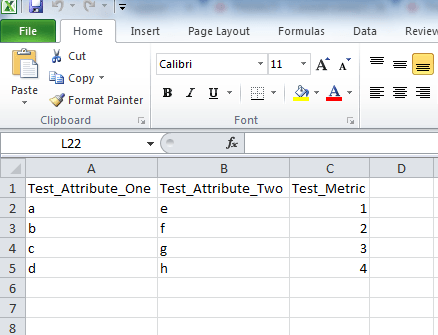
  • Create an Excel file with some data.
ka04W000000OhdXQAS_0EM440000002CAf.jpeg
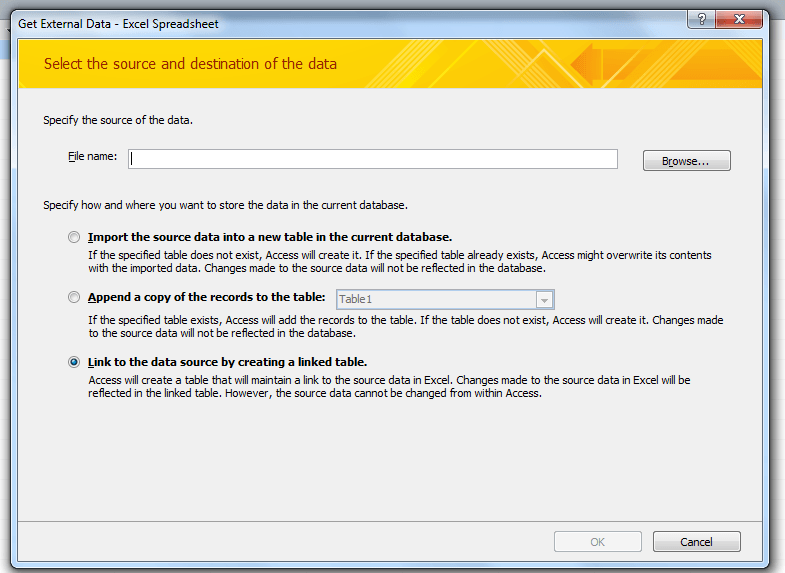
  • Create an Access database by importing Excel data.  Choose to “Link to the data source by creating a linked table.”
ka04W000000OhdXQAS_0EM440000002CAK.jpeg
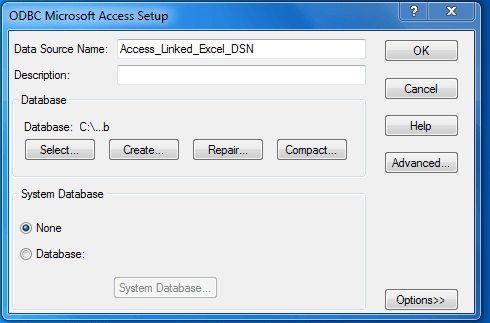
  • Create a DSN connecting to the Access database.
ka04W000000OhdXQAS_0EM440000002CAU.jpeg
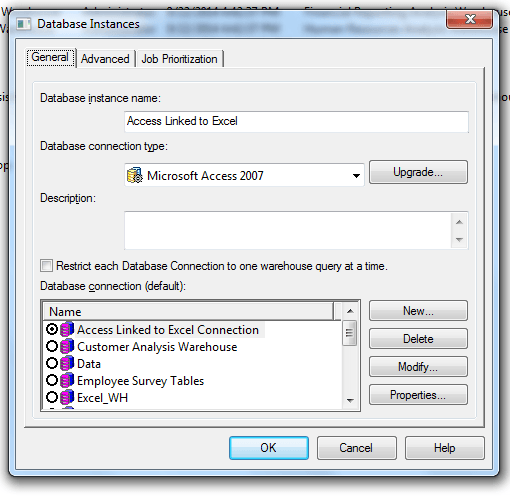
  • In Developer, create a Database Instance for the Access database.
ka04W000000OhdXQAS_0EM440000002CAR.jpeg
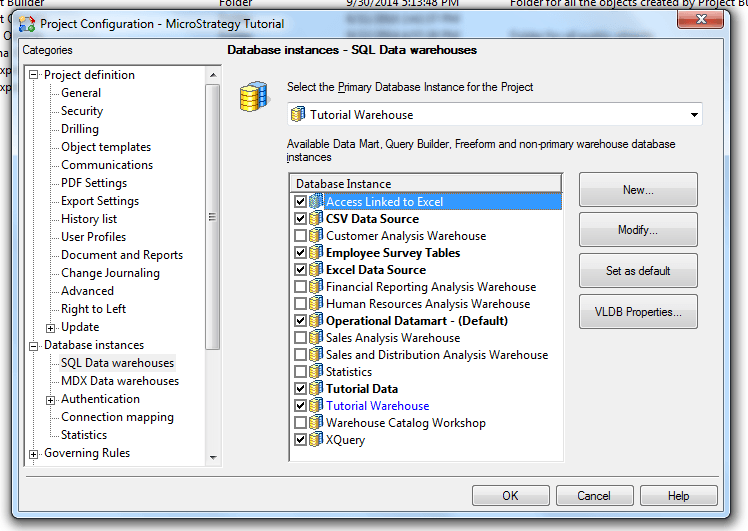
  • Add this Database Instance to the Strategy Tutorial Project.
ka04W000000OhdXQAS_0EM440000002CAX.jpeg
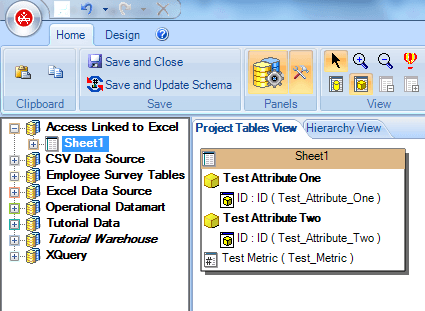
  • Create attributes and facts based on the data from the Access database.
ka04W000000OhdXQAS_0EM440000002CAP.jpeg
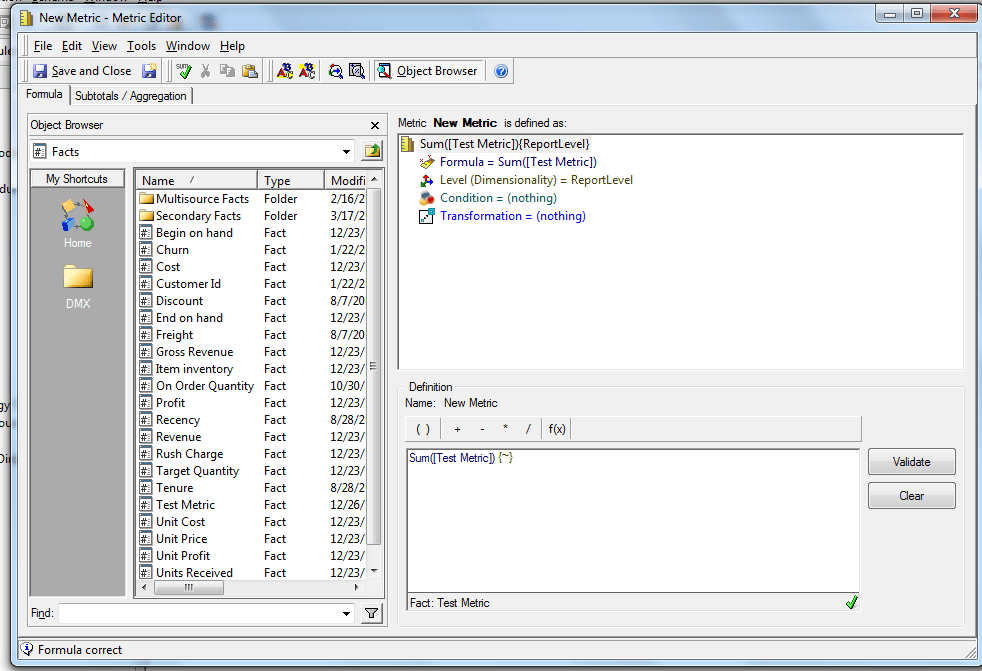
  • Create a metric based on the fact.
ka04W000000OhdXQAS_0EM440000002CAQ.jpeg
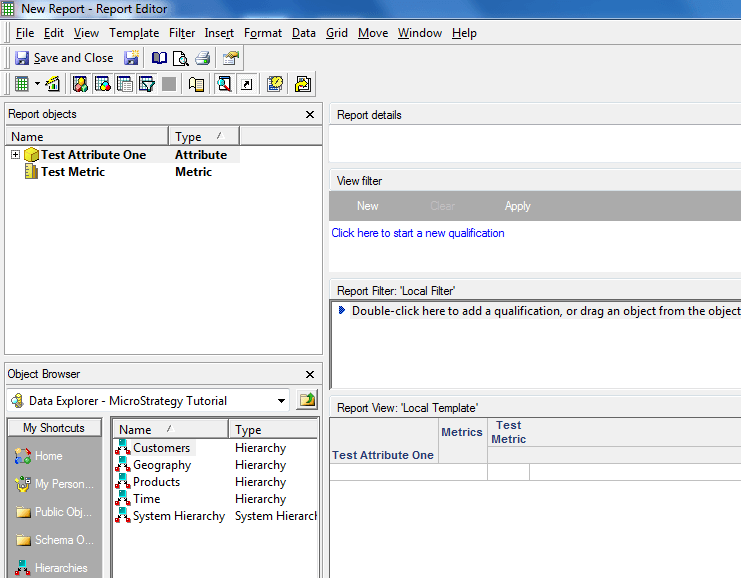
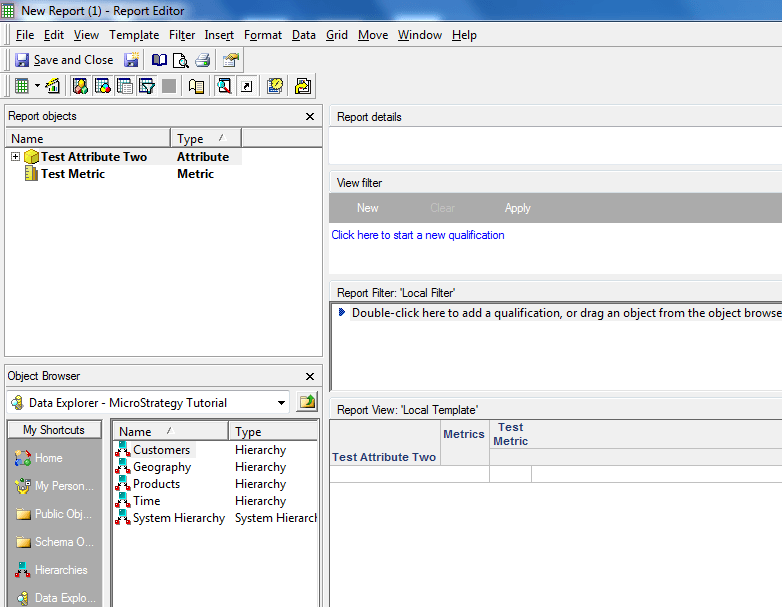
  • Create two reports based on the attributes and metrics from the Access database.
ka04W000000OhdXQAS_0EM440000002CAW.jpeg
ka04W000000OhdXQAS_0EM440000002CAT.jpeg
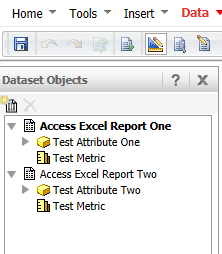
  • Create a document. Use the two reports from the previous step as datasets for the document.
ka04W000000OhdXQAS_0EM440000002CAV.jpeg
  • Run the document. The document will fail to execute and the error message will be seen.
     
  • Run the document again. The document will execute correctly this time.

 
CAUSE:
Microsoft Excel is not a true database, so it can only handle one database connection at a time.  When an Access database is linked to an Excel file, any time the Access database is queried, the Excel file must be accessed in order to retrieve the raw data. When a Strategy document contains multiple datasets based on the Excel file, multiple connections try to access the Excel file simultaneously resulting in this error.
 
After the document has been run and results have been cached, the document will execute correctly subsequent times – the cached results will be used, eliminating the connections to the Excel file.
 
ACTION:
This issue can be fixed by modifying the number of database connections allowed for the database instance. In Developer, right-click on the database instance to edit it. Click on the Job Prioritization tab. Change the number of connections to only allow one connection to the database at a time.


Comment

0 comments

Details

Knowledge Article

Published:

May 4, 2017

Last Updated:

May 4, 2017