EducationSoftwareStrategy.com
StrategyCommunity

Knowledge Base

Product

Community

Knowledge Base

TopicsBrowse ArticlesDeveloper Zone

Product

Download SoftwareProduct DocumentationSecurity Hub

Education

Tutorial VideosSolution GalleryEducation courses

Community

GuidelinesGrandmastersEvents
x_social-icon_white.svglinkedin_social-icon_white.svg
Strategy logoCommunity

© Strategy Inc. All Rights Reserved.

LegalTerms of UsePrivacy Policy
  1. Home
  2. Topics

KB222131: How to use URL API to answer prompts and export to HTML using the promptsAnswerXML parameter in MicroStrategy Web


Community Admin

• Strategy


The article explains how to use URL API to answer prompts and export to HTML using the promptsAnswerXML parameter in MicroStrategy Web.

SYMPTOM: 
In Strategy Web 9.4.1, in order to construct a URL API to export a document to HTML and answer the document’s prompts using the promptsAnswerXML parameter, the URL API must do the following 4 things:

  1. Execute the document.
  2. Answer the prompts.
  3. Export.
  4. Specify the order of the events.
     

ACTION:

  • Execute the document:

    Get the URL from the "Show Link" option from the folder browse, as shown below.

    This is the URL to execute the document:
    
    http://<server name>/MicroStrategy/asp/Main.aspx?evt=2048001&src=Main.aspx.2048001&visMode=0¤tViewMedia=2&documentID=DED02CDE4C7DE16A9A62B98D2CBDC8A2&server=<SERVER NAME>&Project=<Project Name>&port=0

     
  • Answer the prompts:

    The easiest way to answer the prompts regardless of them being element prompts or value prompts is to use the promptsAnswerXML parameter.
    To add the promptsAnswerXML parameter, use the following syntax:
    
    promptsAnswerXML=<rsl><pa+pt="4"+pin="0"+did="<ValueX>"+tp="10"<<ValueY>></pa></rsl>
    Notice the two values that need to replaced <ValueX> and <ValueY>. To replace the values, follow these steps:
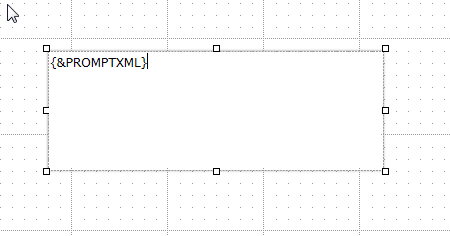
    i.  For the did tag value, insert a text box into the desired document with the following value {&PROMPTXML}, as shown below:
ka04W00000148YdQAI_0EM4400000025nv.jpeg
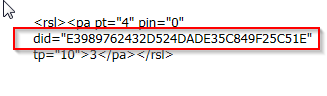
  • And then execute the document to retrieve the value of <ValueX>, as shown below:
ka04W00000148YdQAI_0EM4400000025nt.jpeg
  • ii.  In order to populate the value of <ValueY> dynamically, enter an attribute name in the following format: {[Attribute Name]@ID}.
     
    Insert the promptsAnswerXML with the desired prompt answers to the document execution URL from step 1, as shown below:
    
    &promptsAnswerXML=<rsl><pa+pt="4"+pin="0"+did="E3989762432D524DADE35C849F25C51E"+tp="10"><{[Customer Name]@ID}></pa></rsl>

  • Export:

    Follow the &promptsAnswerXML paramter by adding the exporting event.  In this example, the export format is HTML. Refer to tech note KB47556: How to export to HTML using URL API in MicroStrategy Web 9.4.1 and above.  for more information on using URL API to export in HTML format: 
    
    &evt=3130&src=Main.aspx.3130

     
  • Specify the order of the events:

    Determine the order of the events. Refer to tech note KB16688  for more information on multiple events for URL API. In this example, the following event order applies:


     &evtorder=2048001,3130&3130=1&2048001=1

 
The final URL will look like this:

http://server-name /MicroStrategy/asp/Main.aspx?evt=2048001&src=Main.aspx.2048001&documentID=DED02CDE4C7DE16A9A62B98D2CBDC8A2&server=SERVER-NAME&Project=Project-Name&port=0&promptsAnswerXML=<rsl><pa+pt="4"+pin="0"+did="E3989762432D524DADE35C849F25C51E"+tp="10"><{[Customer Name]@ID}></pa></rsl>&evt=3130&src=Main.aspx.3130&evtorder=2048001%2c3130&3130=1&2048001=1


Comment

0 comments

Details

Knowledge Article

Published:

May 23, 2017

Last Updated:

May 23, 2017