EducationSoftwareStrategy.com
StrategyCommunity

Knowledge Base

Product

Community

Knowledge Base

TopicsBrowse ArticlesDeveloper Zone

Product

Download SoftwareProduct DocumentationSecurity Hub

Education

Tutorial VideosSolution GalleryEducation courses

Community

GuidelinesGrandmastersEvents
x_social-icon_white.svglinkedin_social-icon_white.svg
Strategy logoCommunity

© Strategy Inc. All Rights Reserved.

LegalTerms of UsePrivacy Policy
  1. Home
  2. Topics

KB222157: Changes to prompt order in a document cannot be saved in MicroStrategy Developer 9.4.1


Stefan Zepeda

Salesforce Solutions Architect • Strategy


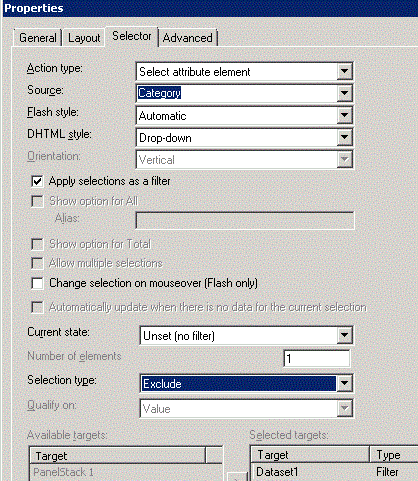
This document shows one known issue that changes to prompt order in a document cannot be saved in MicroStrategy Developer 9.4.1. This issue is related to attribute element selector which is in exclude mode and selected element which is saved in document definition. The workaround is to set the current state of selector to be "Unset (no filter)" to remove the selected element from document definition.

SUMMARY:
This document shows one known issue that changes to prompt order in a document cannot be saved in Strategy Developer 9.4.1. This issue is related to attribute element selector which is in exclude mode and selected element which is saved in document definition. The workaround is to set the current state of selector to be "Unset (no filter)" to remove the selected element from document definition.
 
SYMPTOM:
Suppose there is one document with attribute element selector in exclude mode. When one specific element is selected and then the document is saved, changes made to the prompt order cannot be saved in Strategy Developer 9.4.1.
 
STEPS TO REPRODUCE:

  • Create report Dataset1 with attribute Year and Category, metric Cost and prompt Elements of Year.
  • Create report Dataset2 with attribute Year and Category, metric Revenue and prompt Elements of Category.
  • Create a document with Dataset1 and Dataset2 as datasets. 
  • Insert one grid with Year, Category and Cost. Insert attribute element selector on Category and set it in Exclude mode as shown below:
ka02R000000kcTsQAI_0EM440000002C9n.jpeg
ka02R000000kcTsQAI_0EM440000002C9e.jpeg
  • Run the document with prompt answers provided and change the selection to Electronics. Save the document as shown below:
ka02R000000kcTsQAI_0EM440000002C9g.jpeg
  • Check the properties of the selector. The current state should be "Set specific elements" as shown below:
ka02R000000kcTsQAI_0EM440000002C9d.jpeg
  • In Data>Prompt Ordering, the current prompt order is as shown below:
ka02R000000kcTsQAI_0EM440000002C9c.jpeg
  • Change the prompt order to make Category prompt appear in the first row as shown below:
ka02R000000kcTsQAI_0EM440000002C9i.jpeg
  • Save the prompt order and save the document. Check the prompt order again. The prompt order reverts to the old order as shown below:
ka02R000000kcTsQAI_0EM440000002C9h.jpeg

 
CAUSE:
This is a known issue in Strategy Developer 9.4.1. 
 
ACTION:
This issue has been addressed in Strategy Developer 10.x.  Please upgrade to take advantage of this fix.
 
WORKAROUND:
Edit the document. In properties of the selector, change the current state to "Unset (no filter)" as shown below:

ka02R000000kcTsQAI_0EM440000002C9f.jpeg

Then, save the document. 
 
The Strategy Internal Reference Number for the issue discussed in this technical note is 994194.


Comment

0 comments

Details

Knowledge Article

Published:

April 17, 2017

Last Updated:

April 17, 2017