EducationSoftwareStrategy.com
StrategyCommunity

Knowledge Base

Product

Community

Knowledge Base

TopicsBrowse ArticlesDeveloper Zone

Product

Download SoftwareProduct DocumentationSecurity Hub

Education

Tutorial VideosSolution GalleryEducation courses

Community

GuidelinesGrandmastersEvents
x_social-icon_white.svglinkedin_social-icon_white.svg
Strategy logoCommunity

© Strategy Inc. All Rights Reserved.

LegalTerms of UsePrivacy Policy
  1. Home
  2. Topics

KB222301: How does Automatic Mapping work in MicroStrategy Architect 9.4.x?


Stefan Zepeda

Salesforce Solutions Architect • Strategy


This technical note outlines the Automatic Mapping feature in MicroStrategy Architect 9.4.x and how it behaves in different scenarios.

SUMMARY

 
This technical note outlines the Automatic Mapping feature in Strategy Architect 9.4.x and how it behaves in different scenarios.
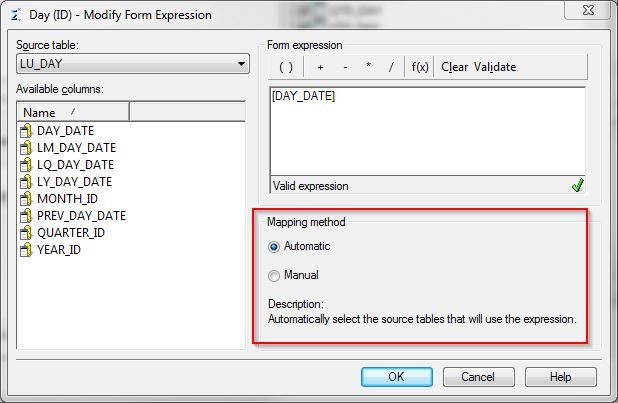
 

AUTOMATIC MAPPING IN THE ATTRIBUTE FORM EXPRESSION


ka02R000000kbDqQAI_0EM440000002C9X.jpeg

When you create the expression, you can select Automatic or Manual mapping method. Automatic mapping selects for you all available tables that contain the columns being used in the expression as source tables. Manual mapping means that you manually select each table that contains the column used in the expression. Strategy recommends you choose Automatic if you are unsure what tables contain the column used in the expression.
The default mapping method for the first expression in a form is Automatic. The default for each subsequent expression created is Manual. If you define a constant as an expression when creating an Implicit attribute, you must set the mapping to Manual.
If you select the Automatic mapping method when you are adding new tables to the project through Warehouse Catalog, this attribute is mapped to those new tables if they contain the columns used to define the expression. This mapping method saves you from manually mapping objects to these new tables.
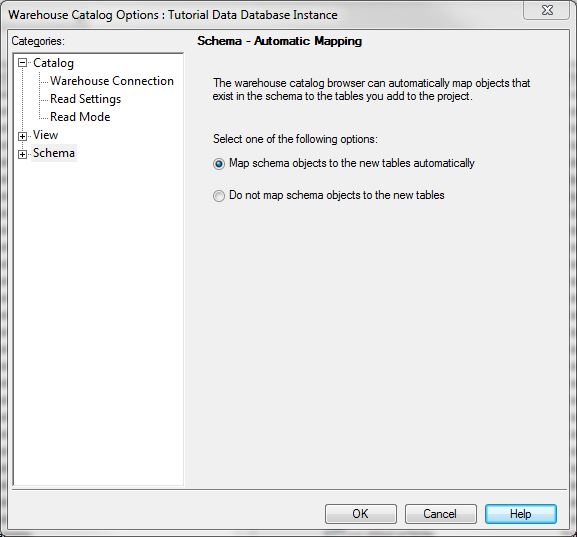
 

AUTOMATIC MAPPING IN WAREHOUSE CATALOG


ka02R000000kbDqQAI_0EM440000002C9Y.jpeg

 
You can select the options that guide the Warehouse Catalog to map schema objects to new tables, using the following options:

  • Map schema objects to new tables automatically: Select to map schema objects automatically to new tables. Objects in the schema automatically map to tables you add to the project.
  • Do not map schema objects to the new tables: Select to NOT map schema objects automatically to new tables. Objects in the schema are NOT automatically mapped to tables you add to the project.


REQUIREMENTS FOR AUTOMATIC MAPPING TO OCCUR

 
In order for schema objects to map automatically to new tables added to the project, or when a column that didn't exist previously is added to an existing table after the table's structure is updated, the following conditions must be satisfied:
 

  1. The Warehouse Catalog setting must be set to "Map schema objects to new tables automatically".
  2. The schema objects must be set to "Automatic" for their mapping methods.
  3. In the Read Settings in Warehouse Catalog, the "Use most recent datatype" or "Use maximum denominator datatype" must be used.
  4. The column(s) referenced in the form expression must have the same name and data type as the column(s) being introduced into the project.

 
If any of the above are not satisfied, then automatic mapping will not occur. In addition, if a schema object references a table which is not selected as a source table, automatic mapping will not check it as such, as there may be certain source tables that are not meant to be mapped to certain attributes and facts. In order to force the GUI to select all source tables for a particular form expression, one must do the following:
 

  1. Edit the attribute form expression/fact expression.
  2. Switch the radio button from Automatic to Manual.
  3. Switch the radio button back from Manual to Automatic.
  4. Hit OK and save the attribute/fact.

Comment

0 comments

Details

Knowledge Article

Published:

June 8, 2017

Last Updated:

October 26, 2017