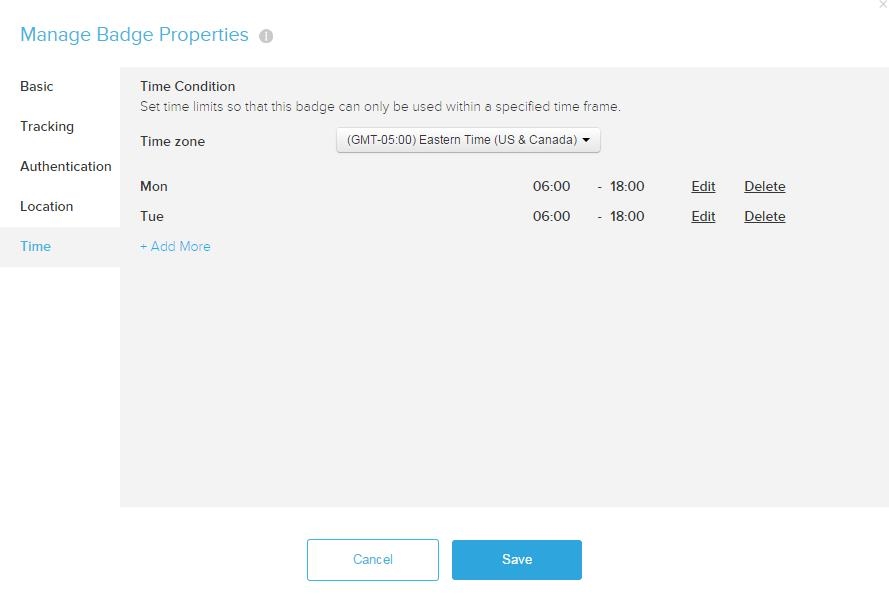
Summary: Usher has capability to restrict end users' access to a badge by setting up Geolocation and/or Time condition. This technical note explains how the administrator of Usher Network can setup such condition.
Note: These are badge level settings and will affect all the users of the badge.
Setting Geolocation restriction on Usher badge
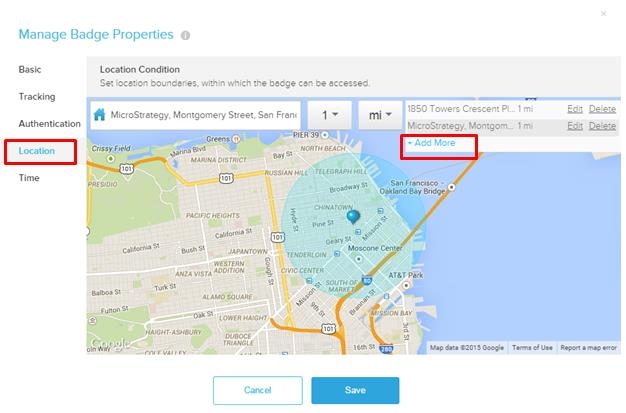
Once the network admin sets up this restriction, the end users can only use the Usher badge when they are in the specified location(s). Multiple locations can be setup through Network Manager.
In order to setup the geolocation restrictions, here are the steps the Usher Network admin can take
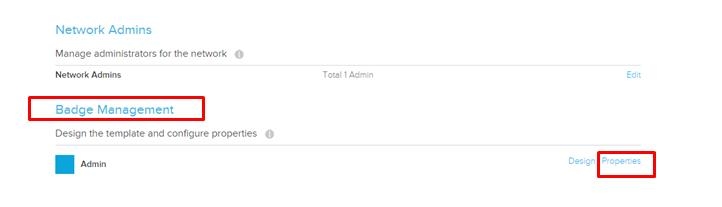
3. Under properties, click on "location" . Then you can enter the address and the radius that you want to enable access for the badge. You can use "Add More" button to add multiple locations. In the screenshot below, there are two different locations for which the badge is enabled.
Setting Time restriction on Usher badge
The setting to set time condition on Usher badge is located at the same screen as the location condition settings as shown on the screenshot above. (In Network Management tab, under badge management).
Here are the steps to set Time restriction on a badge
1. On the badge properties screen, click "Time". It will open up a new screen.
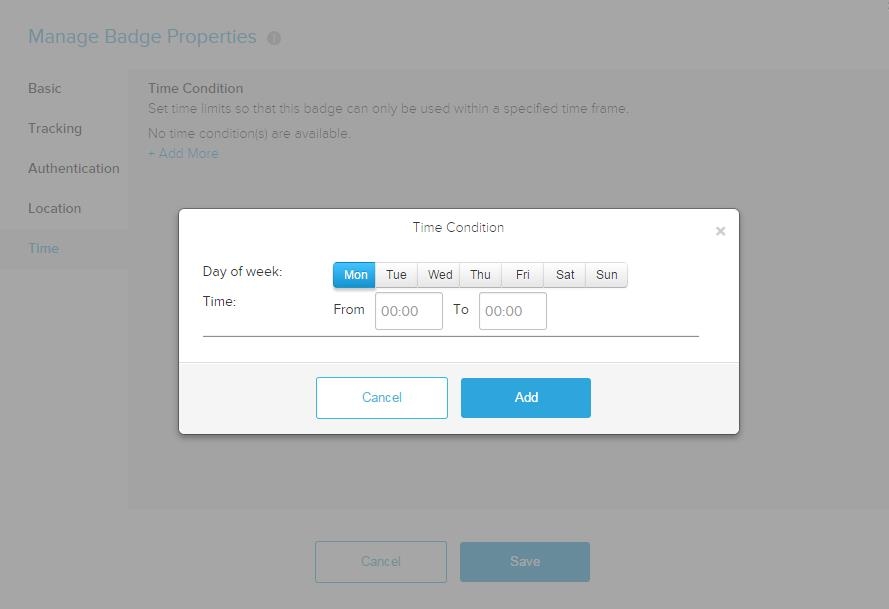
2. Click " Add More" and the following screen will pop open. You would then click on a day and type in the time. Click add.
Note: 24 hour format for the time should be used.
3. One you specify the time for a day, you can pick the correct time zone. You can also click "Add More" to add more days of the week. Click "Save" when you are done.