SUMMARY:
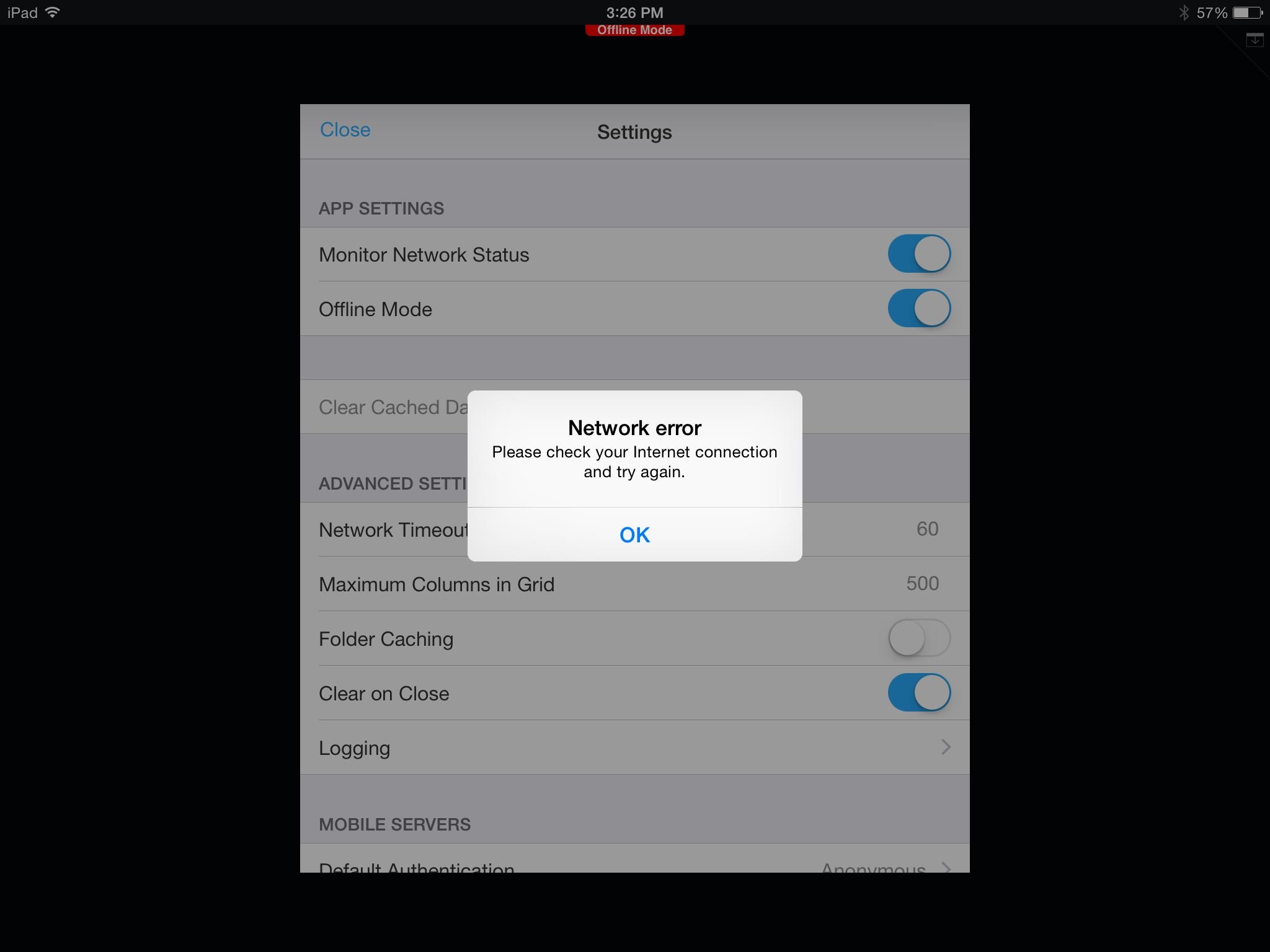
This technical note explains the cause of the error “Please check your internet connection and try again” that occurs when a user attempts to clear caches in offline mode using “Clear Cached Data” in 9.4.1 Update 4 Mobile SDK (build 9.4.1304.0151) on a document that is used as a home screen. It works as designed. See CAUSE section for the explanation. Workarounds are available to avoid the error.
SYMPTOM:
A user sets a document as a home screen. It contains a button that configured to “Go to Settings screen”. On iPad in MSTR 9.4.1 Update 4 Mobile SDK, a user attempts to “Clear Cached Data” in offline mode and receives an error “Please check your Internet connection and try again” and then a black screen displayed after pressing on "Ok":


STEPS TO REPRODUCE:
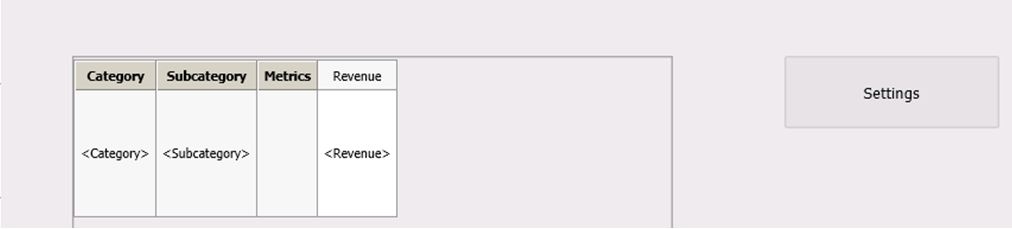

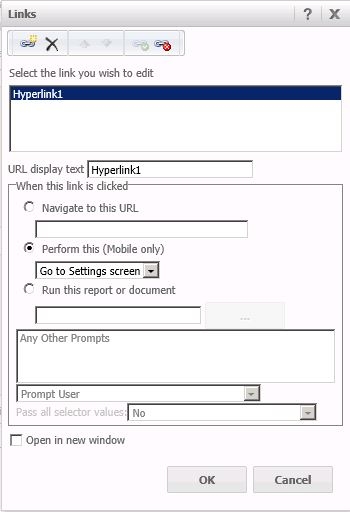
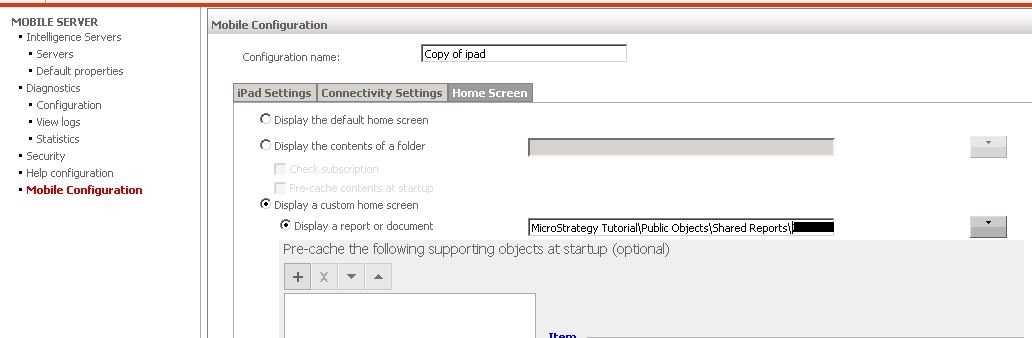
7. On iPad with MSTR 9.4.1 Update 4 Mobile SDK (build 9.4.1304.0151) installed, open the app, click on the Settings button on the document and enable “Offline Mode”:

8. Close the window to get the setting applied

9. Open the setting again and click on “Clear Cached Data”. Confirm the operation:

10. The network error appears:
CAUSE:
It is by design. Since the document is set as a home screen and its caches are cleared, the document has to be closed as there is no data (caches) to display a content of the document in offline mode. Since it cannot be closed (because of a home screen), thus a client wants to check with i-server to get the data and finds no Internet connection due to Offline mode, the error displays "Please check your Internet connection and try again" and a black home screen shows.
Enhancement request logged to Technology to disable the "Clear Cached Data" option when a document is used as a Home screen.
ACTION / WORKAROUND:
- Remove the document as a home screen from Mobile configurations.
- Run the document in iPad and close it. As shown below the caches for the document are created
- Open the document again and click on the settings. Click on “Clear” to confirm the cache deletion
- The document gets closed automatically and the document is greyed out since the caches do not exist for the document:

However, old cache information is still displayed.
- After disabling the Offline mode, the page gets updated and as shown below, there is no cache information any longer:

2. Do not clear caches in offline mode if the a document is set to Home screen
ADDITIONAL TROUBLESHOOTING:
If the steps above do not resolve the issue, please consider calling Strategy tech support with the following information of troubleshooting already done:
