EducationSoftwareStrategy.com
StrategyCommunity

Knowledge Base

Product

Community

Knowledge Base

TopicsBrowse ArticlesDeveloper Zone

Product

Download SoftwareProduct DocumentationSecurity Hub

Education

Tutorial VideosSolution GalleryEducation courses

Community

GuidelinesGrandmastersEvents
x_social-icon_white.svglinkedin_social-icon_white.svg
Strategy logoCommunity

© Strategy Inc. All Rights Reserved.

LegalTerms of UsePrivacy Policy
  1. Home
  2. Topics

KB226847: After a password change users are prompted for login credentials upon every launch of the MicroStrategy Mobile for iOS 9.5.0 application


Community Admin

• Strategy


This document discusses an issue where users are prompted for credentials upon launching MicroStrategy Mobile for iOS 9.5.0 every time the application is launched.

SUMMARY:
This document discusses an issue where users are prompted for credentials upon launching Strategy Mobile for iOS 9.5.0 every time the application is launched.
 
SYMPTOM:
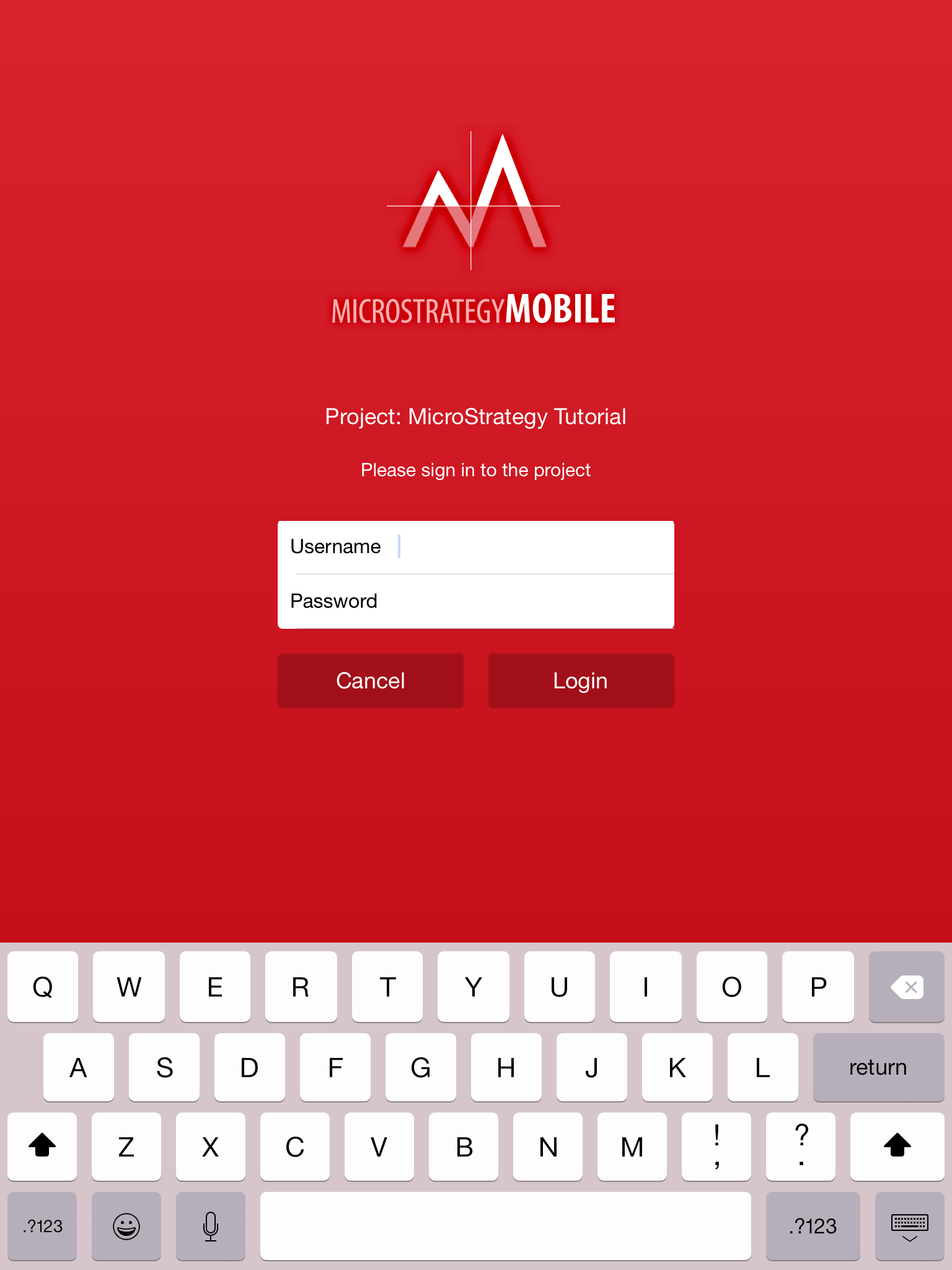
After having changed a user password, that particular user is prompted for credentials every time the mobile application Strategy Mobile for iOS 9.5.0 is launched.
ka04W000000OdduQAC_0EM440000002A0M.jpeg

 
CAUSE:
This is a known issue in the Strategy Mobile 9.5.0 application.  The issue occurs because the configuration applied for the application still has the previous credentials stored.  This leads to the authentication failing every time the application is launched, so it prompts again for credentials.
 
ACTION:
This issue is addressed in Strategy Mobile 10 for iOS. Upgrade to this version to take advantage of the fix.
 
WORKAROUND
There are two ways to get the configuration to update the credentials for the mobile application.

  • Re-apply the mobile configuration link on the device. This will prompt for the users credentials upon selecting the link, but will store the new credentials properly and not prompt again.
  • Follow the below steps:
    a. Go into Settings within the app.
    b. Select the Mobile Server being connected to (notice it is now red due to the old credentials)
ka04W000000OdduQAC_0EM440000002A0G.jpeg
  • c. Go to Default Authentication and alter the password set within here.
ka04W000000OdduQAC_0EM440000002A0K.jpeg
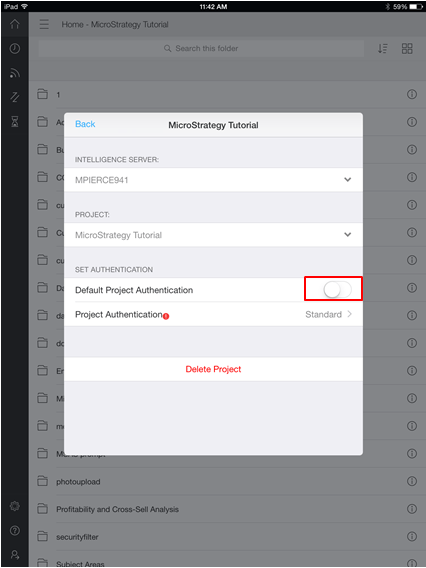
  • d. Hit back and now select the individual project. Within here, uncheck  "Default Project Authentication" and then re-select it (this allows the changed credentials to be fully stored now).

ka04W000000OdduQAC_0EM440000002A0Q.jpeg

 
This issue is being tracked by internal reference number 1013700


Comment

0 comments

Details

Knowledge Article

Published:

April 10, 2017

Last Updated:

April 10, 2017