EducationSoftwareStrategy.com
StrategyCommunity

Knowledge Base

Product

Community

Knowledge Base

TopicsBrowse ArticlesDeveloper Zone

Product

Download SoftwareProduct DocumentationSecurity Hub

Education

Tutorial VideosSolution GalleryEducation courses

Community

GuidelinesGrandmastersEvents
x_social-icon_white.svglinkedin_social-icon_white.svg
Strategy logoCommunity

© Strategy Inc. All Rights Reserved.

LegalTerms of UsePrivacy Policy
  1. Home
  2. Topics

KB226876: Pressing a back button during a prompt after drilling to a prompted template causes "Job Expired" error in MicroStrategy Web


Community Admin

• Strategy


Pressing a back button during a prompt after drilling to a prompted template causes "Job Expired" error in MicroStrategy Web

  
SUMMARY:
The Technical Note describes the issue  where "Job expired" error appears when users press a Back button on a prompt page after drilling to a prompted template. This issue has been classified as a defect by Strategy. The issue was found in Strategy Web 9.3.1. There are workarounds for this issue. Currently this issue is still being reviewed for feasibility by our Technology team and it is not scoped for any upcoming scheduled Strategy release.
 
SYMPTOM:
Users drill to the prompted template from a grid on the document and on the prompt page users press on Back button to come back to the document again, this action cases “Job Expire” error in Strategy Web 9.3.1:
 

ka04W000000Odu3QAC_0EM4400000025lW.jpeg


Job Expired
The results for this report are no longer available. Possible reasons are a) History List message results are unavailable, b) Insufficient privileges for executing multiple reports simultaneously, or c) the Working Set has reached the maximum number of reports.

 
STEPS TO REPRODUCE:

  1. In Strategy Tutorial, create a template that contains a prompt or use out of the box template such as “Customer Analysis” and add an attribute prompt. Save the template as “Customer Analysis with a prompt”:
ka04W000000Odu3QAC_0EM4400000025kj.jpeg

 
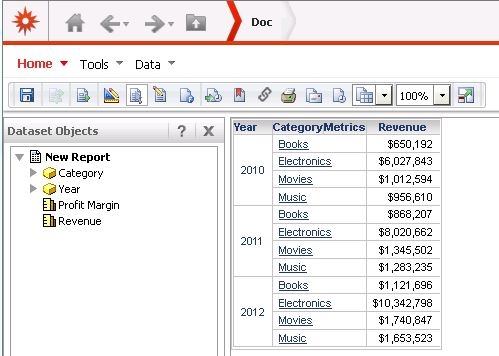
2.  Create a report with Year, Category attributes and Revenue metric
3.  Create a grid on a document that contains mentioned above schema objects. Save the document:

ka04W000000Odu3QAC_0EM4400000025l8.jpeg

4.  Open the document in the Design mode in MSTR Developer, click on Data menu and select  "Edit Drill Map"
5. In a Drill Map Editor,  click on Year attribute (origin) and add the prompted template, “Customer Analysis with a prompt” to the drill map

ka04W000000Odu3QAC_0EM4400000025l0.jpeg

6.  Save the document.
7.  Run the document in Web. Right click on Year attribute on the grid and drill to the template, Customer Analysis with a prompt:

ka04W000000Odu3QAC_0EM4400000025l9.jpeg


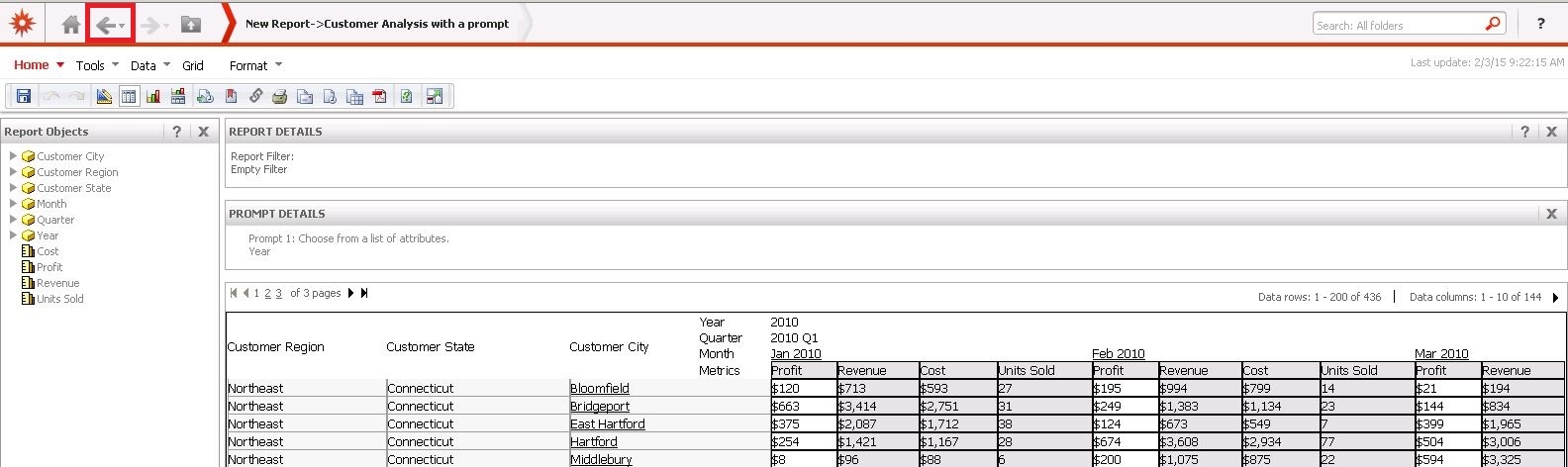
  1. On the prompt page press the Back button as shown below:
ka04W000000Odu3QAC_0EM4400000025l6.jpeg
  1. "Job Expired" error occurs
ka04W000000Odu3QAC_0EM4400000025lD.jpeg


Job Expired
The results for this report are no longer available. Possible reasons are a) History List message results are unavailable, b) Insufficient privileges for executing multiple reports simultaneously, or c) the Working Set has reached the maximum number of reports.

 
CAUSE:
It appears to specifically affect documents where users drill to a prompted template and on the prompt page press on the Back button in Strategy 9.3.1. This has been classified as a defect.
 
ACTION: 
Currently this issue is still being reviewed for feasibility by our Technology team and it is not scoped for any upcoming scheduled Strategy release.
 
WORKAROUND:   

  1. On the prompt page, select a prompt answer and click on the “Run report”
ka04W000000Odu3QAC_0EM4400000025lY.jpeg
  • In a report, click on the back button as shown below:
ka04W000000Odu3QAC_0EM4400000025la.jpeg
  • Prompt page gets displayed without issue:
ka04W000000Odu3QAC_0EM4400000025l2.jpeg
  • Click on the Back button again to navigate back to the document:
ka04W000000Odu3QAC_0EM4400000025l7.jpeg

NOTE: The issue occurs only when users attempt to navigate back to the document from the prompt page using Back button
 

  1. On the prompt page, in a drop down menu there is a list of the recently executed documents and recently visited folders. Issue will occur after selecting Document (Doc) but there is no error after navigating back to Shared Reports folder or any other folder in the list. Thus, users can navigate the the folder where the document is saved and re-run it again.
ka04W000000Odu3QAC_0EM4400000025lU.jpeg


ADDITIONAL TROUBLESHOOTING:
If the steps above do not resolve the issue, please consider calling Strategy tech support with the following information of troubleshooting already done:

  • Results of testing the workarounds, provide  steps to reproduce the issue, an engineer will test to confirm if it is the same issue


The Strategy Internal Reference Number for the issue discussed in this technical note is 997030.


Comment

0 comments

Details

Knowledge Article

Published:

June 15, 2017

Last Updated:

June 15, 2017