This technical note outlines how to pass the contents of a Command Line execution to a parameter in a workflow in Strategy System Manager.
In some scenarios, it is useful to obtain the results of a Command Line execution and pass them into a parameter in System Manager. The workflow subset to achieve requires use of redirection operators in Windows. The steps to achieve the above are as follows:
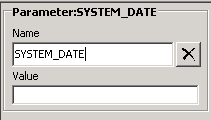
1. Create a new parameter by going to the Parameters pane in the right of the System Manager GUI. Leave the value blank.
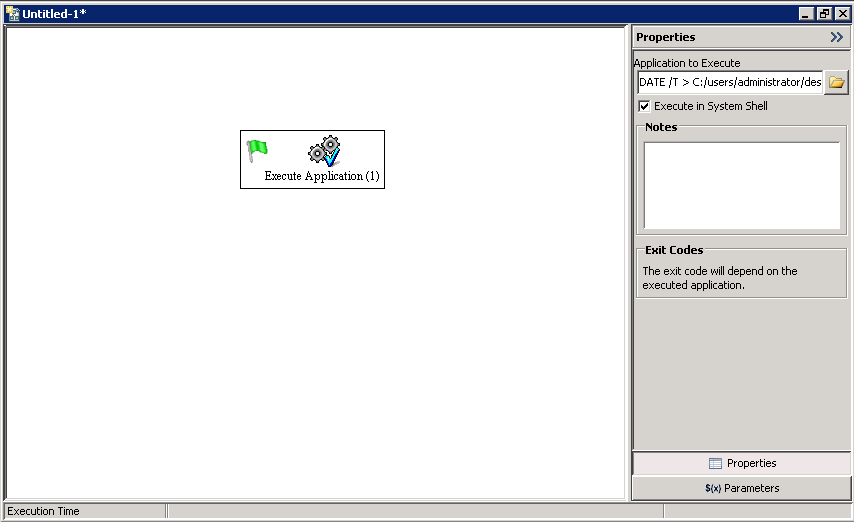
2. Create an Execute Application node in the workflow. Check the check box for Execute in System Shell and under Application to Execute, use the following syntax:
"desired command without quotes" > C:/Absolute/Path/To/file.txt
DATE /T > C:/users/administrator/desktop/systemdate.txt
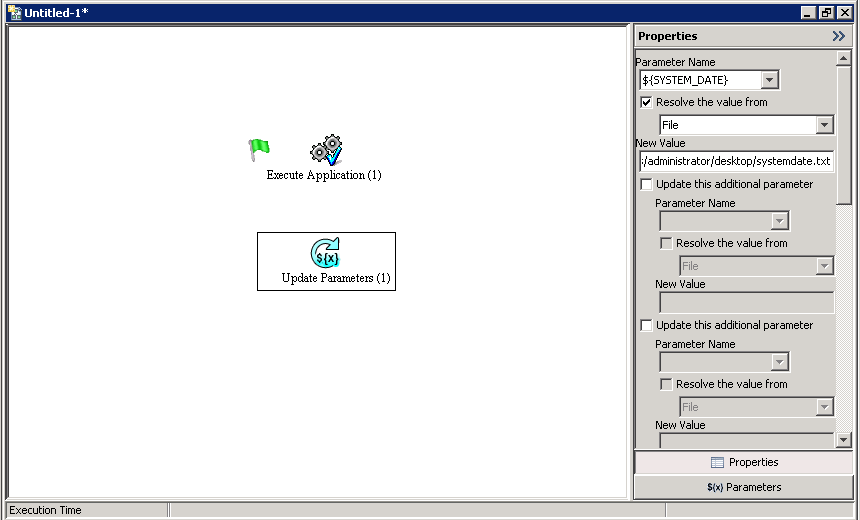
3. Create an Update Parameters node, select the parameter created in Step 1, check the "Resolve the value from" check box and make sure the drop down below that check box is set to File. Add the same file path with file name from the node in Step 2 into the New Value section. In this example, that would be the following:
C:/users/administrator/desktop/systemdate.txt
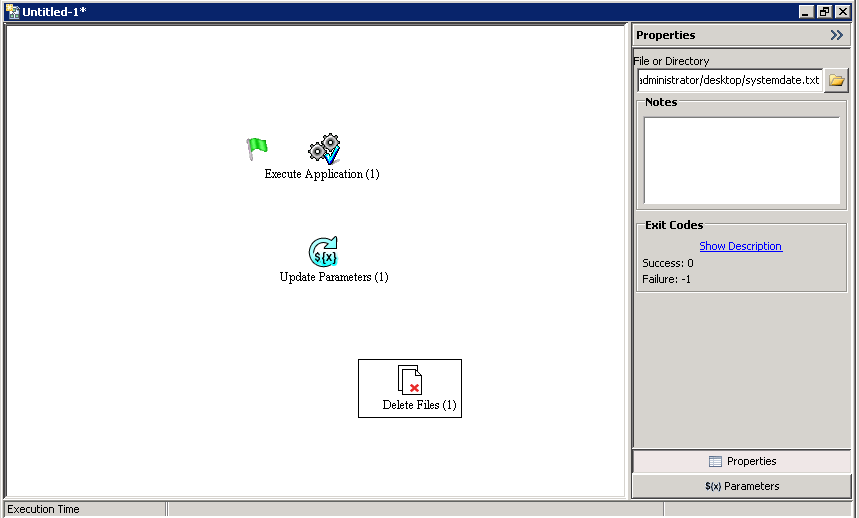
4. Create a Delete Files node that deletes the file. Use the absolute path in front of the file name here as well.
5. Add a Success or Continue connector from the Execute Application to the Update Parameters node. Add another Success or Continue connector from the Update Parameters node to the Delete Files node.
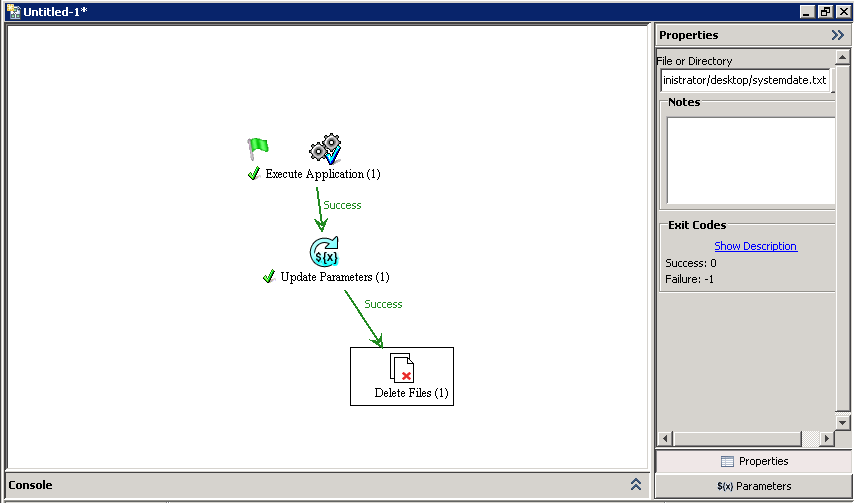
If done as specified above, this part of the workflow should pass the results of the Command Line operation to the System Manager parameter.
