A user encounters errors when trying to publish a Data Import cube from an Excel file in Strategy Web 9.4.1 when attribute columns are mapped to geographical roles. The errors described in this particular scenario occur by design as a result of tampering with some of the default installation files found in the Intelligence Server folder. This tech note explains why the issue and errors occur, and how to resolve it. The impact is specific to mapping geographical roles to columns within a Data Import cube in Strategy Web 9.4.1.
Description
User receives one of two potential error messages when using Data Import feature with an Excel file, and mapping an attribute column to a geographical role in Strategy Web 9.4.1.

Spoiler (Highlight to read)
Error saving and publishing the Cube: (QueryEngine encountered error: Transform failed. Object does not exist.
Error type: Data Import Error. Failed to initialized Geo/Time lookup tables.. Error in Process method of Component: QueryEngineServer, Project X, Job Y, Error Code= -2147212544.)
Error saving and publishing the Cube: (QueryEngine encountered error: Transform failed. Object does not exist. Error type: Data Import Error. Failed to initialized Geo/Time lookup tables.. Error in Process method of Component: QueryEngineServer, Project X, Job Y, Error Code= -2147212544.)

Spoiler (Highlight to read)
Error saving and publishing the Cube:com.Strategy.webapi.MSTRWebAPIException: (Cannot insert node because tree was non-empty, and the type of the new node cannot have children.)
Error saving and publishing the Cube:com.Strategy.webapi.MSTRWebAPIException: (Cannot insert node because tree was non-empty, and the type of the new node cannot have children.)
This same issue can also occur when using Data Import feature with an Excel file, and mapping an attribute column to a geographical role in Strategy Web 9.3.0, however the errors are different.
Steps to Reproduce

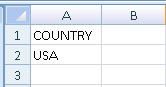

Cause
The error messages occur by design because the Country.csv file that was moved out of the Intelligence Server folder is what is referenced and used when using the Country geographical role in Data Import. Country.csv is one of 4 CSV files that are a part of the default installation of Strategy, and modifying, moving, or deleting these files can cause issues when trying to map geographical roles to attributes in Data Import.
The 4 CSV files are: City.csv, Country.csv, State.csv, and Zipcode.csv

Action
To resolve the error messages in this specific scenario, restore the CSV file(s) that is/are missing from the Intelligence Server folder, and restart the Intelligence Server. The files can be quickly restored by transferring a copy of the file from one environment to another, copy and pasting from one environment to another, or by performing a repair of the installation. Transferring the files themselves would most likely be the quickest option to resolve these errors.
It should be noted that these error messages in this specific scenario should not occur if the CSV files in the Intelligence Server folder are not modified, moved, or deleted. Tampering with the default installation files should not be performed unless specifically instructed by Strategy Technical Support for very specific reasons, or for very specific customization purposes that are understood by the developers. Besides these very few, and very specific scenarios, tampering with the default installation files is not supported.
Additional Information
Refer to Chapter 4: Creating and Configuring a Project, section “Strategies to include supplemental data in a project”, and subsection “Integrating geographical information with your imported data” in the Project Design Guide product manual for more information about geographical roles


