Summary:
This Technical Note describes the steps to schedule periodic updates for Intelligent Cubes created with user imported data. This functionality is only available in Strategy Web, and requires Distribution Services.
Description:
Once a user imports data from a file, database or Freeform script, attributes and metrics are defined from this data to create reports, documents and visualizations in Strategy Web. This data is imported and published as an Intelligent Cube. Cubes imported from databases and Freeform scripts can be updated based on a specific schedule to make sure that the report objects in the Intelligent Cube are up-to-date based on the data in the data source. To have an Intelligent Cube updated on a specific schedule, a subscription must be created to send the Intelligent Cube to the History List. After the Cube is sent to the History List, it is republished with data drawn from the original source.
Note: This functionality is not available for Intelligent Cubes sourced from local files.
Action:
The following steps require that the user has already created a Data Import Cube sourced from either a relational database, or from a Freeform SQL script. In order to schedule an update for an Intelligent Cube, the user must have the Distribution Services product.
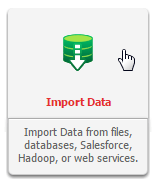
To schedule updates for an Intelligent Cube, first click the “Data Import” button to bring up the list of existing Data Import Cubes.
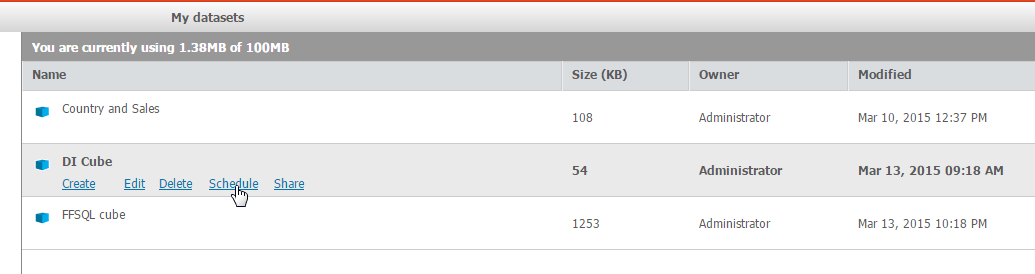
Hover over a cube, and select the “Schedule” link to bring up a list of existing subscriptions for that cube.
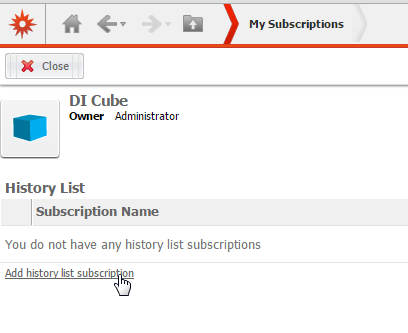
Click the “Add history list subscription” link near the bottom of the screen to open the subscription dialog box.
Type a name for the subscription in the Name field, and select the frequency with which you want to update the Intelligent Cube and from the Schedule drop-down list. You can create a new schedule in the Strategy Developer Schedule Manager.
Click “To” to display the Recipients Browser dialog box. Use the right arrow to add recipients to the list. The current user is automatically added to the “To” list by default.
To update the Intelligent Cube immediately, select the “Run subscription immediately” check box.
Click the “Show icon” to expand the Advanced Options, and select the “The new scheduled report will overwrite versions of itself” check box to ensure that newer versions of the Intelligent Cube overwrites itself in the History List.
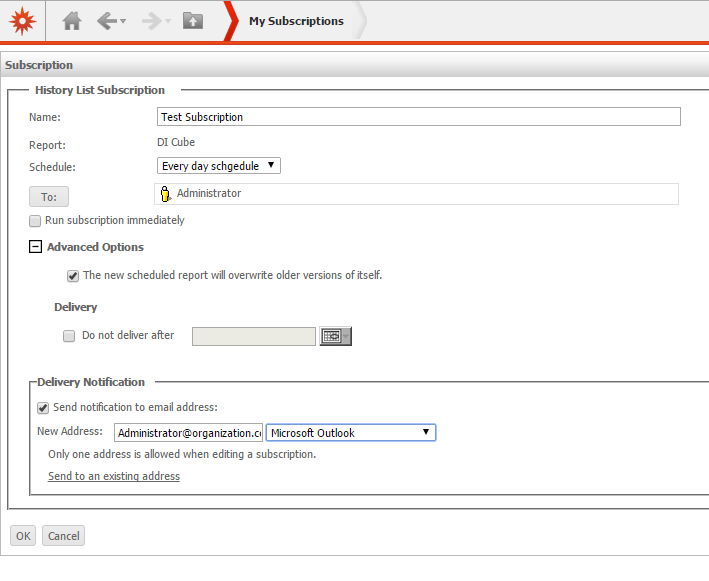
Click OK to create the subscription.
The subscription can be verified by accessing “My Subscriptions”
Additional Information:
Users trying to create a subscription for a cube created from a local file will generate the following error:

Error in My Subscriptions
(Subscription Error: we do not support subscribing local DI cubes)
