EducationSoftwareStrategy.com
StrategyCommunity

Knowledge Base

Product

Community

Knowledge Base

TopicsBrowse ArticlesDeveloper Zone

Product

Download SoftwareProduct DocumentationSecurity Hub

Education

Tutorial VideosSolution GalleryEducation courses

Community

GuidelinesGrandmastersEvents
x_social-icon_white.svglinkedin_social-icon_white.svg
Strategy logoCommunity

© Strategy Inc. All Rights Reserved.

LegalTerms of UsePrivacy Policy
  1. Home
  2. Topics

KB233716: How to pass a System Manager parameter value into a Command Manager script or procedure


Community Admin

• Strategy


KB233716: How to pass a System Manager parameter value into a Command Manager script or procedureKB233716: How to pass a System Manager parameter value into a Command Manager script or procedure

SUMMARY:
In Strategy 9.4.1, the Command Manager task in System Manager does not have an option to input a System Manager parameter. This issue has been classified as an enhancement request by Strategy. There is a workaround available and this document provides detailed instructions on how to pass a System Manager parameter value into a Command Manager script.
 
Passing a System Manager parameter value into a Command Manager script
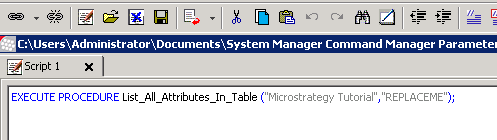
  • Define a specific string in the Command Manager script file for the value to be changed at runtime. For example, the string “REPLACEME” was used in the image below.

ka04W000000OhOiQAK_0EM440000002C8j.jpeg
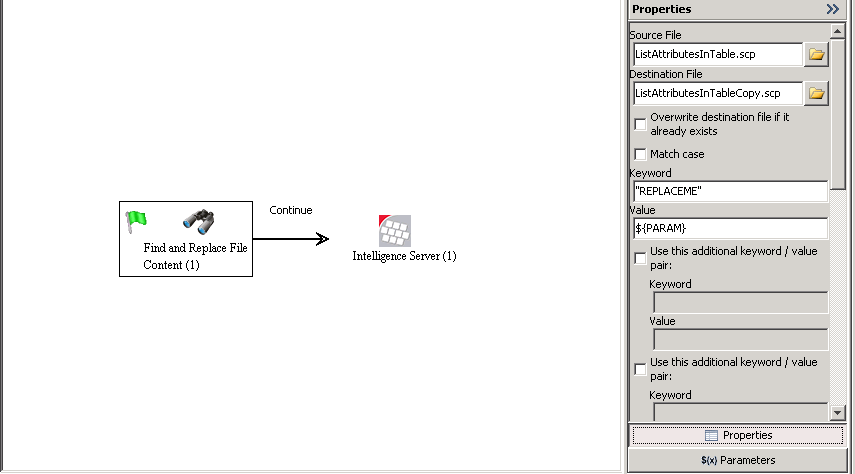
  • In System Manager, use the Find and Replace File Content task to change the string in the Command Manager script file to the parameter value.

    - In the Source File, specify the location of the original Command Manager script file

    - In the Destination File, specify the location for another Command Manager script file. This Command Manager script file will contain the original script file with the string replaced by the parameter value. The Destination file will be created if it does not already exist.

    - The Keyword is the string defined in the Command Manager script to be replaced.

    - The Value will replace the string in the Command Manager script. The value can be a parameter, like in the image below, or it can be a hardcoded value.

ka04W000000OhOiQAK_0EM440000002C8h.jpeg
  • Note: Multiple strings/parameters can be replaced by checking the “Use this additional keyword/value pair” checkbox.
     
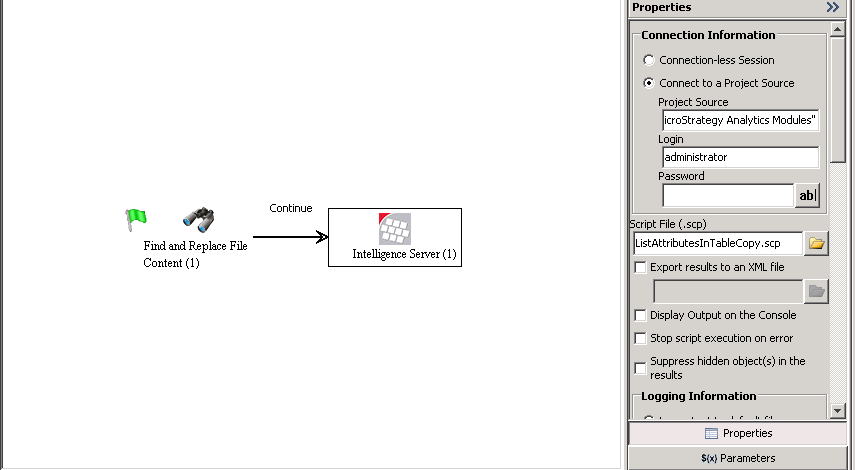
  • Use the Command Manager task to run the newly created Command Manager script file from the previous step.

ka04W000000OhOiQAK_0EM440000002C8i.jpeg


There is an enhancement request  with our Technology Team for the ability to pass a System Manager parameter directly to the Command Manager task. This issue is still being review for feasibility by our Technology Team and is not currently scoped for any upcoming Strategy release.
 
The Strategy Internal Reference Number for the issue discussed in this technical note is 957116.


Comment

0 comments

Details

Knowledge Article

Published:

May 23, 2017

Last Updated:

May 23, 2017