EducationSoftwareStrategy.com
StrategyCommunity

Knowledge Base

Product

Community

Knowledge Base

TopicsBrowse ArticlesDeveloper Zone

Product

Download SoftwareProduct DocumentationSecurity Hub

Education

Tutorial VideosSolution GalleryEducation courses

Community

GuidelinesGrandmastersEvents
x_social-icon_white.svglinkedin_social-icon_white.svg
Strategy logoCommunity

© Strategy Inc. All Rights Reserved.

LegalTerms of UsePrivacy Policy
  1. Home
  2. Topics

KB234617: Authentication Options' Texts are Missing from the Login Page when Enabling Standard and LDAP Authentication Modes in MicroStrategy Web 9s


Community Admin

• Strategy


Authentication Options' Texts are Missing from the Login Page when Enabling Standard and LDAP Authentication Modes in MicroStrategy Web 9s

SUMMARY: In Strategy Web 9s, when both Standard and LDAP authentication modes are enabled for a project, the description texts for both options is not displayed on the login page as shown below:
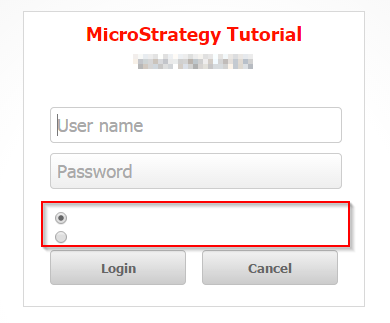
ka04W000000OgyMQAS_0EM4400000025m3.jpeg

This works as expected in Strategy Web 9.4.1 as shown below:
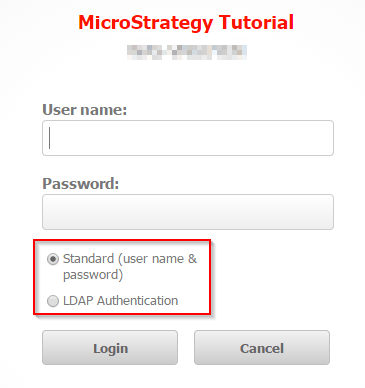
ka04W000000OgyMQAS_0EM4400000025lw.jpeg

 
STEPS TO REPRODUCE:
Follow these steps to reproduce the issue:
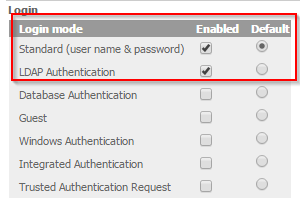
  • For any projects, enable Standard and LDAP Authentication login mode in the Web Administator page as shown below:
ka04W000000OgyMQAS_0EM4400000025ly.jpeg
  • Save the changes and go to Strategy Web
  • Observe the issue as shown above

 
CAUSE:
This is a known issue with Strategy 9s
 
ACTION:
This issue has been fixed in Strategy Web 9.5.1. Take advantage of upgrading for a fix.
 
WORKAROUND:
The following workaround using Strategy Web SDK can be used to overcome the issue:
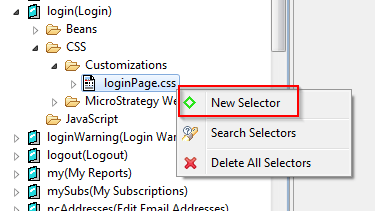
  • Open the Web Customization Editor (WCE) and create a new plugin
  • In the WCE, navigate to Application Settings > Strategy Web Configuration > Pages > login(Login) > CSS > Customizations > loginPage.css
  •  Right click the css file to create a new selector as shown below:
ka04W000000OgyMQAS_0EM4400000025lf.jpeg
  • The selector to be added is named ".mstrLoginFieldsGroup>DIV>label"
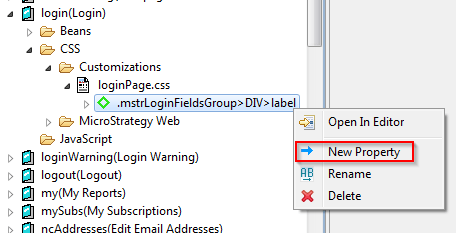
  • Right-click the new selector to add a new property as shown below:
ka04W000000OgyMQAS_0EM4400000025m0.jpeg
  • Add the following properties to the selector:
    [+] Property name: "position" --- Value: "static !important"
    [+] Property name: "line-height" --- Value: "normal !important" (or "16px !important")
    [+] Property name: "display" --- Value: "block !important"
    [+] Property name: "color" --- Value: "#787878 !important"
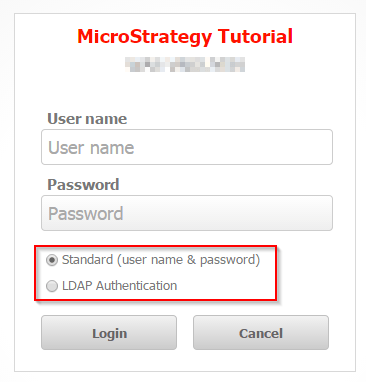
  • Clear all browser caches and refresh the login page to apply the change. The outcome is shown below:
ka04W000000OgyMQAS_0EM4400000025lu.jpeg

ADDITIONAL INFORMATION:
The Strategy SDK allows you to customize the standard Strategy Web interface, and extend and integrate the Strategy business intelligence functionality into other applications. However, before changing the way Strategy Web products look or behave, it is helpful to understand how the application is built. For more information regarding the Strategy Web architecture or the process of customizing Strategy Web, please refer to Strategy Developer Zone (https://resource.microstrategy.com/msdz/).
Customization Warning:
This customization is provided as a convenience to Strategy users and is only directly applicable to the version stated. While this code may apply to other releases directly, Strategy Technical Support makes no guarantees that the code provided will apply to any future or previous builds. In the event of a code change in future builds, Strategy Technical Support makes no guarantee that an updated version of this particular customization will be provided. For enhancements to this customization or to incorporate similar functionality into other versions, contact your Account Executive to inquire about Strategy Consulting assistance.


Comment

0 comments

Details

Knowledge Article

Published:

June 7, 2017

Last Updated:

June 7, 2017